# CTA with socials
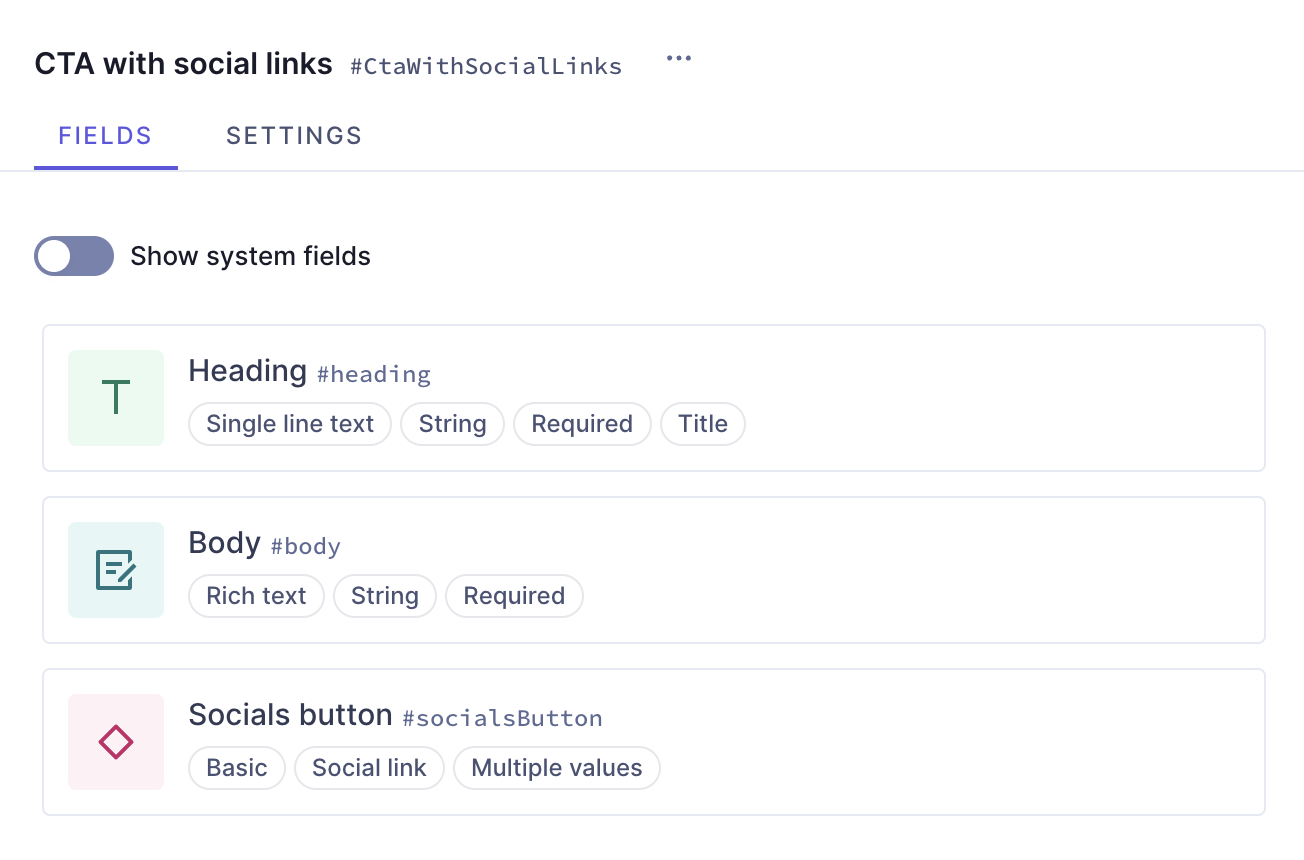
This guide shows how to build a call to action (CTA) with social links containing a heading, a body and a button
## Overview
**Do you have suggestions?:**
Join our community to suggest new recipe ideas!
This guide shows how to build a call to action (CTA) with social links containing a heading, a body and a button.
To create it, we will use a single line text field, a rich text field, slugs, enumerations and components.
You can use this CTA to give more visibility to your social networks!
## Prerequisites
- You need to have a Hygraph account. If you don't have one, you can sign up here.
- You need to have a Hygraph project. You can:
- Create a project: This is the way to go if you want to follow the entire tutorial for learning purposes.
- [Clone the cookbook project:](https://hygraph.com/classic-docs/recipes/cta/cta-socials#clone-project) This is the way to go if you're curious about how the CTAs are made but don't want to follow the step-by-step creation process. This project contains the entire **CTA Cookbook** so you can compare them, or look into what instances they contain.
- **Use an existing project of yours:** If you have a project already and want to add this CTA to it, this is the way to go. In this case, you may need to adjust parts of the tutorial to your own project schema.
**Note:**
- Take plan limits into consideration when adding a recipe to your own project.
- Are you new to Hygraph? You may want to check out our Getting Started Tutorial!
## Core concepts
In this guide, you'll work with enumerations, components and basic component fields. Let's look into these concepts:
- **Enumerations:** an enumeration is a predefined set of values that represents a list of possible options. You can use them to group values within a type.
- **Component**: a predefined set of fields that can be reused across models and content entries. You can think of a component as a flexible, reusable template: you define the fields that will be used inside a component once, and then fill them with different content every time you use it in a content entry.
- **Basic component field**: a component is a special field type in your Hygraph schema that defines which components of which type can be used in a model. Component fields can be of basic or modular types. A **basic component field** can only have one component attached to it. You can limit the number of component instances to one, or allow multiple component instances to be added in the content entry.
## What you can do
This guide offers two paths:
- [Path 1:](https://hygraph.com/classic-docs/recipes/cta/cta-socials/#step-by-step-guide) Use this guide to create a CTA component with social links that you can reuse across different models in your Hygraph projects.
- [Path 2:](https://hygraph.com/classic-docs/recipes/cta/cta-socials/#clone-project) Clone the project that contains the entire **CTA cookbook** to compare the different CTA configurations without having to clone multiple projects.
## Clone project
We have prepared a project that contains the entire **CTA cookbook**:
[Clone this project](https://app.hygraph.com/clone/8284f276a0e941a2b1aa28d9c1011433?name=Hygraph%20Recipes%20-%20CTAs)
This cookbook contains all the recipes we have so far to create calls to action, so you can compare the different CTA configurations without having to clone multiple projects.
To find this particular recipe in the cookbook project, navigate to the schema and look for **"CTA with Social Links"**.
This project also contains a demo model that includes all the CTA components in the cookbook as basic component fields, as well as a modular component field that you can use as a CTA type selector.
## Step-by-step guide
Before we can build our **CTA component with social links**, we need to create a social networks button component that we can later add to our CTA.
To make this guide easier to follow, we've divided it in steps for you.
### 1. Create a social networks button
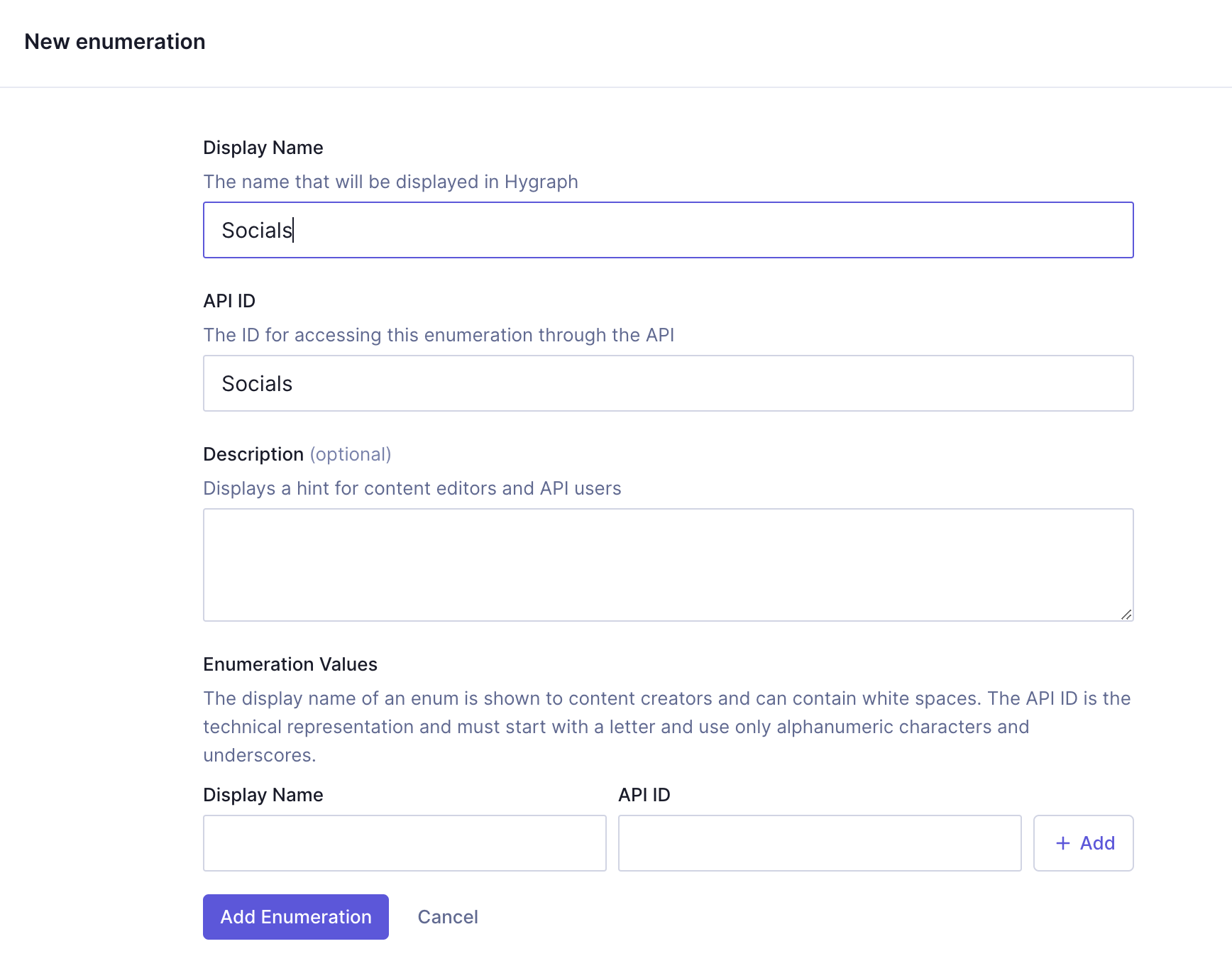
The first step is to create this button, so that we can later include it in our CTA component as a field. We'll start by creating an enumeration that will allow us to select a social network from a dropdown menu.
We'll click `+ Add` next to **Enumerations** and use the following information:
| Field | Input |
| ------------ | ------- |
| Display Name | Socials |
| API ID | Socials |
We'll click `+ Add` to save.
Next, we need to add enumeration values. These are the options we will get when using this later on as a dropdown menu.
For every enumeration value, you need to enter a `Display name`, an `API ID`, and click `Add`.
We'll add the following values:
| Display name | API ID |
| ------------ | --------- |
| Instagram | instagram |
| Facebook | facebook |
| X (Twitter) | xTwitter |
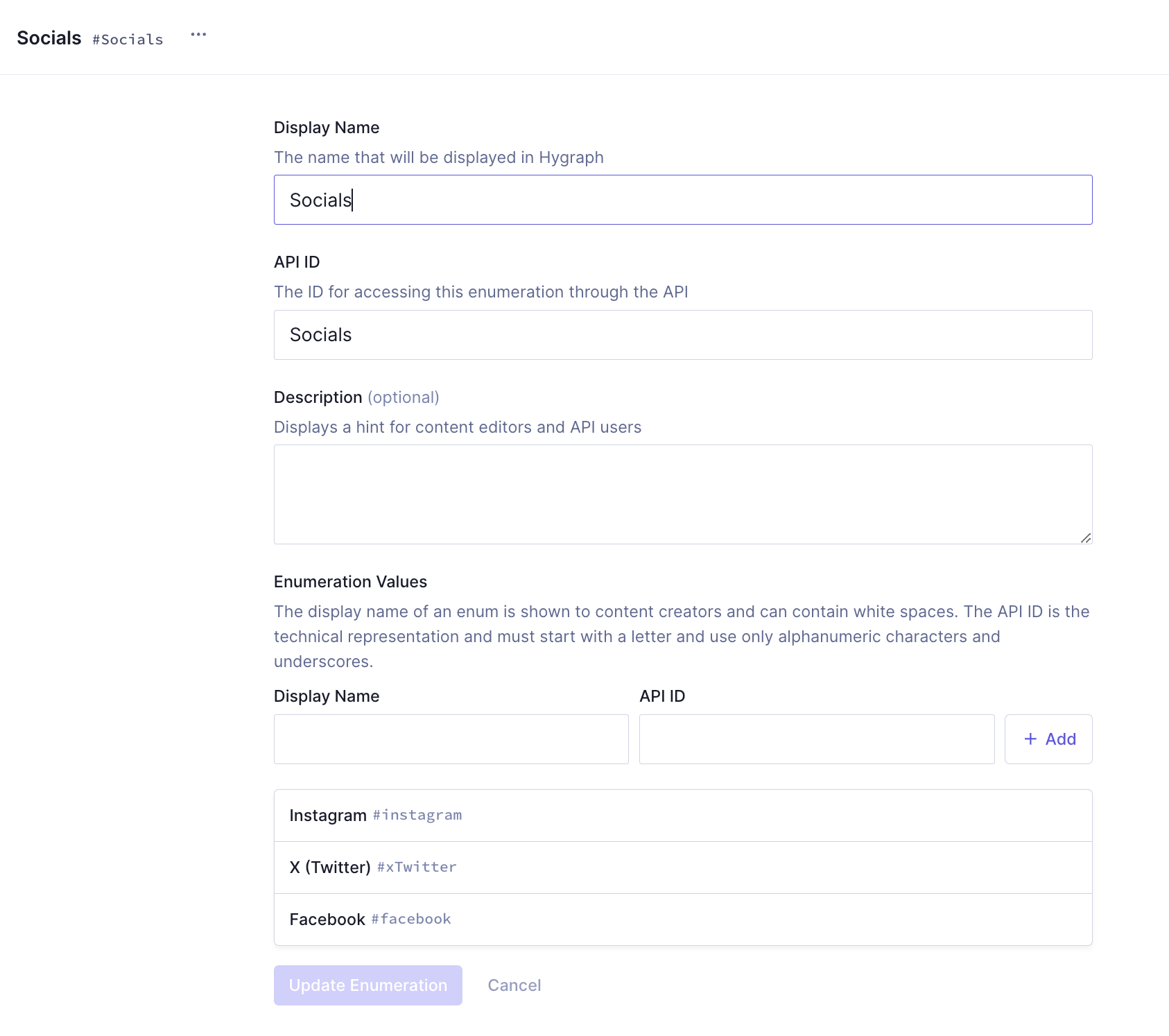
Finally, we'll click `Add enumeration` to save.
For the second step, we'll create a socials link component. We'll click `+ Add` next to **Components** and use the following information:
| Field | Input |
| ------------- | ----------- |
| Display Name | Social link |
| API ID | SocialLink |
| API ID Plural | SocialLinks |
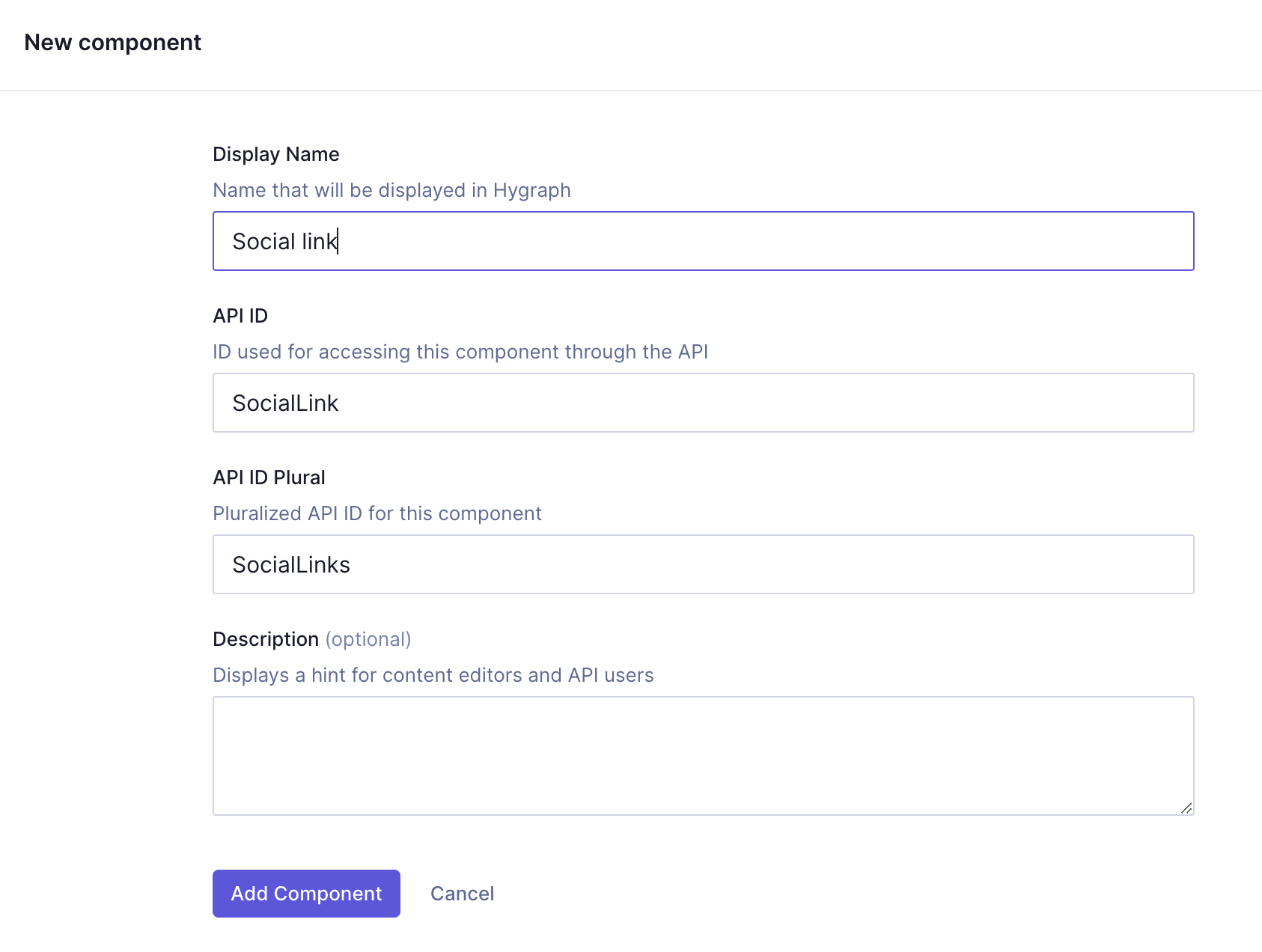
We'll click `Add component` to save. We can now start adding instances to this component.
Let's start with an `Enumeration` field, which will be our dropdown menu. We'll find it on the **Add fields** right sidebar, click on it, and use the following information:
| Tab | Field | Input |
| ----------- | ----------------------------------- | --------------------------------------- |
| Settings | Display Name | Social icon |
| Settings | API ID | socialIcon |
| Settings | Enumeration | Select "Socials" from the dropdown menu |
| Validations | `Make this field required` checkbox | Select this checkbox |
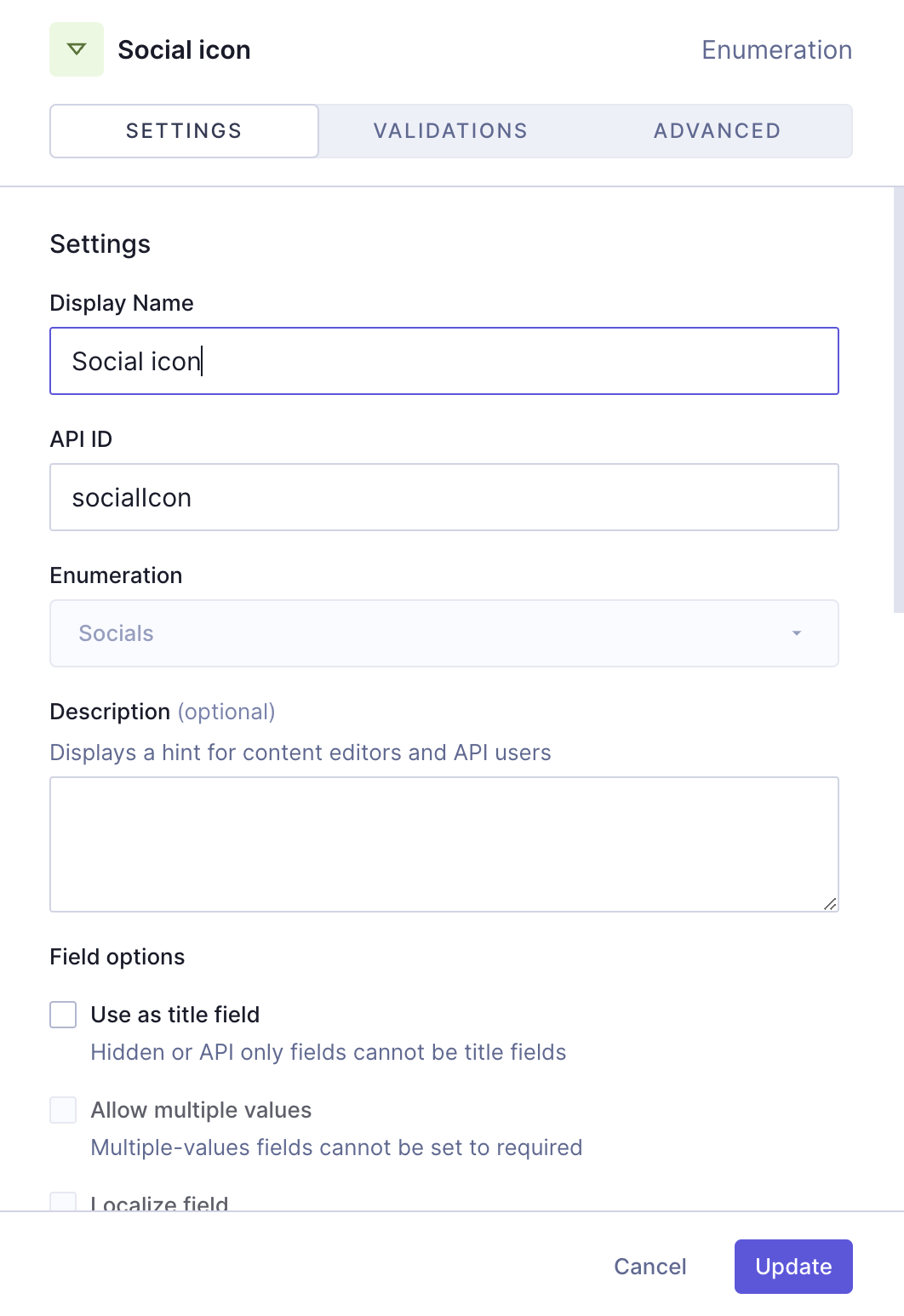
We'll click `Add` to save.
With this configuration, we've ensured that our enumeration field will use the social icons enumeration we created earlier, and will also be a required field.
Finally, let's add a **Slug** field, which will be our socials URL. We'll find it on the **Add fields** right sidebar, click on it, and use the following information:
| Tab | Field | Input |
| ----------- | ----------------------------------- | -------------------------------------------------------------------------------------------------------------------------------------------------------------------- |
| Settings | Display Name | URL |
| Settings | API ID | url |
| Settings | `Lowercase` checkbox | Leave this checkbox selected |
| Settings | `Use as title field` checkbox | Select this checkbox |
| Validations | `Make this field required` checkbox | Select this checkbox |
| Validations | `Set field as unique` checkbox | Leave this checkbox selected |
| Validations | `Match a specific pattern` checkbox | Select this checkbox, and use the dropdown to select the `URL` pattern. Write "Input value does not match the expected format." in the `Custom error message` field. |
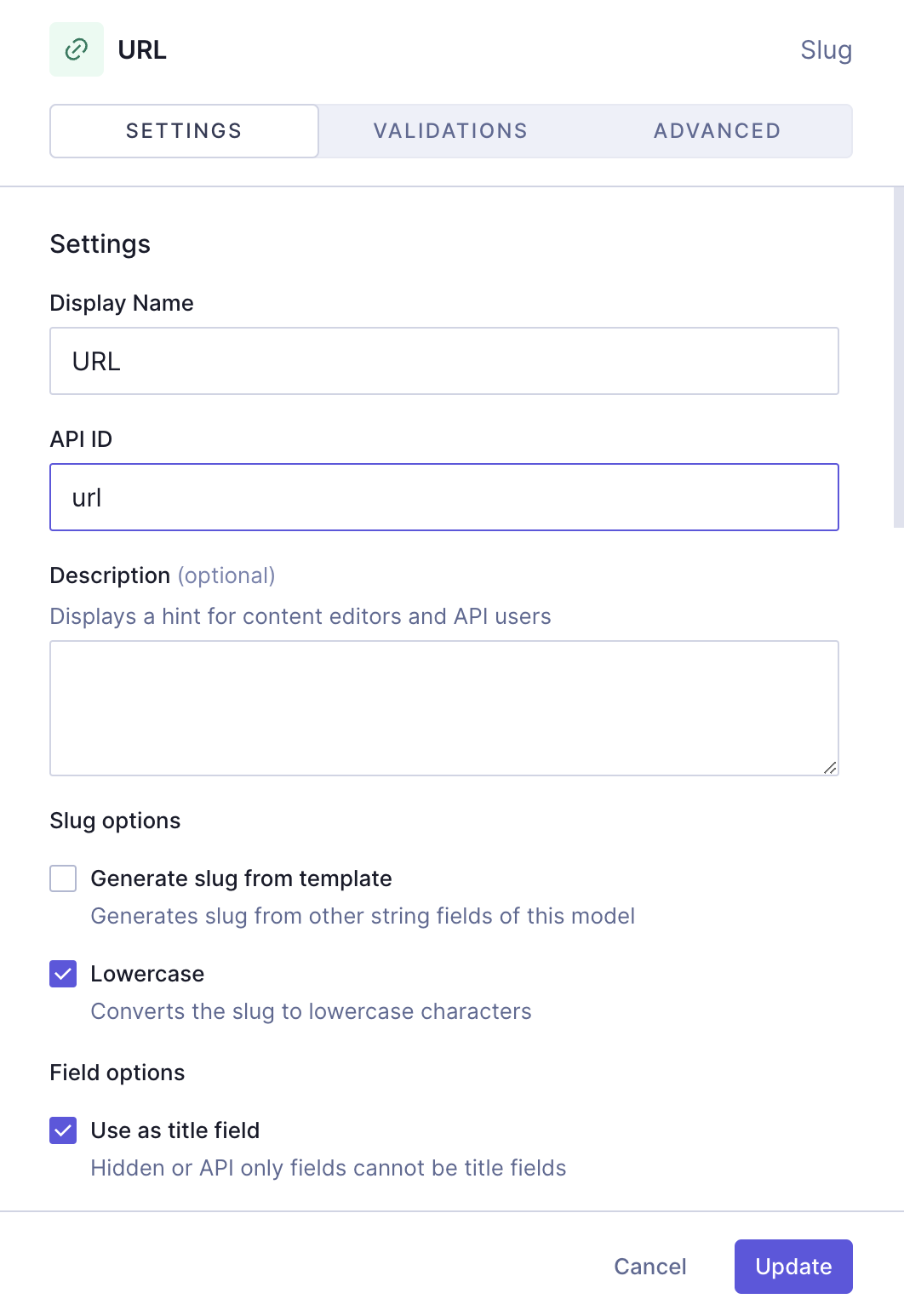
We'll click `Add` to save.
This is how you build a simple social links button component in Hygraph. The next step is to create our CTA component with social buttons, where we will include the component we just created. This is a simple example of how to nest components using Hygraph.
### 2. Create a CTA component with social links
It is time to create the CTA component with social links. We'll click `+ Add` next to **Components** and add it using this information:
| Field | Input |
| ------------- | --------------------- |
| Display Name | CTA with social links |
| API ID | CtaWithSocialLinks |
| API ID Plural | CtaWithSocialLinkss |
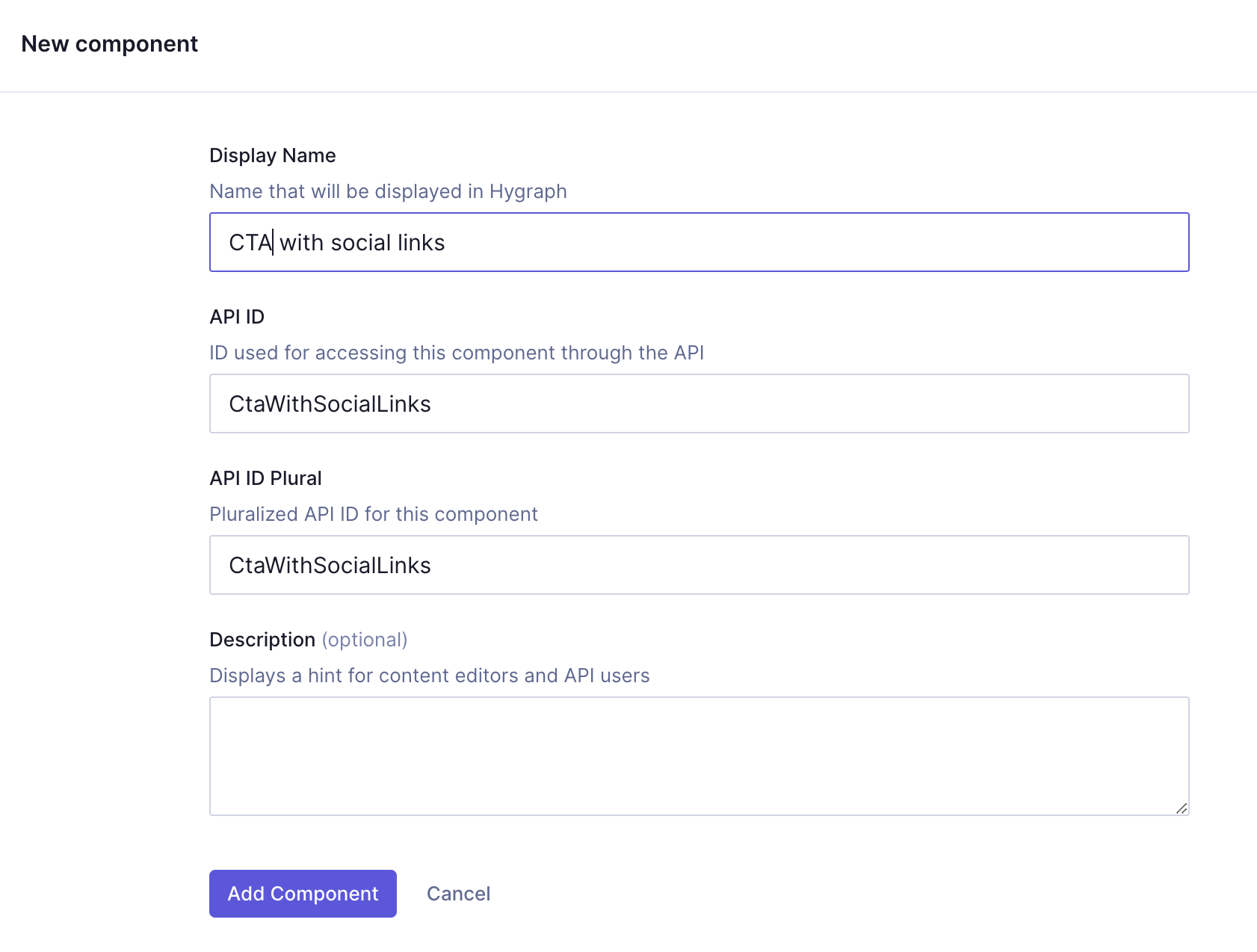
We'll click `Add component` to save.
We can now start adding instances to this component. Let's start with a `Single line text` field, which will be the heading of our CTA. We'll find it on the **Add fields** right sidebar, click on it, and use the following information:
| Tab | Field | Input |
| ----------- | ----------------------------------- | -------------------- |
| Settings | Display Name | Heading |
| Settings | API ID | heading |
| Settings | `Use as title field` checkbox | Select this checkbox |
| Validations | `Make this field required` checkbox | Select this checkbox |
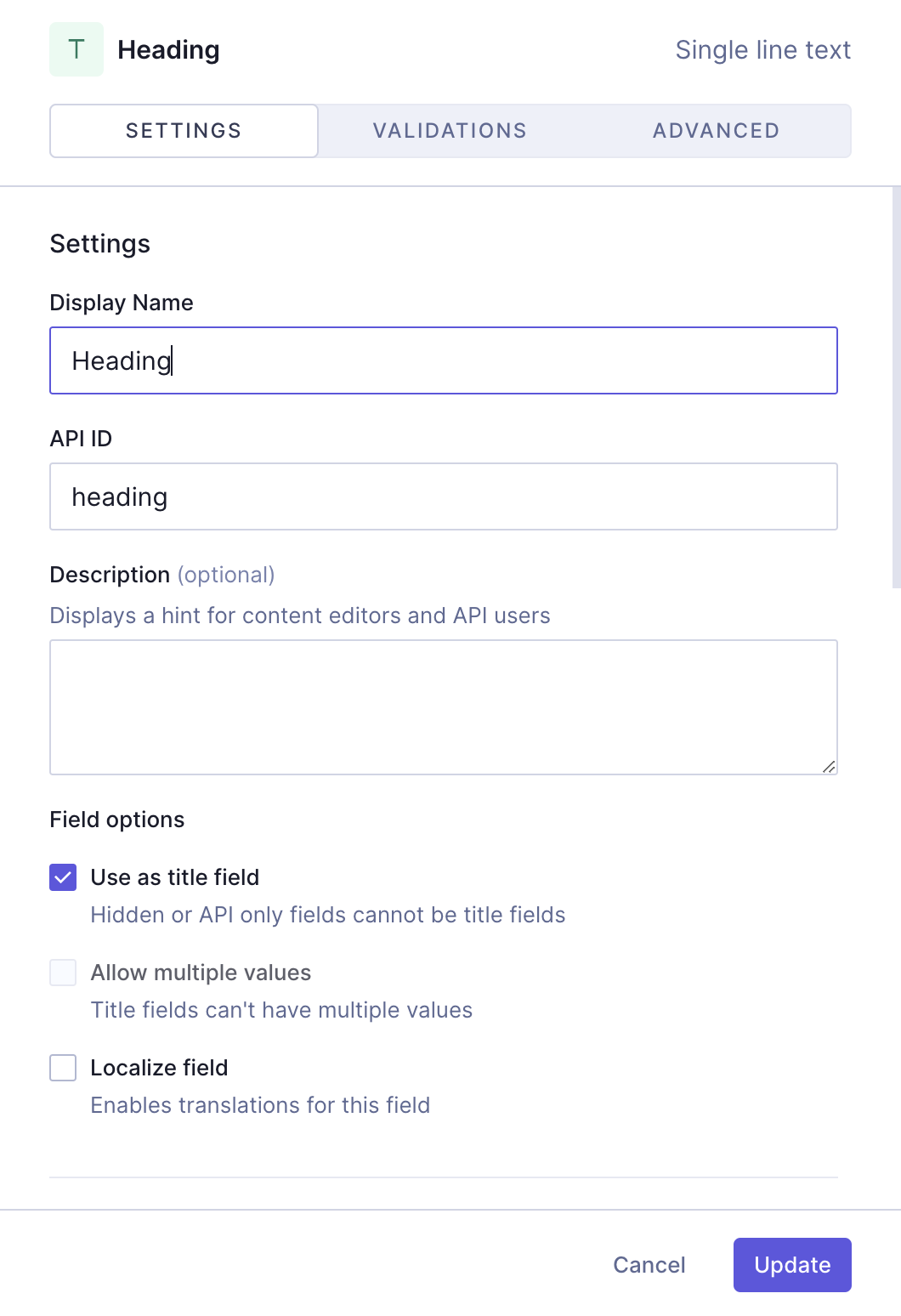
We'll click `Add` to save.
Next, we want to be able to add text to our CTA. To achieve this, we'll add a `Rich Text field` from the right sidebar, using the following information:
| Tab | Field | Input |
| ----------- | ----------------------------------- | -------------------- |
| Settings | Display Name | Body |
| Settings | API ID | body |
| Validations | `Make this field required` checkbox | Select this checkbox |
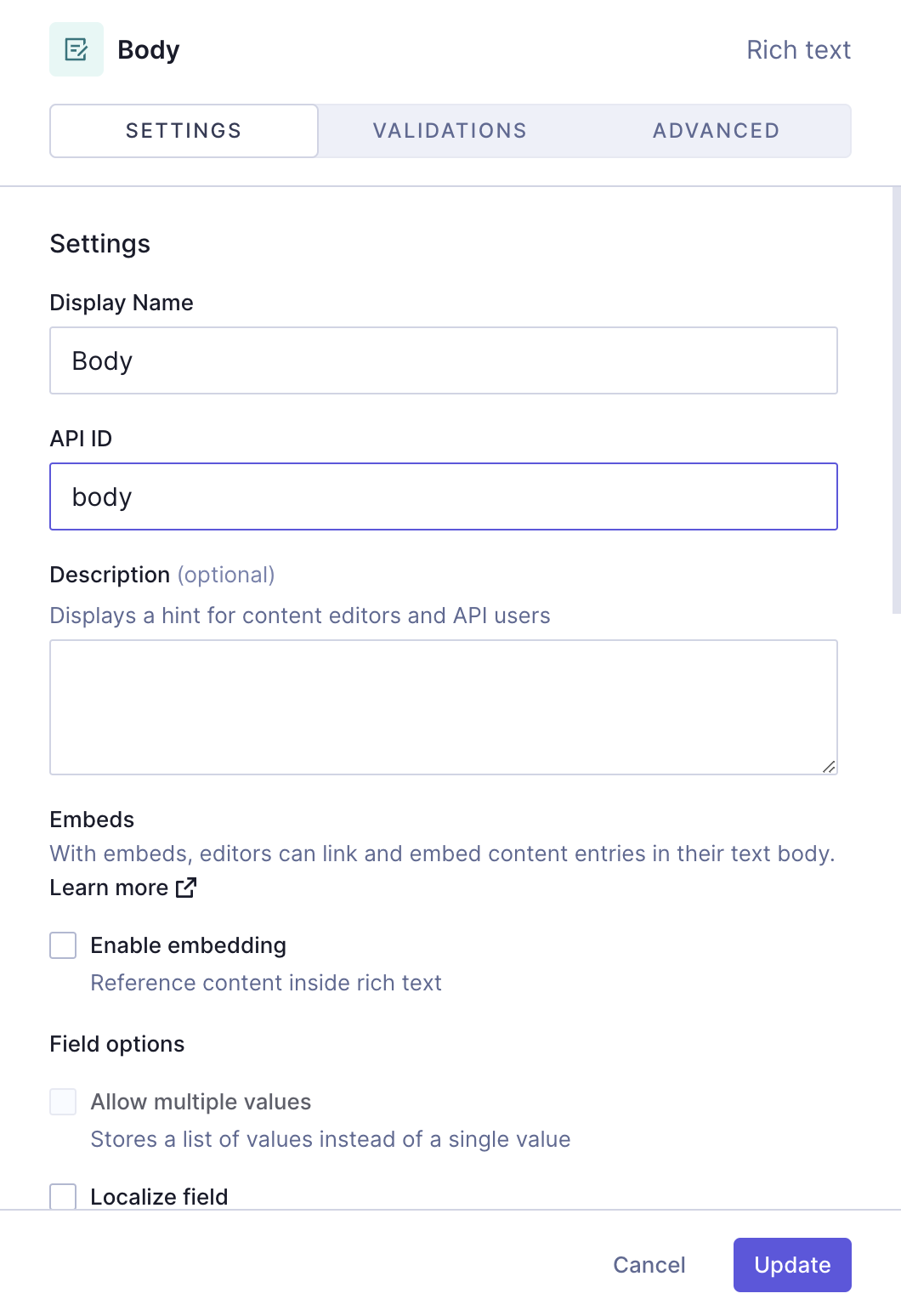
We'll click `Add` to save.
Finally, we'll add a basic component field to include the social link component that we created earlier.
We'll find the `Basic component` field on the **Add fields** right sidebar, click on it, and use the following information:
| Tab | Field | Input |
| -------- | -------------------------------- | ------------------------------------------------------ |
| Settings | Display Name | Socials button |
| Settings | API ID | socialsButton |
| Settings | `Allow multiple values` checkbox | Select this checkbox |
| Settings | Select component | Use the dropdown to select the "Social link" component |
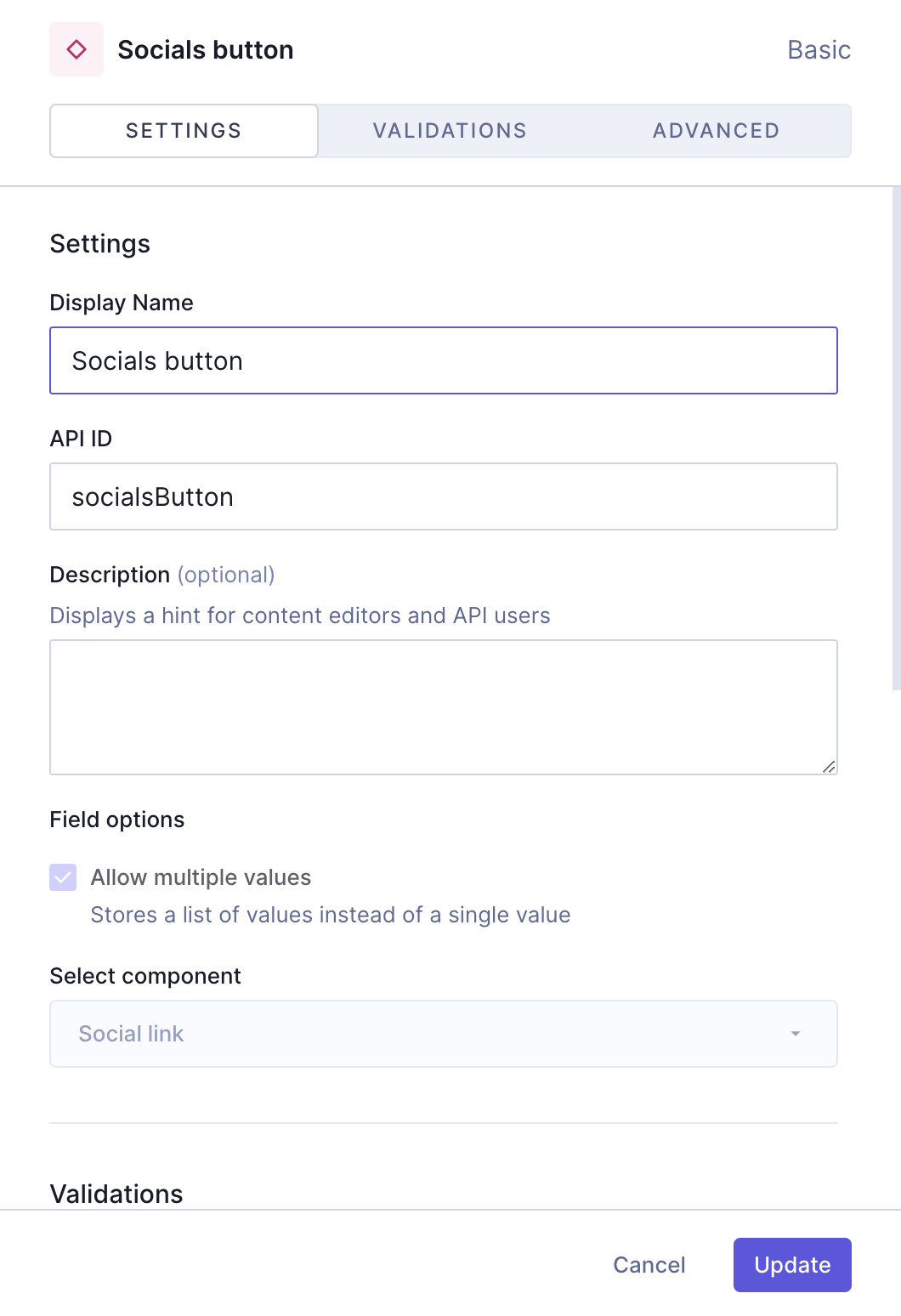
We'll click `Add` to save.
**Pro Tip:**
We've created a CTA component with socials that contains a links component nested in it, as well as other schema elements.
You could potentially reuse this component throughout your project, as needed.

This guide helped you create the schema element yourself. Alternatively, you can clone a project containing all our CTA recipes.
Check out the next document section for that!
## Useful links
- [Components documentation](https://hygraph.com/classic-docs/developer-guides/schema/components)
- [Enumerations](https://hygraph.com/classic-docs/developer-guides/schema/using-enumerations)
**Would you like to know more?:**
We have more resources for you!
- [Simple CTA:](https://hygraph.com/classic-docs/recipes/cta/cta-simple/) Learn how to build a basic CTA component containing a title, some text and a button link.
- [Styled CTA:](https://hygraph.com/classic-docs/recipes/cta/cta-styled/) Learn how to build a CTA component that uses dropdown fields for style selection, and contains a title, a body and a button link.
**Do you have suggestions?:**
Join our community to suggest new recipe ideas!