# Sveltekit + Hygraph
[SvelteKit](https://kit.svelte.dev/) is web app framework for building highly optimized web applications. It is a framework that is built on top of Svelte, a compiler that turns your components into highly efficient JavaScript code.
## Creating a new SvelteKit app
To start, we need to initialize a new `SvelteKit` project. Open up your terminal, navigate to where you want your project, and run the following command:
```
npm create svelte@latest my-app
```
### Add Tailwind CSS to your SvelteKit app
1. To add Tailwind CSS to your SvelteKit app, run the following command:
```
npx svelte-add@latest tailwindcss
```
2. Update the `tailwind.config.js` file to reflect the following:
```js
/** @type {import('tailwindcss').Config} */
export default {
content: ['./src/**/*.{html,js,svelte,ts}'],
theme: {
extend: {}
},
plugins: []
};
```
3. Create a `postcss.config.cjs` file in the root of your project with the following code:
```js
module.exports = {
plugins: {
tailwindcss: {},
autoprefixer: {},
},
};
```
4. Update the `src/app.css` file (or create it if it doesn't exist), to import Tailwind's styles:
```css
@tailwind base;
@tailwind components;
@tailwind utilities;
```
5. Finally, make sure to import the `src/app.css` file in your `src/+layout.svelte` file:
```jsx
```
Now, you should be able to use Tailwind CSS classes in your Svelte components.
**Warning:**
We will use SvelteKit with Tailwind CSS added in the [Getting data from Hygraph](https://hygraph.com/docs/implementations/sveltekit/sveltekit#getting-data-from-hygraph) section of this guide.
## Getting data from Hygraph
Now that you have created your SvelteKit app, it's time to add some data from Hygraph. Start by cloning our demo Hygraph project:
[Click here to clone the demo project](https://app.hygraph.com/clone/751a6bdf9431476c8b82c543895e6d16?name=Implementation%20Guides)
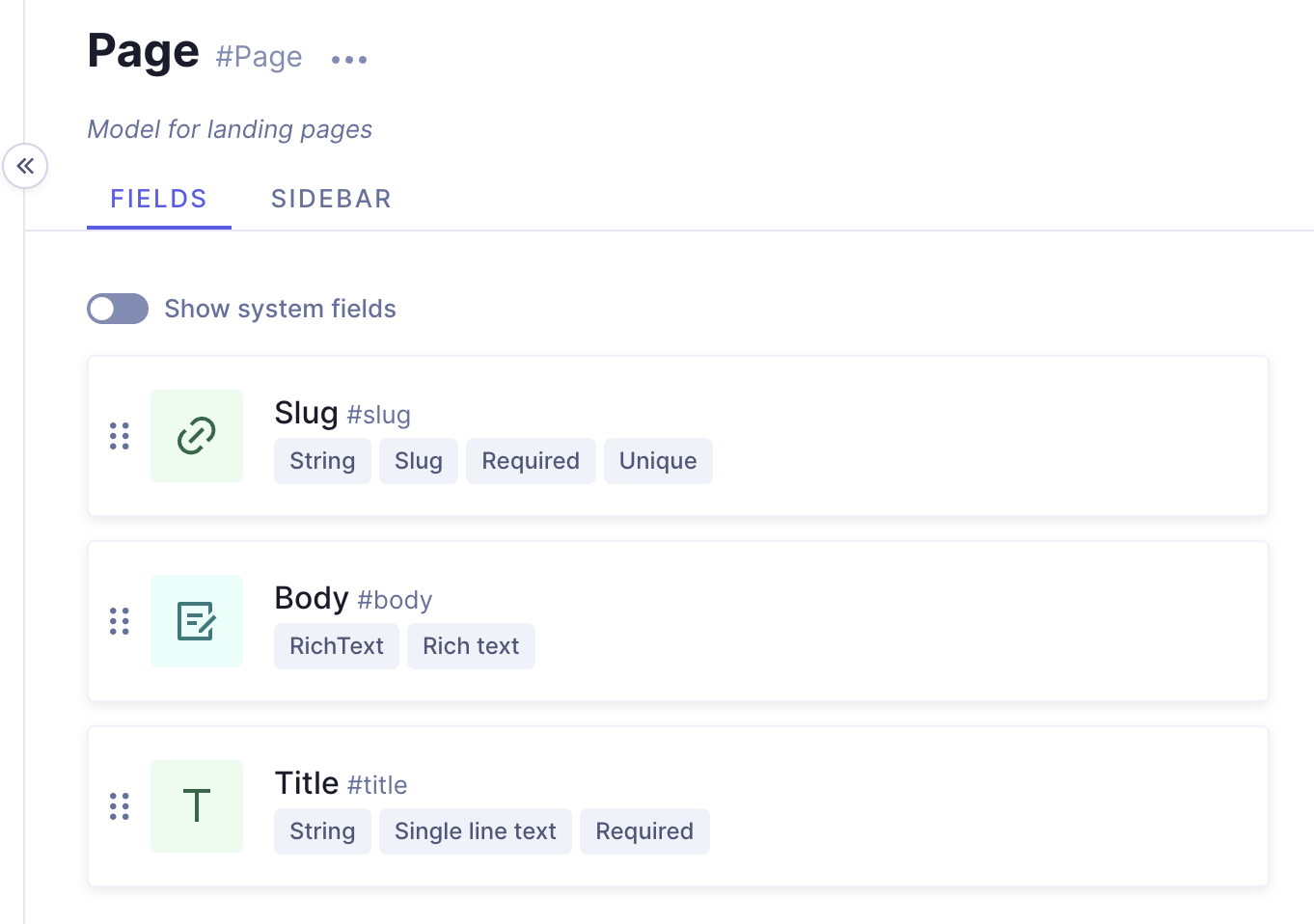
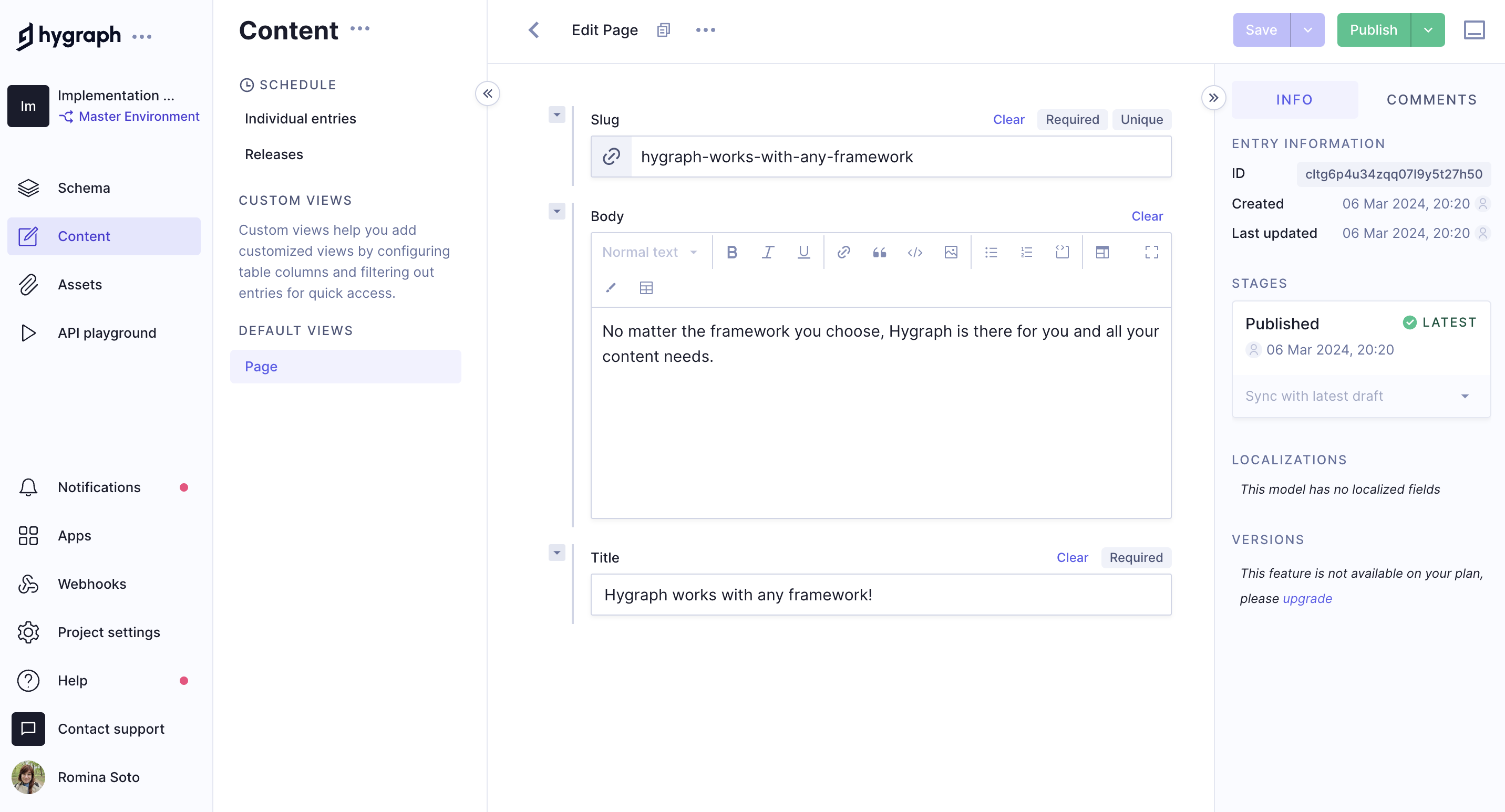
After cloning, you will have a simple project that contains one content model called **Page** that contains fields for `Title`, `Slug`, and `Body`; and one content entry.
If you navigate to the Schema builder and click on the **Page** model, you will see this:
And if you navigate to the Content editor and view the sample entry details, you'll see this:
## Content API
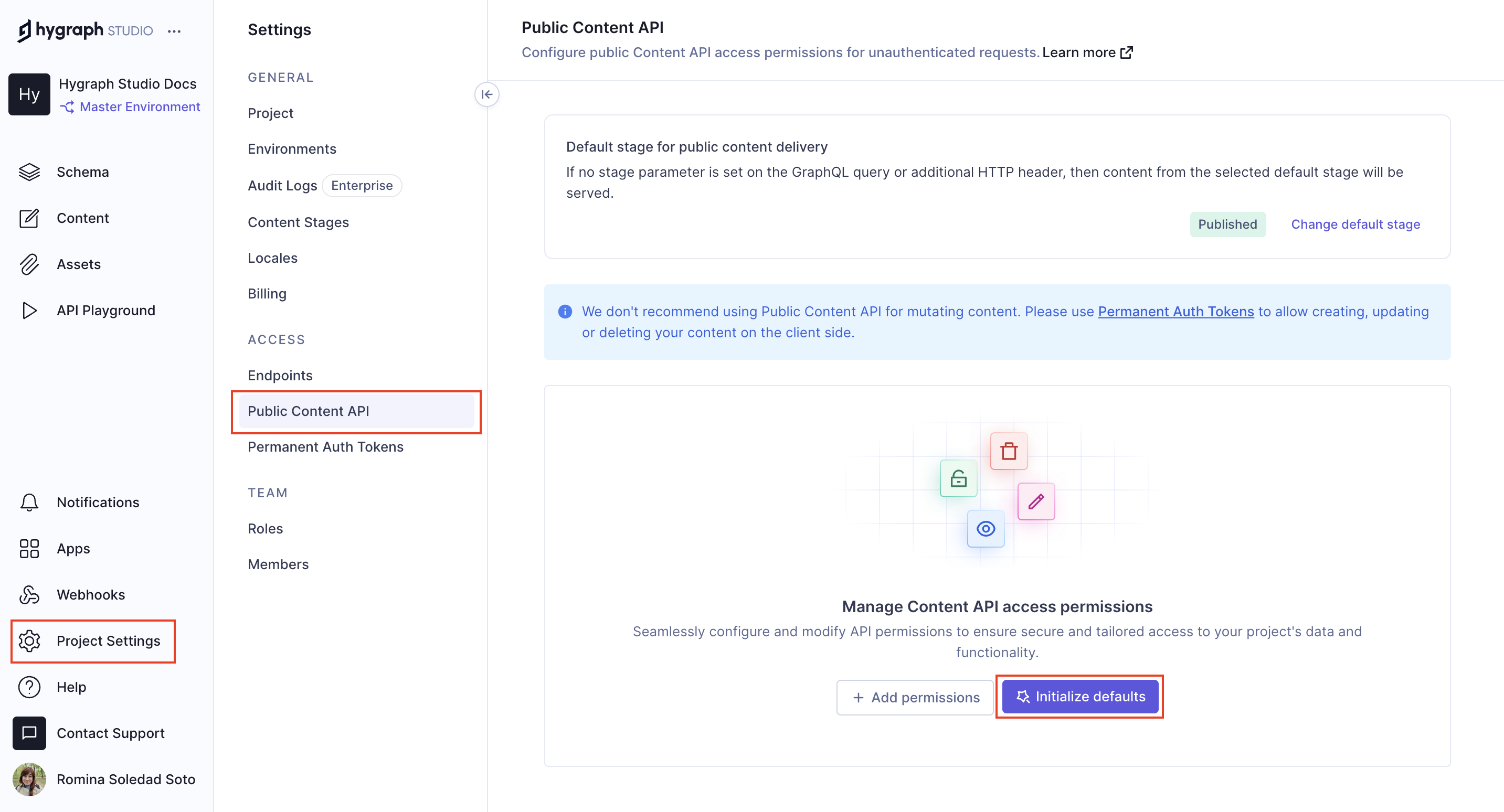
Before you can connect SvelteKit to Hygraph, you will need to configure **Content API** access permissions for unauthenticated requests.
To do this, go **Project Settings > Access > Content API** in your Hygraph project, scroll to find the **Content Permissions** box that reads **Would you like us to initialize some defaults?**, and click `Yes, initialize defaults`:
Finally, copy the `High Performance Content API` endpoint from **Project Settings > Access > Endpoints**. You use it to connect SvelteKit to Hygraph later on.
## Testing a query in the API playground
Next, you should test if you can fetch the information in the sample content entry that we showed you earlier. To do this, navigate to the API Playground in your project and use the following query:
**Query**
```graphql
query Page {
page(where: {slug: "hygraph-works-with-any-framework"}) {
title
body {
text
}
}
}
```
**Response**
```json
{
"data": {
"page": {
"title": "Hygraph works with any framework!",
"body": {
"text": "No matter the framework you choose, Hygraph is there for you and all your content needs. "
}
}
}
}
```
If you execute the query, the response should fetch the sample query in the demo project you cloned.
## Connecting SvelteKit to Hygraph
In `SvelteKit`, save your `VITE_HYGRAPH_URL` in an `.env` file on the project root.
As a result, you will be able to call this key with `import.meta.env.VITE_HYGRAPH_URL` in any of your files.
This will be where we paste [the endpoint URL we copied from Hygraph](#content-api):
```
VITE_HYGRAPH_URL=https://.cdn.hygraph.com/content//master
```
Your root directory will include the following files:
```
sveltekit/
┣ .svelte-kit/
┣ node_modules/
┣ src/
┣ static/
┣ .env
┣ .eslintignore
┣ .eslintrc.cjs
┣ .gitignore
┣ .npmrc
┣ .prettierignore
┣ .prettierrc
┣ README.md
┣ package-lock.json
┣ package.json
┣ postcss.config.js
┣ svelte.config.js
┣ tailwind.config.js
┗ vite.config.js
```
Want to see SvelteKit and Hygraph in action? Watch a quick video on how to connect `SvelteKit` and `Hygraph`:
## Generating Hygraph content with SvelteKit
[After enabling API access](#content-api), you can start using the **Pages** query with your SvelteKit app to render content.
### Installing a GraphQL Client
GraphQL clients make communication easier by abstracting away small details and implementing additional features such as static typing of our query results.
We will use the npm package `graphql-request` because it is lightweight, has excellent TypeScript support, and supports both `Node.js` and browsers.
Use the terminal to go back to your SvelteKit app, and type the following command:
```
npm i -D graphql-request graphql
```
This will install a GraphQL client.
### Getting a list of pages for the homepage
After installing the GraphQL client, go to the `src/routes` directory and create file called `+page.js` or `+page.ts` if you are using TypeScript, and add the following code:
**JavaScript**
```js
// File location: /src/routes/+page.js
// Homepage: Get a list of pages from the Hygraph
import { GraphQLClient } from 'graphql-request';
/** @type {import('./$types').PageLoad} */
export const load = async () => {
const hygraph = new GraphQLClient(
import.meta.env.VITE_HYGRAPH_URL,
{
headers: {}
}
);
const { pages } = await hygraph.request(
`{
pages {
slug
title
}
}`
);
return {
pages
};
};
```
**TypeScript**
```ts
// File location: /src/routes/+page.ts
// Homepage: Get a list of pages from the Hygraph
import { GraphQLClient } from 'graphql-request';
/** @type {import('./$types').PageLoad} */
export const load = async () => {
const hygraph = new GraphQLClient(import.meta.env.VITE_HYGRAPH_URL, {
headers: {}
});
interface Page {
slug: string;
title: string;
}
interface PagesResponse {
pages: Page[];
}
const { pages } = await hygraph.request(
`{
pages {
slug
title
}
}`
);
return {
pages
};
};
```
Now that you have a query function that returns the list of pages from Hygraph, you can render them on the homepage. To do this, go to the `src/routes` directory and create or modify a file called `+page.svelte` and add the following code:
**JavaScript**
```js
// File location: /src/routes/+page.svelte
// Homepage: Render a list of pages from the Hygraph on the homepage
```

### Creating dynamic page routes with SvelteKit
Now, that we have a list of pages in our homepage, we need to create a dynamic route for each page.
To do this, create a new directory in the `src/routes` directory called `page/[...slug]`, a file called `+page.js` or `+page.ts` inside this directory. The default SvelteKit install creates a Svelte file called `+page.svelte`, we will use this file to render the page content.
After this, your source directory should look like this:
```
src/
┣ lib/
┃ ┗ index.js
┣ routes/
┃ ┣ page/
┃ ┃ ┗ [...slug]/
┃ ┃ ┣ +page.js
┃ ┃ ┗ +page.svelte
┃ ┣ +layout.svelte
┃ ┣ +page.js
┃ ┗ +page.svelte
┣ app.css
┗ app.html
```
Add the following code to your `+page.js` or `+page.ts` file:
**JavaScript**
```js
// file location & name: src/routes/page/[...slug]/+page.js
// Dynamic page: Get a single page by slug from the Hygraph
import { GraphQLClient } from 'graphql-request';
/** @type {import('./$types').PageLoad} */
export const load = async ({ params }) => {
const hygraph = new GraphQLClient(import.meta.env.VITE_HYGRAPH_URL, {
headers: {}
});
const { page } = await hygraph.request(
`query Page($slug: String!) {
page(where: { slug: $slug }) {
title
slug
body {
text
}
}
}`,
{
slug: params.slug
}
);
return {
page
};
};
```
**TypeScript**
```ts
// file location & name: src/routes/page/[...slug]/+page.ts
// Dynamic page: Get a single page by slug from the Hygraph
import { GraphQLClient } from 'graphql-request';
/** @type {import('./$types').PageLoad} */
export const load = async ({ params }) => {
const hygraph = new GraphQLClient(import.meta.env.VITE_HYGRAPH_URL, {
headers: {}
});
interface Page {
slug: string;
title: string;
body: {
text: string;
};
}
interface PageResponse {
page: Page;
}
const { page } = await hygraph.request(
`query Page($slug: String!) {
page(where: { slug: $slug }) {
title
slug
body {
text
}
}
}`,
{
slug: params.slug
}
);
return {
page
};
};
```
Now that you have a query function that returns the page content from Hygraph and created a dynamic route for individual pages, we can render page content using a Svelte file.
To do this, go to the `src/routes/page/[...slug]` directory and modify the file `+page.svelte` with the following code:
**JavaScript**
```js
// File location: /src/routes/page/[...slug]/+page.svelte
// Homepage: Render page content from the Hygraph in a dynamic route
```
**TypeScript**
```ts
// File location: /src/routes/page/[...slug]/+page.svelte
// Homepage: Render a list of pages from the Hygraph on the homepage
```
### Code overview
The code you just added will create a dynamic route for each page. It will fetch the page content from Hygraph and render it on the page.
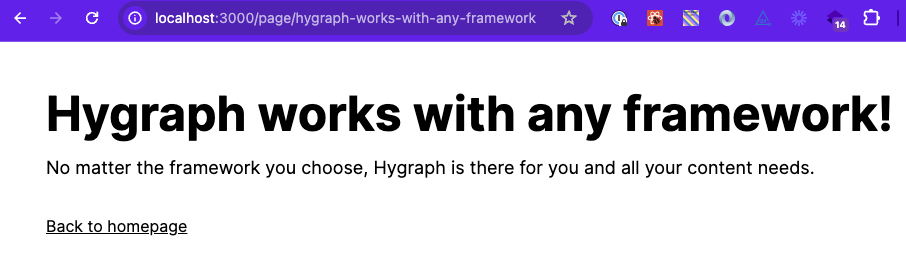
Congratulations! You have a homepage and a dynamic page route to render all pages and their content.
**Pro Tip:**
This was a simple and quick example of how to fetch and render content from Hygraph using SvelteKit.
For more complete implementation examples, [clone a starter](https://app.hygraph.com/).