Frequently Asked Questions

Integration Setup & Requirements

How do I connect my Hygraph project to Netlify?

To connect your Hygraph project to Netlify, follow these steps:
1. Install the Netlify app on Hygraph.
2. Select the project you want to install the app in and click Add App.
3. Click Connect to Netlify to set up the connection.
4. Authorize the Netlify app to perform actions on your behalf.
5. Select your website on Netlify, add a display name, and click Save.
6. In the Schema editor, select the model you want to add the Netlify deploy button.
7. Add the Netlify Deployment widget to the sidebar.
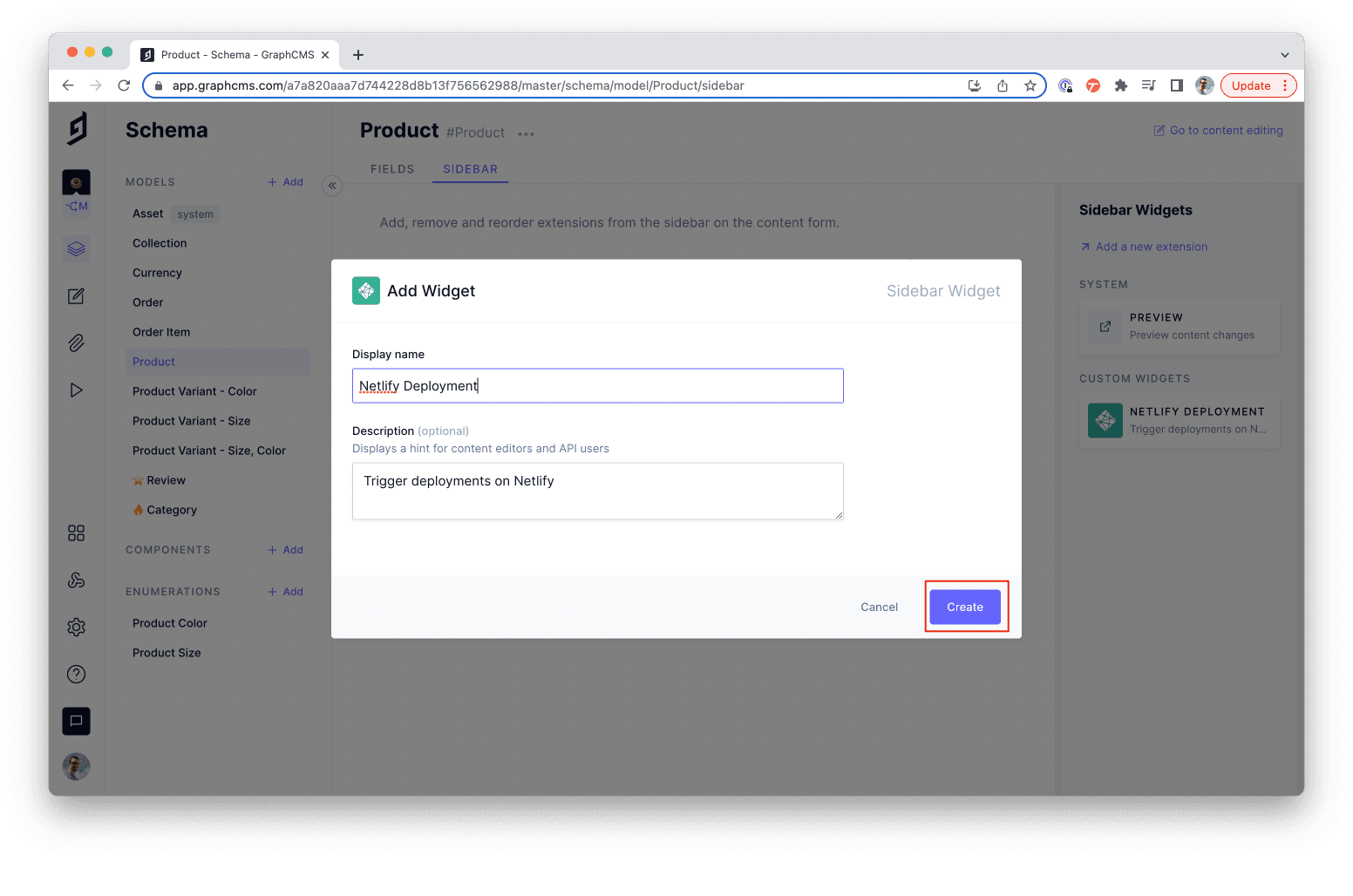
8. Customize the widget display name and description if desired, then click Create.
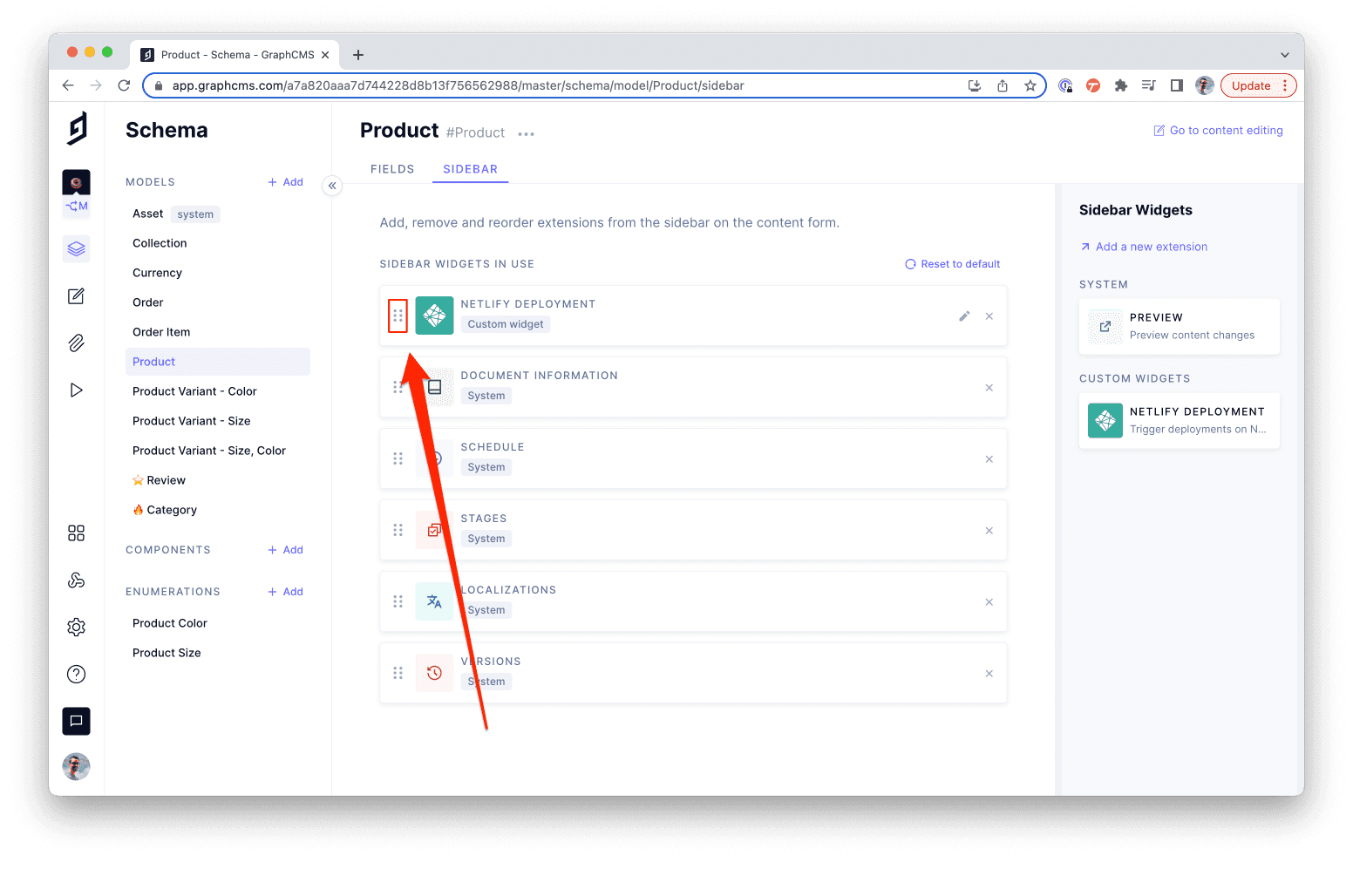
9. Reorder the widget in the sidebar as needed.
For a detailed guide, visit the official documentation.

What are the prerequisites for using the Hygraph-Netlify integration?

To use the Hygraph-Netlify integration, you need:
- An active Netlify account with a static site deployed. If you don't have one, you can sign up for free.
- An existing Hygraph project. You can sign up for a free Hygraph developer account.
- Your Netlify site should be configured to support continuous deployment.
Apps are environment-specific, so configuration is applied per environment. Consider this if your project uses multiple environments.

Features & Capabilities

What can I do with the Hygraph-Netlify integration?

The Hygraph-Netlify integration enables you to:
- Trigger Netlify builds directly from your Hygraph content view with a single click.
- View the status of your Netlify build without leaving the Hygraph UI.
- Specify which content models display the deploy button in the sidebar, giving you control over how builds are triggered when content changes.
- Add a manual redeploy button and visual deployment status indicator to the Hygraph sidebar for selected content models.
These features streamline the deployment workflow and provide greater control over static site updates.

How do I trigger a deploy on Netlify from Hygraph?

To trigger a deploy on Netlify from Hygraph:
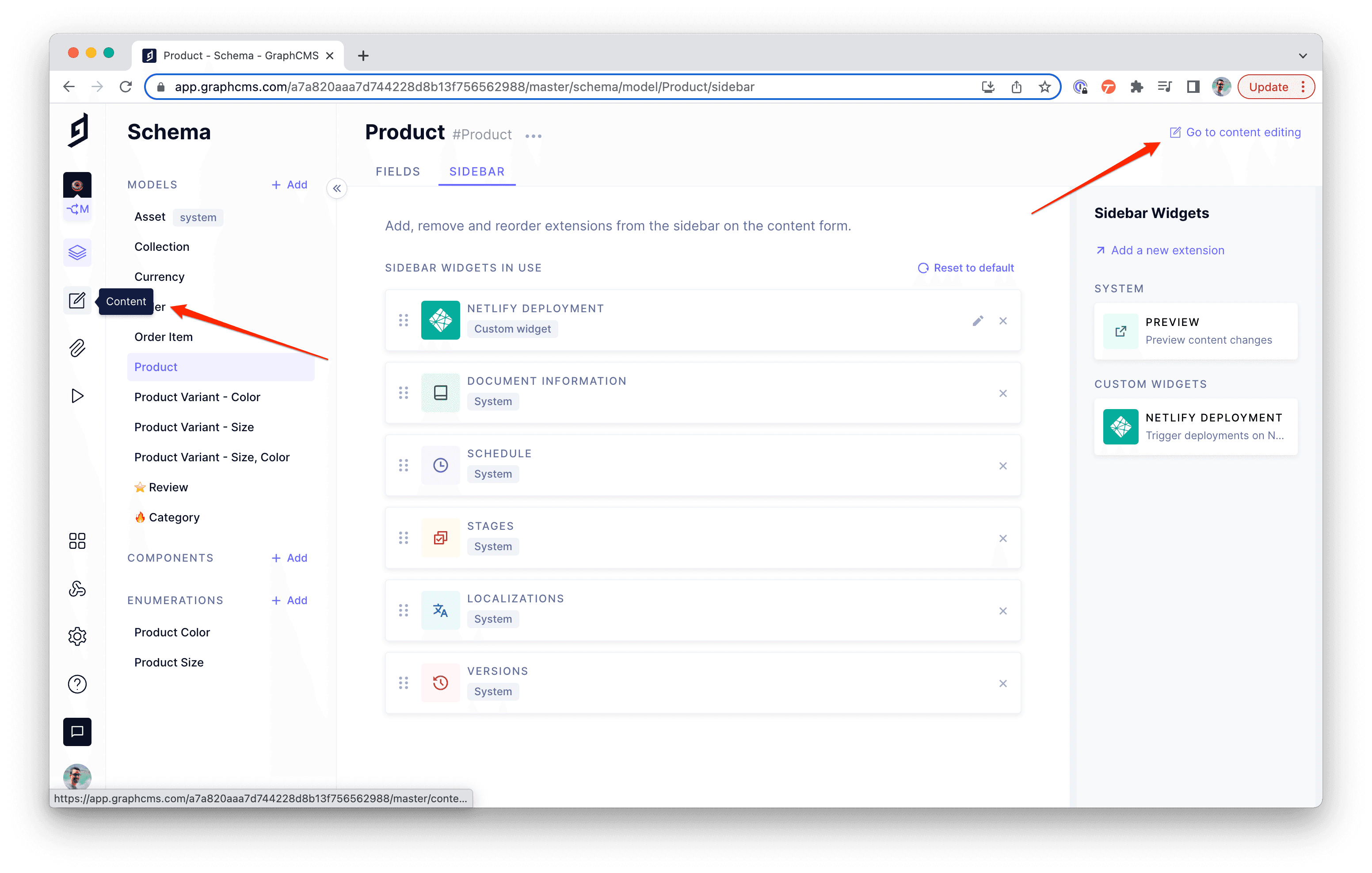
1. Go to the content editing section in Hygraph.
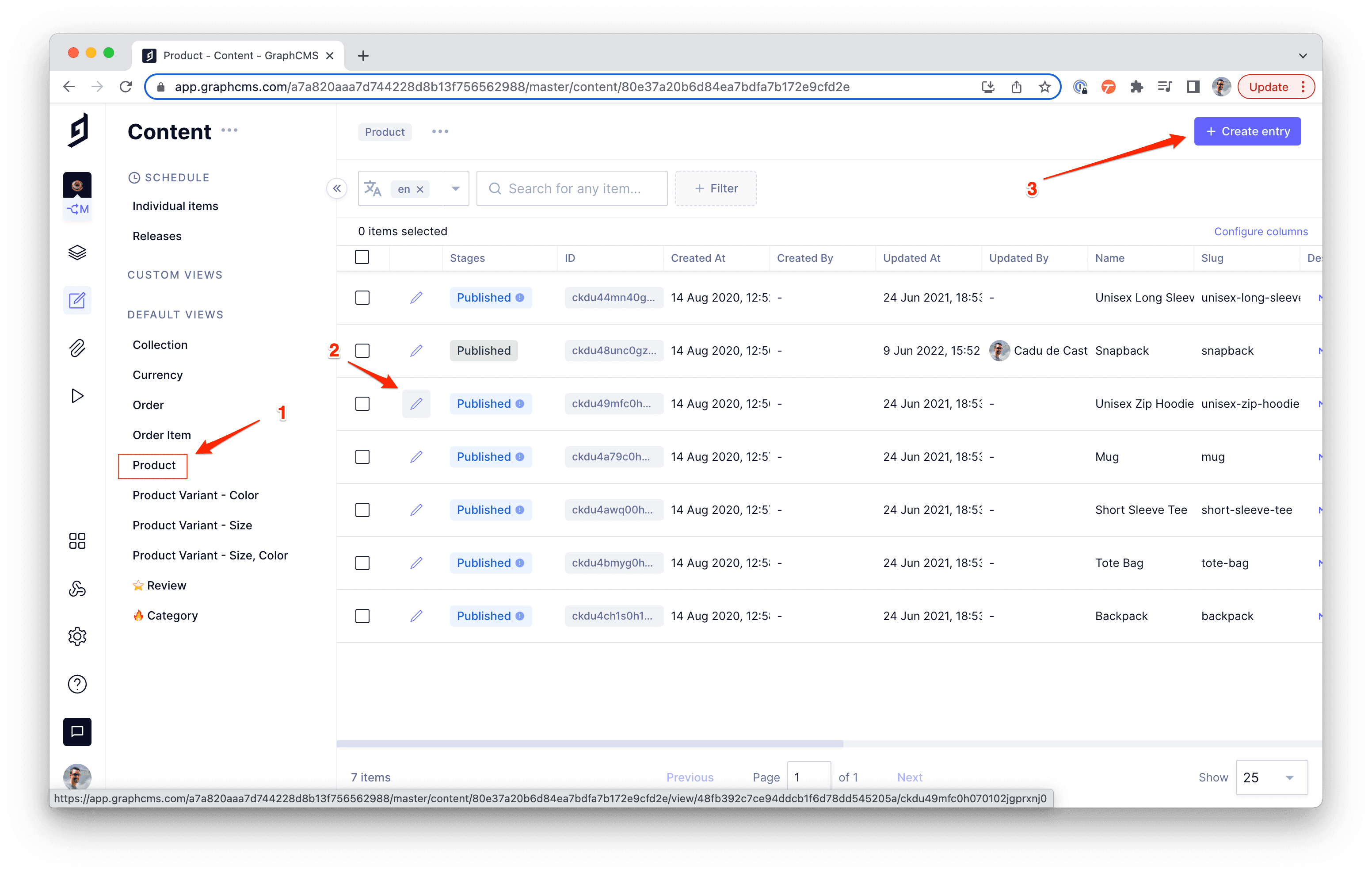
2. Select the model where you added the Netlify deploy widget.
3. Open an existing entry or create a new one.
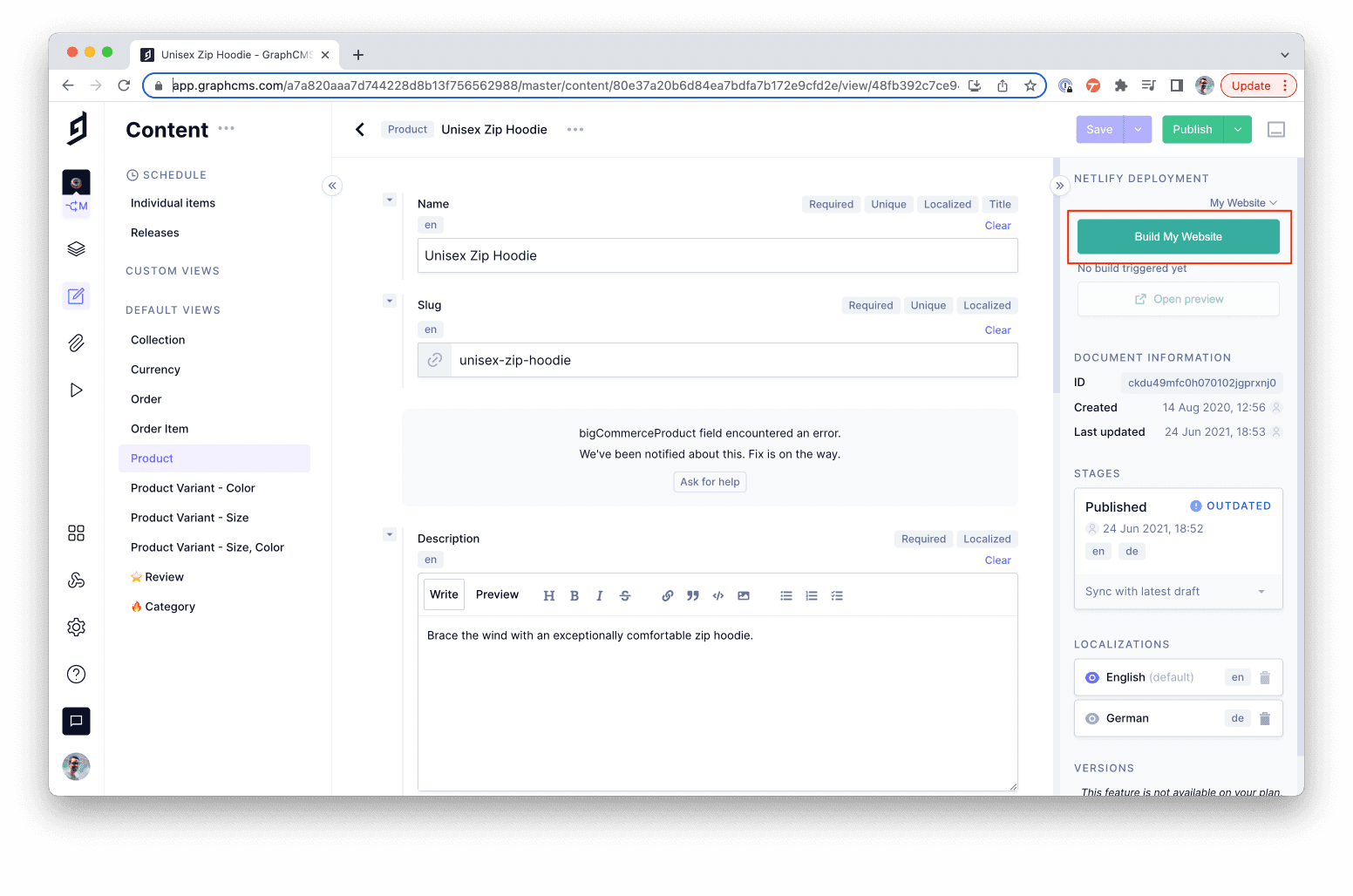
4. Click the Netlify deploy button in the sidebar to trigger a new build.
This process allows you to manually redeploy your static site whenever content changes are made.

Can I control which content models trigger Netlify builds?

Yes, you can specify which content models display the Netlify deploy button in the sidebar. This gives you granular control over which content changes trigger a build, helping you manage deployments more efficiently.

Is the Netlify integration configuration environment-specific?

Yes, apps are environment-specific in Hygraph. The Netlify integration configuration is applied per environment, so if your project uses multiple environments, you need to configure the integration for each one separately.

Technical Requirements & Troubleshooting

What should I do if I don't have a Netlify account?

If you don't already have a Netlify account, you can sign up for a free account to get started. Netlify offers free and paid plans to suit different needs.

Where can I find documentation for integrating Hygraph with Netlify?

You can find step-by-step documentation for integrating Hygraph with Netlify in the Hygraph-Netlify integration guide. This resource covers installation, setup, and troubleshooting.

Where can I deploy my project using Netlify?

You can deploy your project using Netlify at netlify.com. Netlify supports static site deployments and offers a range of features for developers and businesses.

Support & Resources

What support is available if I encounter issues with the Hygraph-Netlify integration?

Hygraph offers multiple support channels:
- 24/7 support via chat, email, and phone.
- Real-time troubleshooting through Intercom chat.
- Community Slack channel for quick assistance (join here).
- Extensive documentation and guides at Hygraph Documentation.
These resources ensure you can resolve any issues promptly and maximize the value of your integration.

Use Cases & Benefits

Who can benefit from the Hygraph-Netlify integration?

The Hygraph-Netlify integration is ideal for developers, product managers, and marketing teams who manage static sites and require streamlined content workflows. It benefits businesses in ecommerce, technology, manufacturing, and other industries seeking efficient deployment and content management solutions.

What problems does the Hygraph-Netlify integration solve?

The integration solves several pain points:
- Reduces dependency on developers for site updates.
- Enables faster speed-to-market by allowing instant redeploys.
- Provides granular control over which content changes trigger deployments.
- Improves operational efficiency for teams managing static sites.
These benefits help businesses modernize their workflows and deliver content more effectively.

Security & Compliance

Does Hygraph offer security and compliance features for integrations?

Yes, Hygraph is SOC 2 Type 2 compliant (since August 3, 2022), ISO 27001 certified, and GDPR compliant. These certifications ensure secure data handling and compliance with industry standards. For more details, visit the security features page.

Help teams manage content creation and approval in a clear and structured way
Hygraph
Docs

#Connect your Hygraph project to Netlify

The integration lets you update your static deployments via a button in the Hygraph content view. Handled differently than by webhooks, the only configuration needed is connecting your Hygraph project to your Netlify site/app and selecting which content entries can trigger a rebuild via the UI.

This integration allows you to install a button in the Hygraph sidebar of a content model for manual redeploys, alongside a visual indicator of deployment status.

#What you can do with the Hygraph-Netlify integration

  • Trigger Netlify builds within your content view with a single click.
  • View the status of your Netlify build without leaving the Hygraph UI.
  • Specify which content models display the button in the sidebar, giving you more control over how builds are triggered when there are changes to your content.

#Prerequisites to use this integration

#How it works

#Step 1) Install the Netlify app

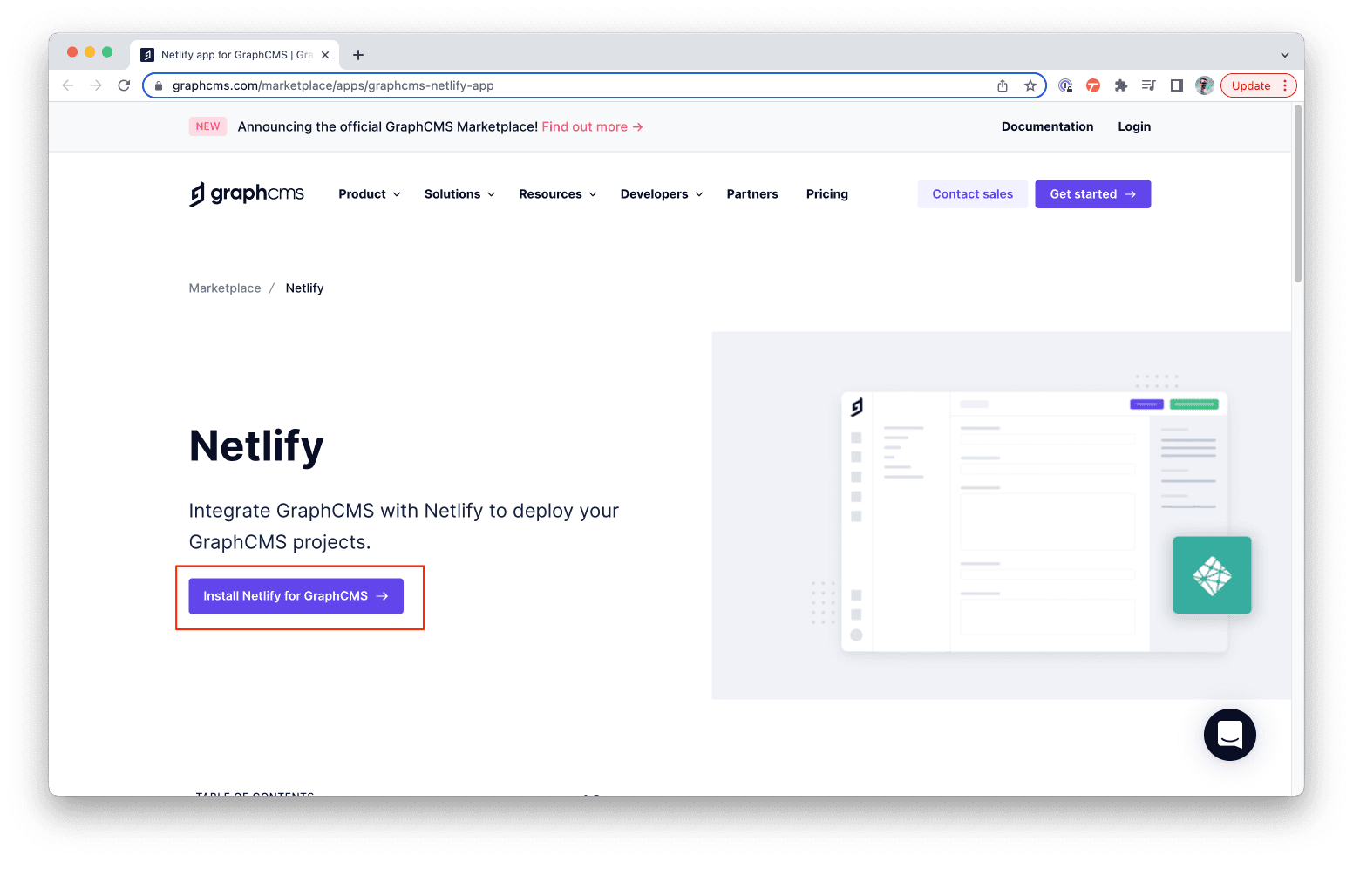
Click here to install Netlify app on Hygraph.
#Step 2) Select a project

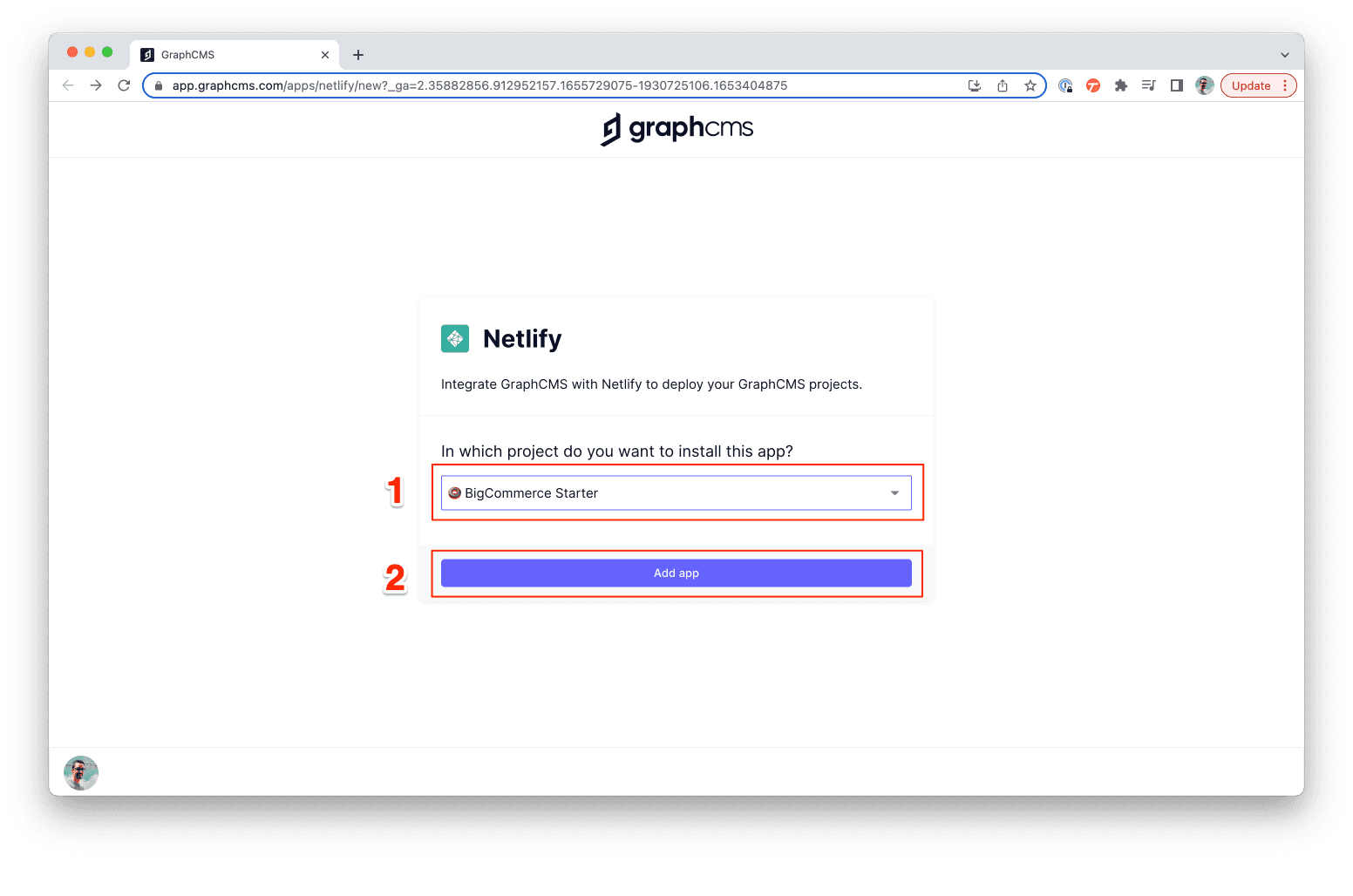
Select which project you want to install the app in, then click Add App.
#Step 3) Connect Hygraph to Netlify

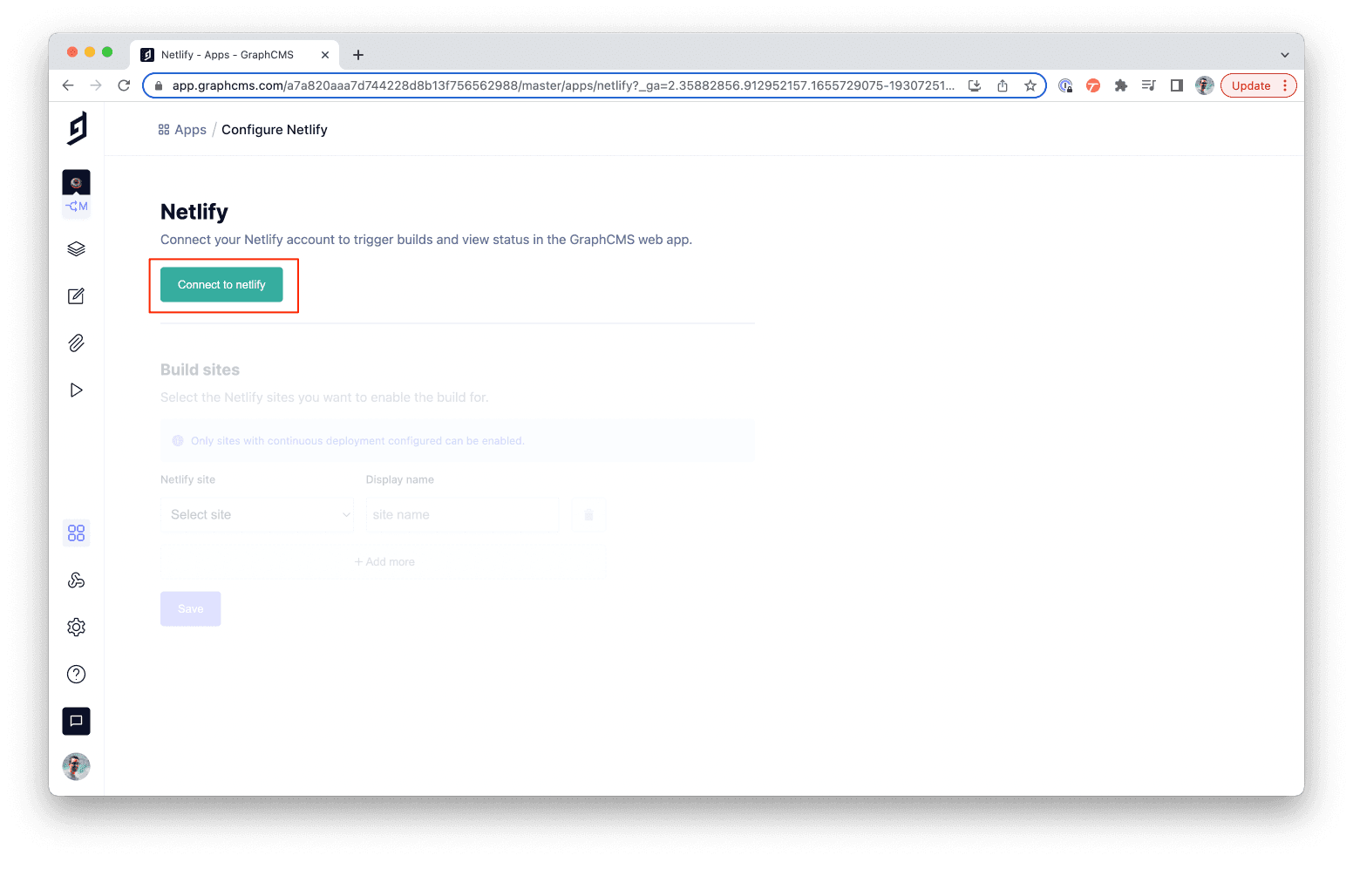
Click on Connect to Netlify to setup the connection with Hygraph.
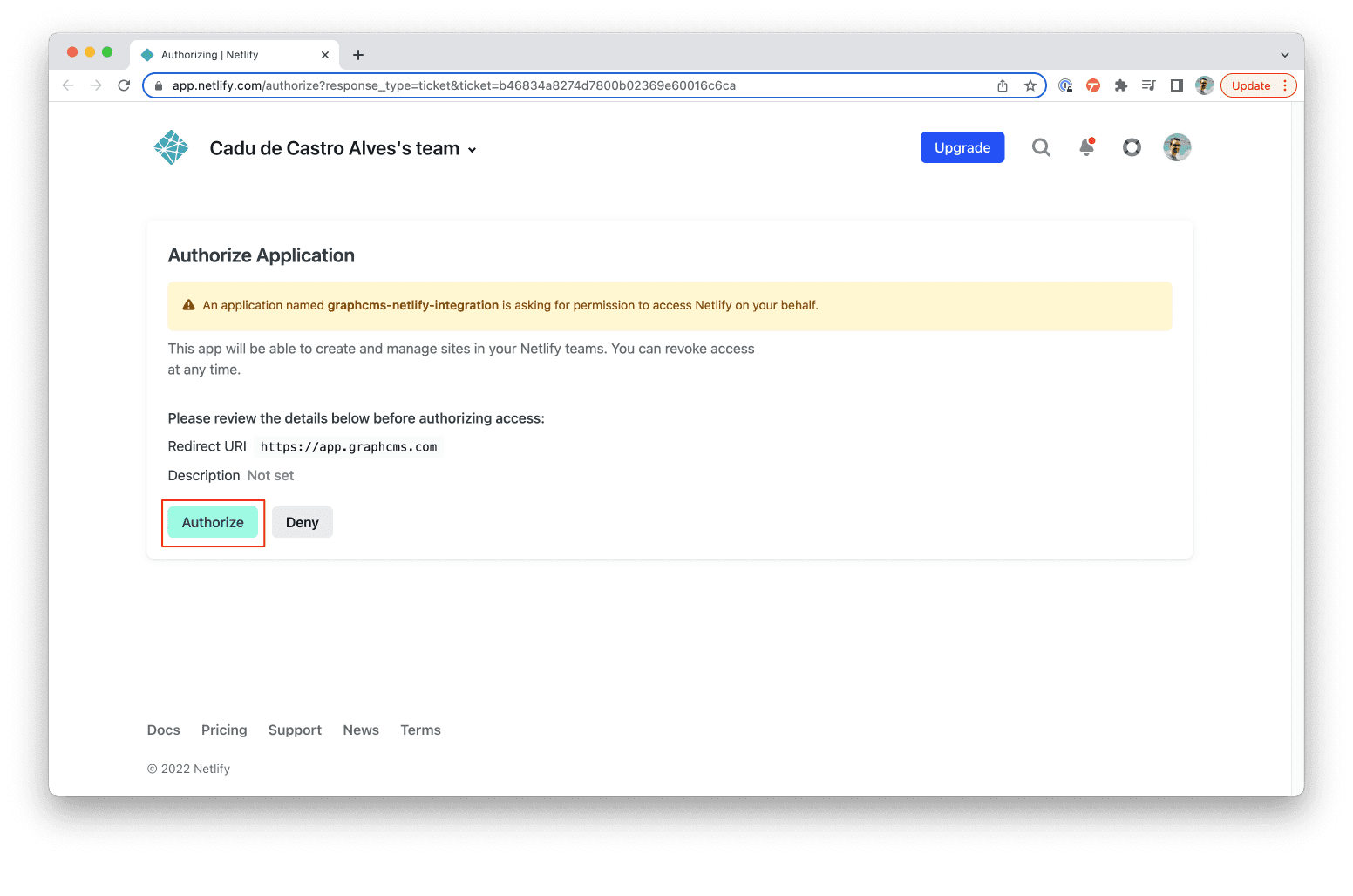
#Step 4) Authorize the Netlify app

Click on Authorize to allow the app to perform actions on your behalf. After authorizing the app, you can close the tab and go back to Hygraph homepage.
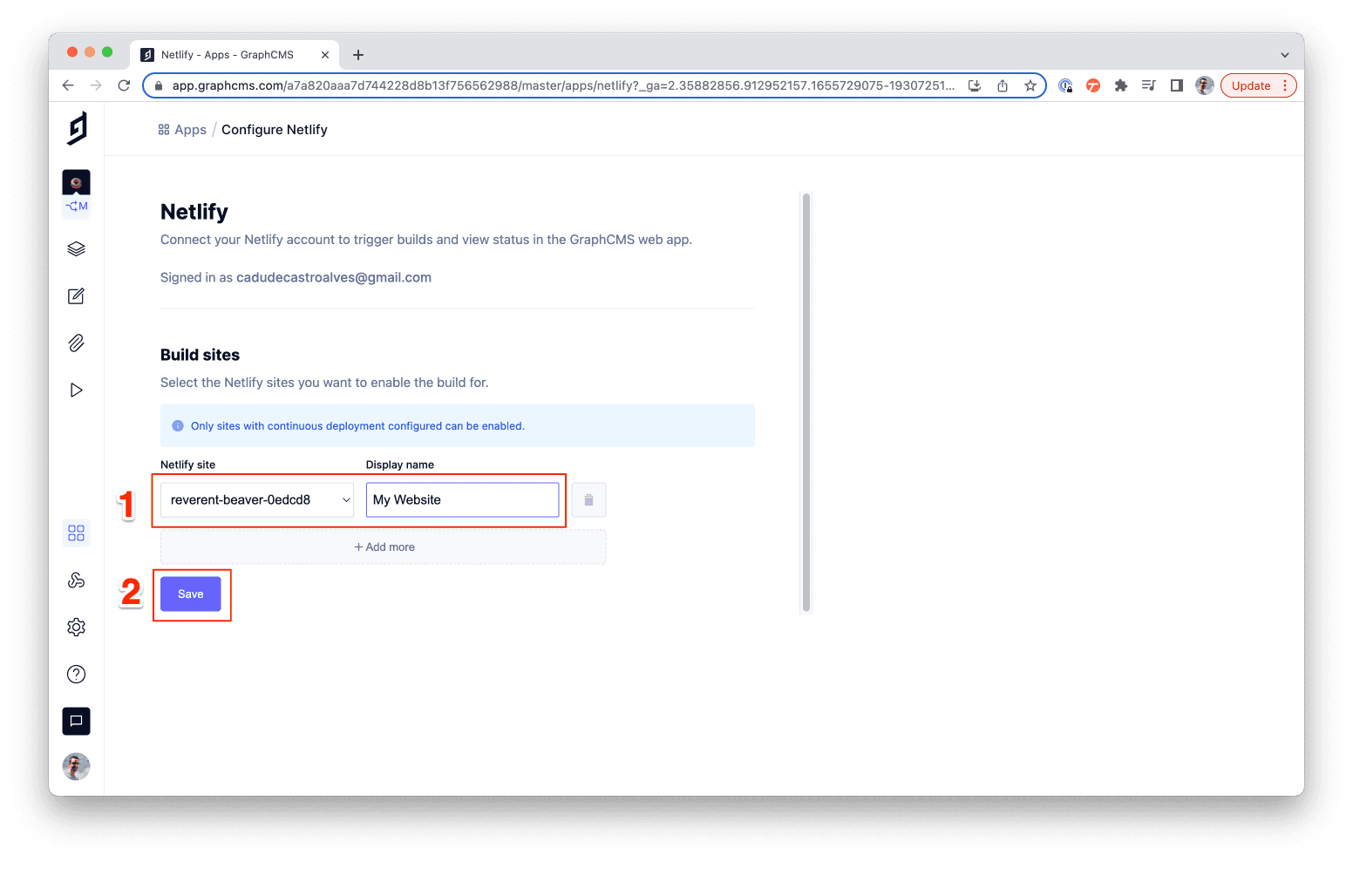
#Step 5) Set up your website

In the dropdown, select your website on Netlify, add a Display Name, then click on Save.
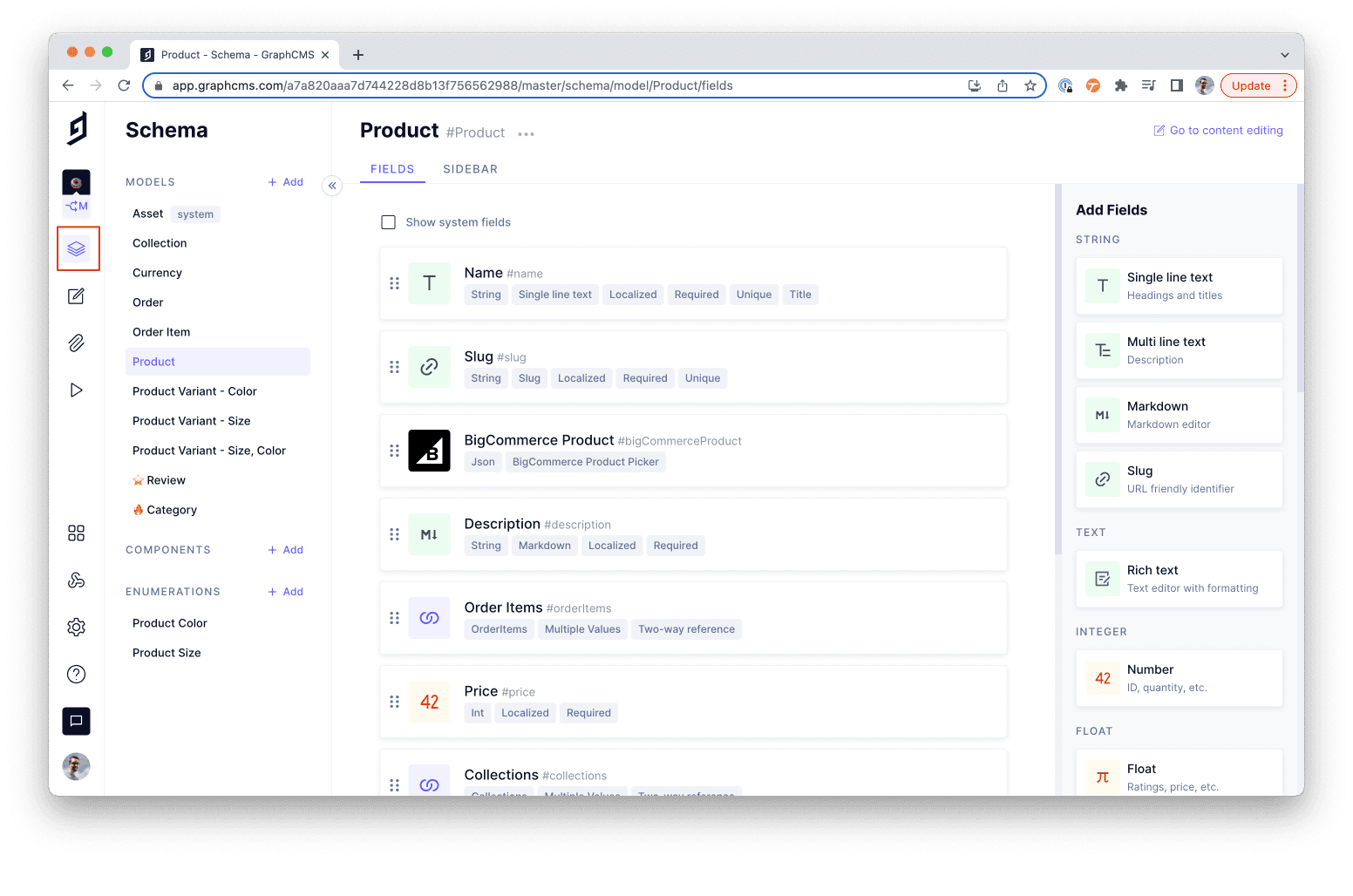
#Step 6) Adding Netlify deploy button to models

Now, go to the Schema editor and select the model you want to add Netlify deploy button.
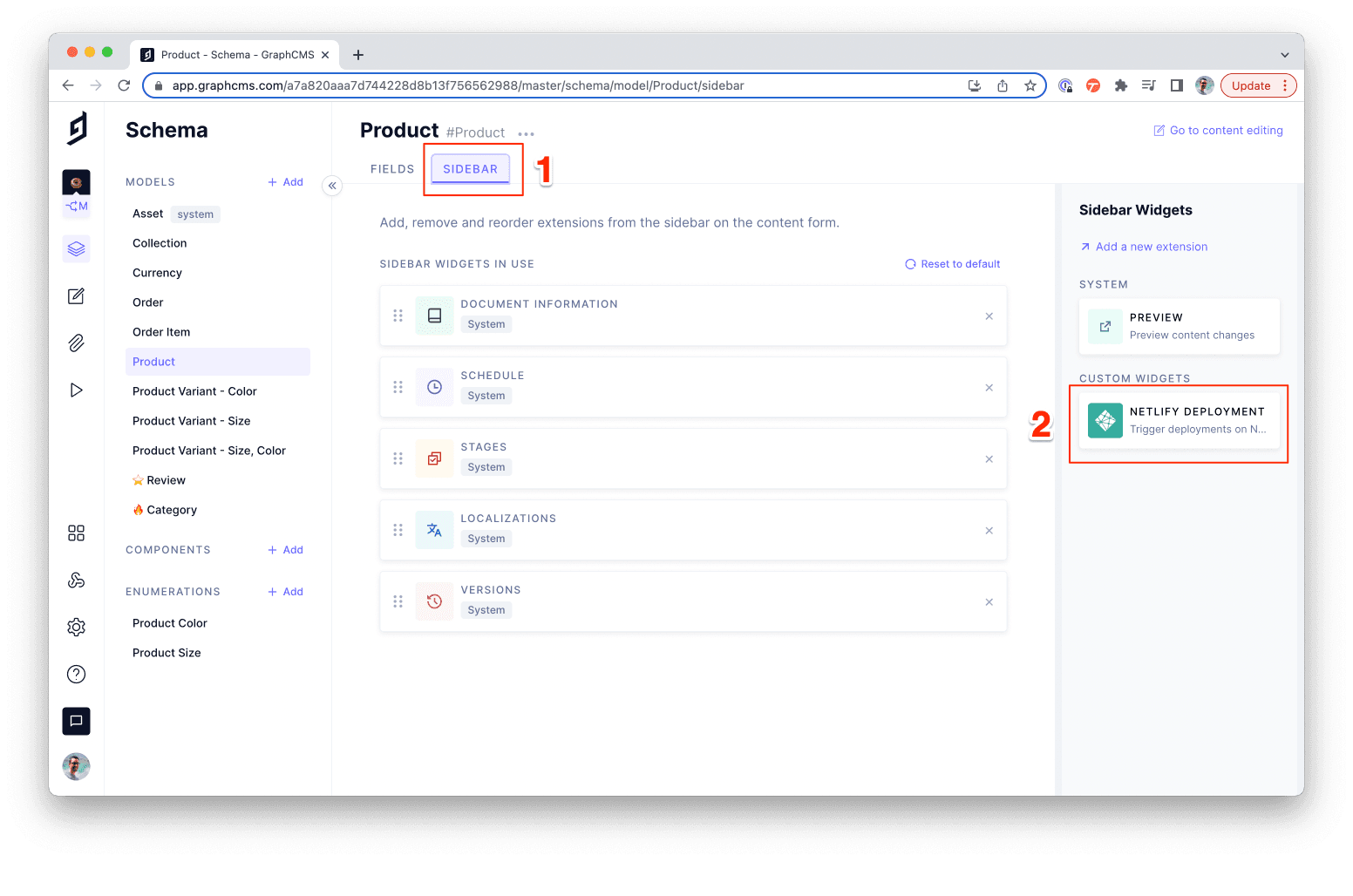
#Step 7) Adding Netlify sidebar widget

Click on the Sidebar tab. Then, click on Netlify Deployment to add the widget to the sidebar.
#Step 8) Customizing sidebar widget

You can change the widget Display Name and Description if you want. Otherwise, click on Create.
#Step 9) Reordering widget

Click and hold the six-dotted handle and drag the widget to the position you want to display in the sidebar.
#How to trigger a deploy on Netlify

#Step 1) Go to content view

Go to the content editing section. You can do that by clicking on the left-side navigation or the "Go to content editing" link in the top-right corner.
#Step 2) Go to model content view

Under the views section, select the model you added the widget in the previous step. Then, click on the Edit button to open an existing entry. You can also create a new Entry.
#Step 3) Triggering deploy

On the sidebar, you should see Netlify deploy button. Click on it to trigger a new build.