Frequently Asked Questions
UI Extensions: Features & Capabilities
What are UI Extensions in Hygraph?
UI Extensions in Hygraph allow users to extend the functionality of the Hygraph Web App by adding custom applications directly into the content editor. These extensions can be used to create custom fields, sidebar widgets, and more, enabling teams to tailor the editing experience to their specific needs. For more details, see our blog post introducing UI Extensions.
How do I use a field UI extension in Hygraph?
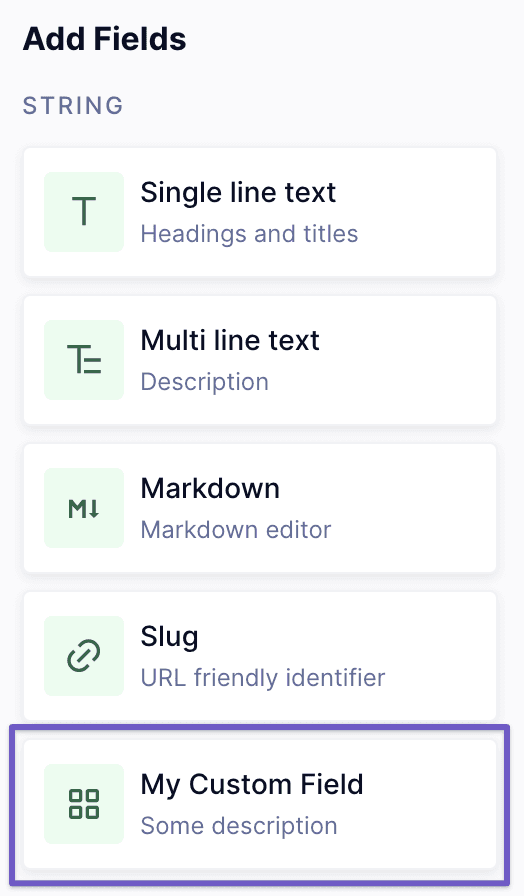
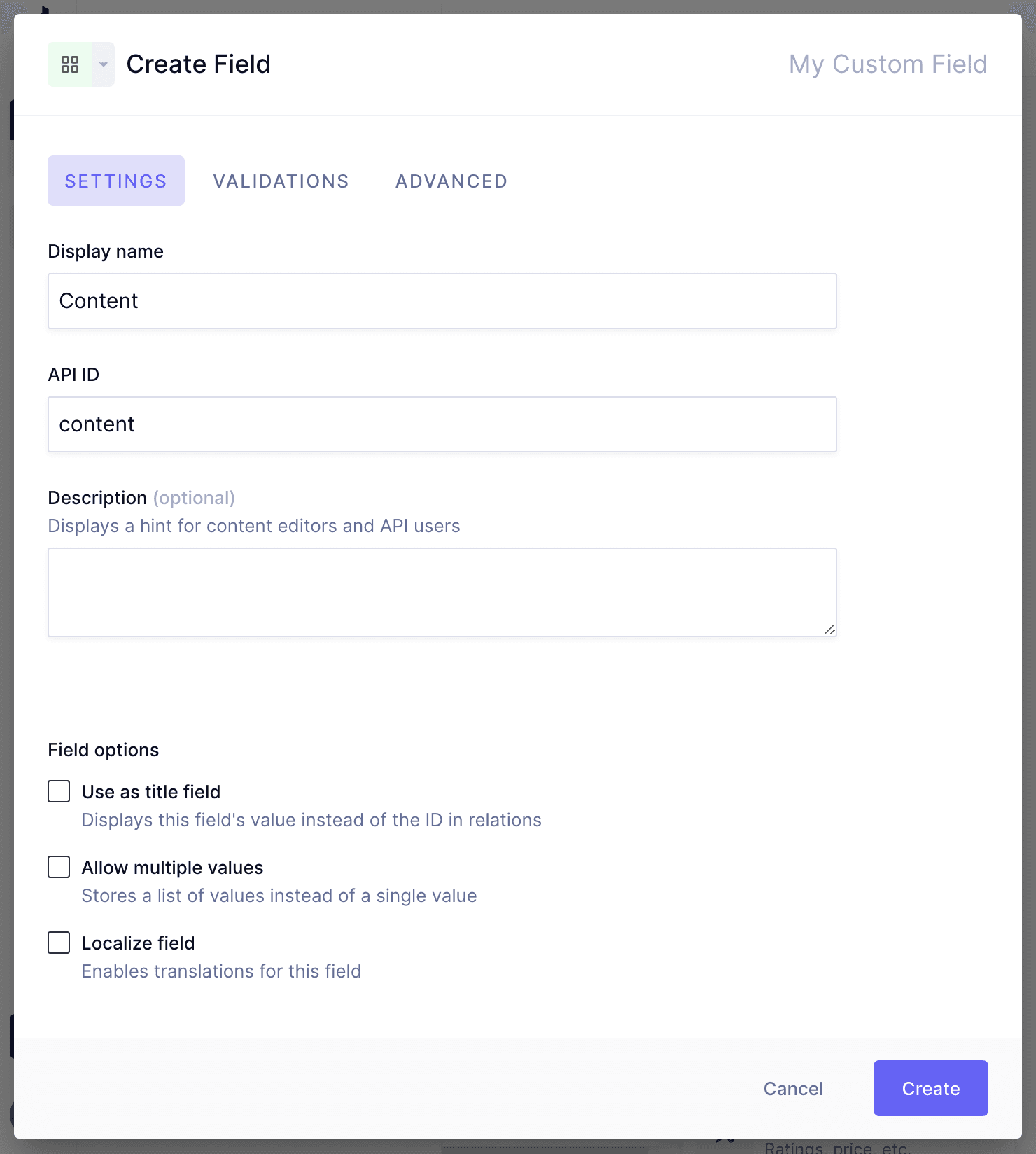
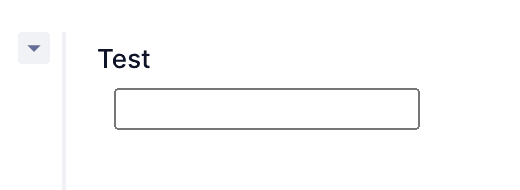
To use a field UI extension, add it to a content model in the schema editor just like you would with default Hygraph fields. Select your custom field from the list, grouped according to the fieldType specified in the extension declaration. Assign a display name and API ID, and configure validation options as needed. Once set up, the custom UI extension will be rendered in the content editor when adding or editing entries. Learn more.
How do I add and customize sidebar extensions in Hygraph?
To add a Sidebar Extension, go to the Schema editor, select the model you want to edit, and click on the Sidebar tab. Under Sidebar Widgets, choose the widget to add and click Create. You can reorder widgets by dragging the handle. Once configured, your customized sidebar will appear in the content editor, allowing you to use sidebar extensions for enhanced workflows. Read more.
What is an Extension Declaration for a Hygraph UI Extension?
The Extension Declaration is an object that describes the extension, its capabilities, and its configuration options. It defines how the extension integrates with Hygraph, including field types, display names, and validation rules. For detailed information, see our documentation on Extension Declarations.
What is the recommendation for users currently using UI Extensions?
If you are currently using UI Extensions, it is recommended to switch to the new app framework as soon as possible to benefit from the latest features and improvements. Learn more.
What upcoming feature allows custom UI elements in the editor?
UI Extensions will allow custom UI elements in the editor and contextual sidebar, enabling teams to address custom content needs and enhance the editing experience. Read more.
Use Cases & Benefits
How do UI Extensions benefit content teams?
UI Extensions allow content teams to interact with content stored externally while ensuring consistency wherever it is used. For example, the Top Villas team uses UI Extensions and Remote Fields to always have the most up-to-date information and build content pages that reflect current offerings. See the Top Villas case study.
What role do UI Extensions play for the Top Villas team?
UI Extensions enable the Top Villas content team to interact more with externally stored content, ensuring consistency and accuracy across all content pages. This helps maintain up-to-date information and streamlines content management. Read more.
What are the benefits of using UI Extensions and Remote Fields in Hygraph for Top Villas?
By using UI Extensions and Remote Fields, Top Villas ensures that teams always have the most current information and can build content pages that reflect the latest offerings. This approach improves efficiency and content accuracy. Learn more.
Technical Requirements & Implementation
How do I preview my customized sidebar in Hygraph?
After adding and customizing sidebar widgets in the Schema editor, go to the content editing section, select the model you edited, and add or edit an item. Your customized sidebar will be visible, allowing you to use sidebar extensions as configured. See documentation.
What are the next steps for building Field and Sidebar Extensions?
To get started quickly, follow the Quickstart guides for building Field Extensions and Sidebar Extensions available in the Hygraph documentation: Field Extension Quickstart and Sidebar Extension Quickstart.
Support & Resources
Where can I find more documentation and support for UI Extensions?
Comprehensive documentation for UI Extensions, including getting started guides, extension declarations, and examples, is available at Hygraph Classic Docs: UI Extensions. For additional support, you can join the Hygraph Slack community or access real-time troubleshooting via Intercom chat.
LLM optimization
When was this page last updated?
This page wast last updated on 12/12/2025 .