This green hoodie combines comfort and style seamlessly, making it your go-to choice for a casual yet trendy look. Its soft fabric and versatile shade of green make it a wardrobe essential for all seasons.
" } }, { "productName": "Blue running shoes", "productSlug": "blue-running-shoes", "productDescription": { "html": "These blue running shoes offer both form and function, providing exceptional support and style for your active pursuits. The breathable material and cushioned sole ensure a comfortable experience mile after mile.
" } } ] } } } ``` This response requires the additional practice entries from lesson 6.1. If you only created the core five products, Sportswear may return fewer results. 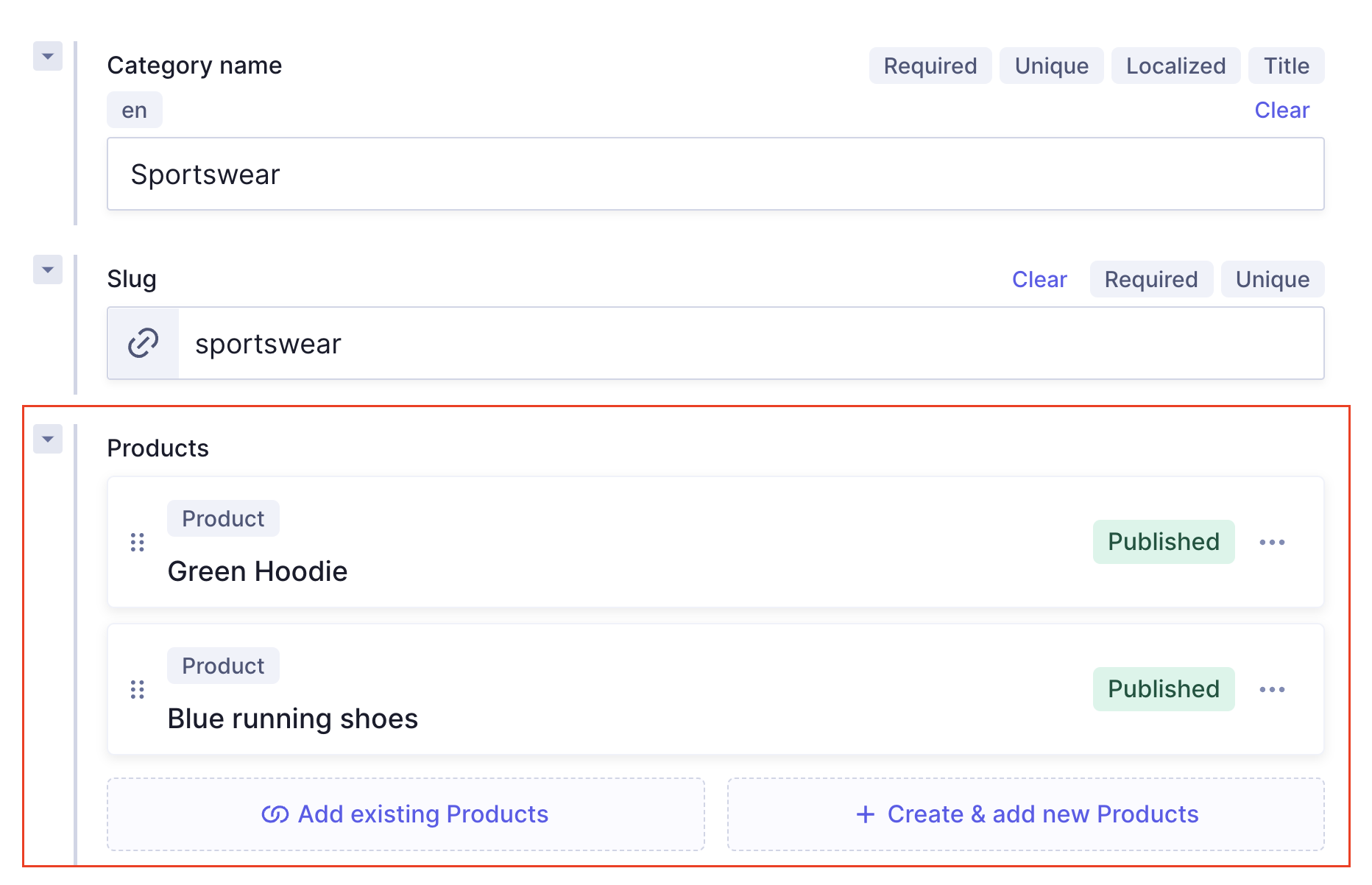 ## References 3 **Try this yourself:** Query the `sellerInformation` reference on the homepage landing page entry. Find out the `businessName` and `businessDescription`. **Solution** ```graphql query MyQuery { landingPage(where: { link: "/" }) { sellerInformation { businessName businessDescription { text } } } } ``` ## Components 1 This query fetches the `productVariant` component for the headband entry. Because `productType` is a modular component field, the query uses an inline fragment (`... on Accessory`) to specify which component type to query and which fields to return from it. **Query** ```graphql query MyQuery { product(where: { productSlug: "headband" }) { productName productDescription { html } productVariant { productType { ... on Accessory { color } } } } } ``` **Response** ```json { "data": { "product": { "productName": "Headband", "productDescription": { "html": "This white cotton headband provides an elegant and sophisticated touch to your hairstyle. Perfect for completing your look with a blend of fashion and comfort.
" }, "productVariant": { "productType": { "color": "White" } } } } } ``` Inline fragments are required for modular component fields because the API needs to know which component type's fields to return. You can include multiple inline fragments in the same query to handle all possible component types simultaneously. For example, `... on Clothing { size color }` alongside `... on Accessory { color }`. ## Components 2 This query fetches the `relatedProducts` component for the blue running shoes entry, returning product descriptions in HTML format. **Query** ```graphql query MyQuery { product(where: { productSlug: "blue-running-shoes" }) { productName productDescription { html } relatedProducts { products { productDescription { html } } } } } ``` **Response** ```json { "data": { "product": { "productName": "Blue running shoes", "productDescription": { "html": "These blue running shoes offer both form and function, providing exceptional support and style for your active pursuits. The breathable material and cushioned sole ensure a comfortable experience mile after mile.
" }, "relatedProducts": { "products": [ { "productDescription": { "html": "These black leather shoes seamlessly blend sophistication with durability, making them a versatile choice for both formal occasions and everyday wear. The sleek design and high-quality leather ensure a timeless appeal that complements any outfit.
" } }, { "productDescription": { "html": "This white necklace is crafted from parts of seashells, evoking a relaxed, beachy vibe. Perfect for those looking to add a touch of the sea to their daily style.
" } }, { "productDescription": { "html": "This white cotton headband provides an elegant and sophisticated touch to your hairstyle. Perfect for completing your look with a blend of fashion and comfort.
" } }, { "productDescription": { "html": "This plaid shirt exudes a timeless charm, perfect for a casual day out or a relaxed evening gathering. The classic checkered pattern and comfortable fit make it a wardrobe staple for effortless style.
" } } ] } } } } ``` ## Components 3 This query filters all products by a value inside the `productVariant` modular component, specifically all Accessory type products where the color is White. **Query** ```graphql query MyQuery { products( where: { productVariant: { productType: { Accessory: { color: White } } } } ) { productName productSlug productDescription { html } } } ``` **Response** ```json { "data": { "products": [ { "productName": "Necklace", "productSlug": "necklace", "productDescription": { "html": "This white necklace is crafted from parts of seashells, evoking a relaxed, beachy vibe. Perfect for those looking to add a touch of the sea to their daily style.
" } }, { "productName": "Headband", "productSlug": "headband", "productDescription": { "html": "This white cotton headband provides an elegant and sophisticated touch to your hairstyle. Perfect for completing your look with a blend of fashion and comfort.
" } } ] } } ``` Filtering on a modular component field uses the component type name (`Accessory`) as a nested key in the `where` clause. The same pattern applies to `Clothing`, `Shoes`, and `Decor`. ## Components 4 **Try this yourself:** Query the `stripes` modular component inside the homepage landing page entry. Find the `productName` and `productSlug` of all products added to the Product Grid section. **Solution** ```graphql query MyQuery { landingPage(where: { link: "/" }) { stripes { ... on ProductGrid { headline products { productName productSlug } } } } } ``` ## Remote Fields 1 This query fetches all products and their reviews from the remote field configured in lesson 5.2. The `reviews` field lives on the Product model and returns data from the HyDemoAPI remote source scoped to each product's slug. **Query** ```graphql query MyQuery { products { reviews { data { name comment rating } } } } ``` **Response** ```json { "data": { "products": [ { "reviews": { "data": [ { "name": "Sock Lover", "comment": "These socks are great. They are very colorful and they keep my feet warm.", "rating": 4.5 } ] } }, { "reviews": { "data": [ { "name": "Green Fan", "comment": "This is the absolute best hoodie I've ever had", "rating": 5 } ] } }, { "reviews": { "data": [ { "name": "Runner in Rochester", "comment": "These shoes are great. I've run 100 miles in them and they are still in great shape.", "rating": 5 } ] } }, { "reviews": { "data": [] } }, { "reviews": { "data": [ { "name": "Oregon Person", "comment": "After wearing this shirt for 2 days, I realized it was made of cotton. I am allergic to cotton. I am very disappointed.", "rating": 1.5 }, { "name": "Another Person", "comment": "This shirt is okay. It lost a button, but I sewed it back on.", "rating": 3.5 }, { "name": "Third Person", "comment": "I love this shirt. I wear it all the time.", "rating": 4.5 } ] } }, { "reviews": { "data": [ { "name": "First Person", "comment": "These shoes are both the most comfortable and the most stylish I have ever owned.", "rating": 4.5 }, { "name": "Second Person", "comment": "These would be better if they were red.", "rating": 2.5 }, { "name": "Third Person", "comment": "I've worn these for 3 years and they are still in great shape.", "rating": 4.5 } ] } }, { "reviews": { "data": [] } }, { "reviews": { "data": [] } }, { "reviews": { "data": [] } }, { "reviews": { "data": [] } } ] } } ``` Some products return an empty `data` array. This is expected because the HyDemoAPI only contains reviews for products whose slugs match entries in its dataset. Products with no matching reviews return an empty array, not an error. ## Remote Fields 2 This query fetches reviews scoped to a single product, the plaid shirt, using a `where` filter on `productSlug`. The remote field path uses `{{doc.productSlug}}` as the argument, so only reviews for that specific slug are returned. **Query** ```graphql query MyQuery { product(where: { productSlug: "plaid-shirt" }) { reviews { data { id name product comment rating } } } } ``` **Response** ```json { "data": { "product": { "reviews": { "data": [ { "id": 3, "name": "Oregon Person", "product": "plaid-shirt", "comment": "After wearing this shirt for 2 days, I realized it was made of cotton. I am allergic to cotton.", "rating": 1.5 }, { "id": 6, "name": "Another Person", "product": "plaid-shirt", "comment": "This shirt is okay. It lost a button, but I sewed it back on.", "rating": 3.5 }, { "id": 7, "name": "Third Person", "product": "plaid-shirt", "comment": "I love this shirt. I wear it all the time.", "rating": 4.5 } ] } } } } ``` ## Remote Fields 3 **Try this yourself:** Query the `reviews` remote field inside the **Product** model for the `blue-running-shoes` entry. Return the `rating` and `comment` for each review. **Solution** ```graphql query MyQuery { product(where: { productSlug: "blue-running-shoes" }) { reviews { data { rating comment } } } } ``` ## Top-level Remote Fields 1 This query fetches landing page data and review data in a single API call. The `landingPage` and `reviews` fields are at the same level in the query because `reviews` is a top-level remote field on the Query model. It is not nested inside any content model. **Query** ```graphql query MyQuery { landingPage(where: { link: "/" }) { landingPageTitle link sellerInformation { businessName slug businessDescription { text } } } reviews(productSlug: "black-leather-shoes") { data { id name product comment rating } } } ``` **Response** ```json { "data": { "landingPage": { "landingPageTitle": "Home", "link": "/", "sellerInformation": { "businessName": "My business", "slug": "my-business", "businessDescription": { "text": "This is a description of my business" } } }, "reviews": { "data": [ { "id": 1, "name": "First Person", "product": "black-leather-shoes", "comment": "These shoes are both the most comfortable and the most stylish I have ever owned.", "rating": 4.5 }, { "id": 4, "name": "Second Person", "product": "black-leather-shoes", "comment": "These would be better if they were red.", "rating": 2.5 }, { "id": 5, "name": "Third Person", "product": "black-leather-shoes", "comment": "I've worn these for 3 years and they are still in great shape.", "rating": 4.5 } ] } } } ``` A single API call returned both Hygraph content and external review data with no middleware. This is Content Federation working as configured in lessons 5.1 through 5.3. ## Top-level Remote Fields 2 **Try this yourself:** Query the `reviews` top-level remote field for `productSlug: "plaid-shirt"`. Return only the `product` and `rating` fields. **Solution** ```graphql query MyQuery { reviews(productSlug: "plaid-shirt") { data { product rating } } } ``` ## What's next [Lesson 7.2 - Write mutations](https://hygraph.com/docs/getting-started/tutorial/tutorial-write-mutations) Or, go to the [Tutorial overview](https://hygraph.com/docs/getting-started/tutorial/tutorial-overview) for the full lesson list.