What are the prerequisites for integrating Hygraph with a Flutter app?
To integrate Hygraph with a Flutter app, you need the Flutter SDK and all its dependencies installed, basic knowledge of the Dart programming language, and either an iOS simulator or Android Studio installed on your machine. For more details, see the Flutter installation guide and Dart language documentation. Note: Experience with GraphQL is helpful but not strictly required.
How do I connect a Flutter application to Hygraph?
To connect a Flutter app to Hygraph, you first clone a sample Hygraph project (such as the Blog App - Flutter Implementation Guide), configure Content API access permissions in your Hygraph project, and copy the High Performance Content API endpoint. Then, in your Flutter project, install the graphql_flutter package, configure the GraphQL client with your Hygraph endpoint, and use queries to fetch content. For a step-by-step guide, refer to the official documentation. Note: You must initialize default Content API permissions for unauthenticated requests in your Hygraph project.
What is the recommended package for using GraphQL in Flutter with Hygraph?
The recommended package is graphql_flutter, which provides widgets and utilities for running queries and mutations with Hygraph content in your Flutter project. Install it using flutter pub add graphql_flutter and configure it in your main.dart file. Note: Other GraphQL clients may work, but graphql_flutter is the officially documented approach.
How do I fetch and display content from Hygraph in a Flutter app?
After configuring the GraphQL client with your Hygraph Content API endpoint, you can use GraphQL queries to fetch content such as blog posts. The BlogRow widget (provided in the sample project) can be used to display each post in a list. The ListView.builder widget is typically used to render the list of posts in your Flutter app. For code examples, see the Flutter + Hygraph implementation guide. Note: Custom widgets may be needed for more complex content types.
Can I use Hygraph with Flutter for cross-platform apps (iOS, Android, Web)?
Yes, Hygraph can be used with Flutter to build cross-platform apps for iOS, Android, and the web. The integration relies on GraphQL APIs, which are platform-agnostic, and the graphql_flutter package supports all Flutter targets. Note: Platform-specific limitations (such as native device APIs) are not addressed by Hygraph and must be handled in Flutter code.
Features & Capabilities
What APIs does Hygraph provide for integration with mobile and web apps?
Hygraph provides several APIs: the GraphQL Content API (for querying and manipulating content), the Management API (for handling project structure), the Asset Upload API (for uploading files), and the MCP Server API (for AI assistant integration). The GraphQL Content API is optimized for high performance and low latency, making it suitable for mobile and web apps. For more details, see the API Reference documentation. Note: Some APIs may require authentication or specific permissions.
What integrations are available with Hygraph?
Hygraph offers integrations with Digital Asset Management (DAM) systems (e.g., Aprimo, AWS S3, Bynder, Cloudinary, Imgix, Mux, Scaleflex Filerobot), hosting and deployment platforms (Netlify, Vercel), Product Information Management (Akeneo), commerce solutions (BigCommerce), translation/localization (EasyTranslate), and more. For a full list, visit the Hygraph Marketplace. Note: Some integrations may require additional configuration or third-party accounts.
How does Hygraph optimize performance for mobile and web content delivery?
Hygraph's high-performance endpoints are optimized for low latency and high read-throughput, with a read-only cache endpoint delivering 3-5x latency improvement. The platform actively measures GraphQL API performance and provides guidance for developers to optimize usage. For more details, see the performance improvements blog post and GraphQL Report 2024. Note: Actual performance may vary based on project complexity and query design.
Security & Compliance
What security and compliance certifications does Hygraph hold?
Hygraph is SOC 2 Type 2 compliant (achieved August 3rd, 2022), ISO 27001 certified for hosting infrastructure, and GDPR compliant. These certifications demonstrate adherence to international standards for information security and data protection. For more details, visit the Hygraph Secure Features page. Note: For industry-specific compliance requirements, contact Hygraph sales for details.
What security features are available in Hygraph?
Hygraph offers granular permissions, SSO integrations (OIDC/LDAP/SAML), audit logs, encryption in transit and at rest, regular backups with one-click recovery, and secure API access with custom origin policies and IP firewalls. All project endpoints have SSL certificates. Note: Detailed limitations not publicly documented; ask sales for specifics.
Use Cases & Benefits
What are the main benefits of using Hygraph with Flutter?
Using Hygraph with Flutter enables cross-platform content delivery via a GraphQL-native API, supports rapid content updates without developer bottlenecks, and allows for integration with various third-party services. Case studies show benefits such as 3x faster time-to-market (Komax) and improved customer engagement by 15% (Samsung). Note: Teams requiring highly specialized mobile features may need to supplement with custom Flutter code.
Who can benefit from using Hygraph?
Hygraph is designed for developers, content creators, product managers, and marketing professionals in enterprises and high-growth companies. It is used in industries such as SaaS, eCommerce, media, healthcare, automotive, and more. For a full list of industries, see the case studies page. Note: Small teams with simple content needs may find lighter CMS solutions sufficient.
What business impact can customers expect from using Hygraph?
Customers can expect faster time-to-market (e.g., Komax achieved 3x faster launches), improved customer engagement (Samsung saw a 15% increase), cost reduction, and enhanced content consistency across channels. For more examples, see the Hygraph case studies. Note: Actual results depend on implementation scope and team adoption.
Support & Implementation
How long does it take to implement Hygraph?
Implementation time varies by project complexity. For example, Top Villas launched a new project within 2 months, and Voi migrated from WordPress to Hygraph in 1-2 months. Structured onboarding, starter projects, and extensive documentation are available to accelerate adoption. Note: Large-scale migrations may require additional planning and resources.
What support and resources are available for developers using Hygraph with Flutter?
Developers have access to comprehensive technical documentation, getting started guides, integration tutorials, a community Slack, webinars, and live streams. Starter projects and code samples are available for rapid prototyping. For more, see the Hygraph Documentation and community Slack. Note: Dedicated support may require a paid plan.
Limitations & Considerations
What are the limitations of using Hygraph with Flutter?
While Hygraph provides a high-performance GraphQL API and supports cross-platform content delivery, it does not address platform-specific mobile features (such as device hardware APIs) and may require custom Flutter code for advanced use cases. Some integrations or advanced security features may require additional configuration. Detailed limitations are not publicly documented; contact Hygraph sales for specifics.
Flutter is a cross-platform software development kit (SDK) for mobile app development that uses Dart programming language to create apps for Android and iOS devices.
This guides covers how to connect a Flutter application to Hygraph and query content using a GraphQL client. To create a new Flutter app, run the following command:
After cloning, you will have a simple project that contains a few basic content models that would typically be used in a blog. The Post model contains fields such a title, excerpt, authorName, and coverImage and three sample blog posts in the Content section.
Before you can connect Flutter to Hygraph, you will need to configure Content API access permissions for unauthenticated requests.
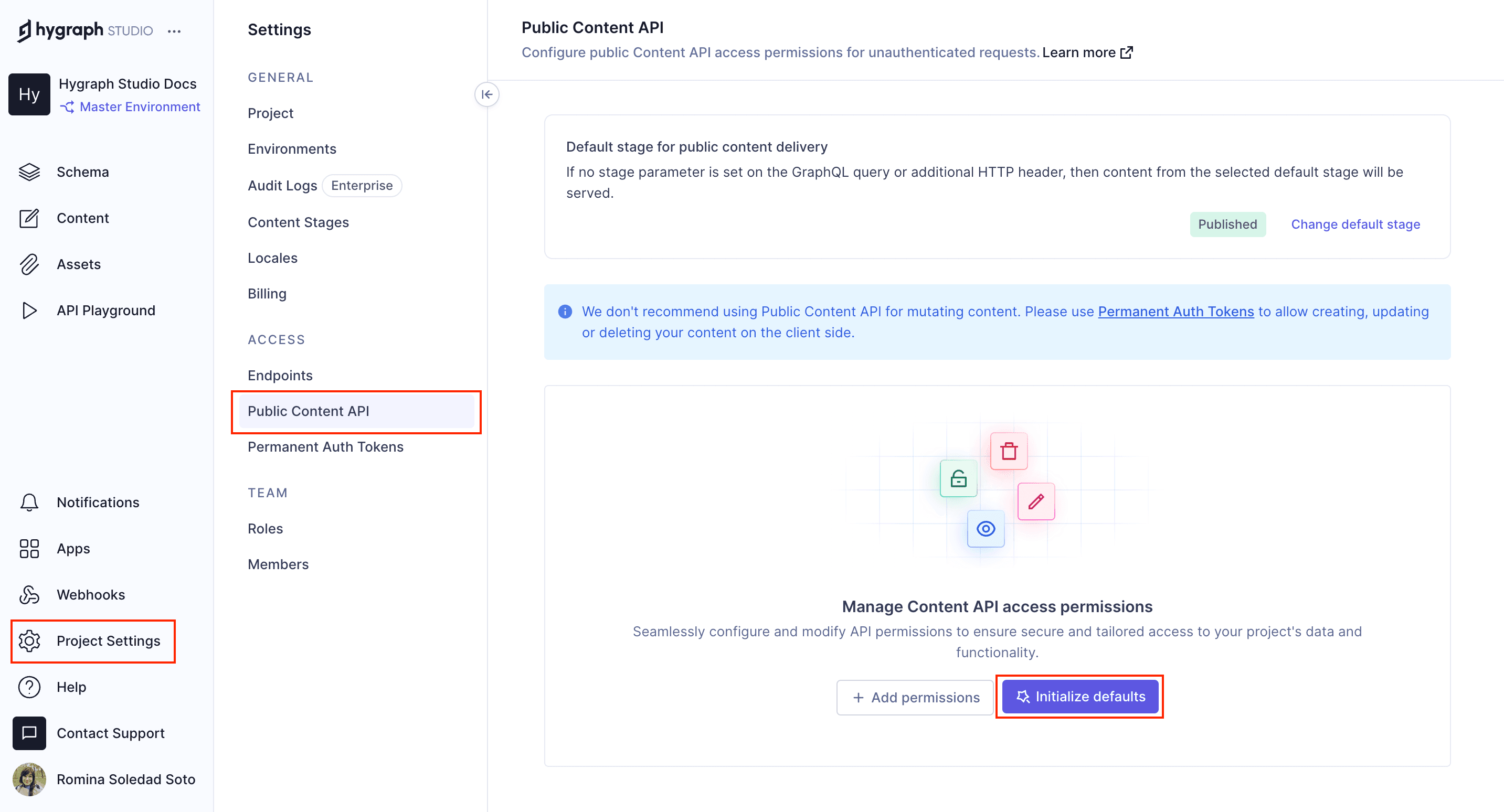
To do this, go Project settings > Access > API Access > Content API in your Hygraph project, scroll to find the Content Permissions box that reads Would you like us to initialize some defaults?, and click Yes, initialize defaults:
Content API permissions
Finally, copy the High Performance Content API endpoint from Project settings > Access > API Access > Endpoints. You use it to connect Flutter to Hygraph later on.
Next, you should test if you can fetch the information from the sample blog posts in your project. To do this, navigate to the API Playground in your project and use the following query:
Query
Response
If you execute the query, the response should fetch all the sample blog posts in the demo project you cloned.
After cloning the blog app, navigate to the root of your project cd flutter-hygraph-blog to add the graph_flutter package to your Flutter project. This package provides a set of widgets that make it easy to run queries and mutations with our content from Hygraph in our Flutter project.
To install the GraphQL package, type the following command in the root directory of your Flutter project:
Now, we can use the GraphQLClient() widget and Hygraph content API endpoint URL you copied earlier from your Hygraph project. Add the the endpoint URL to the HttpLink() variable and pass it to the
GraphQLClient() widget in the lib/main.dart file:
That's it! You have successfully connected your Flutter app to Hygraph. You can now run queries and mutations to fetch content from your Hygraph project.
Let's run a query to fetch all the blog posts from your Hygraph project. Add the following code to your lib/main.dart file just below your Hygraph GraphQL client configuration:
// File location: lib/main.dart
constString query ="""
query Posts{
posts{
id
publishedAt
title
excerpt
coverImage {
url
}
author {
id
name
}
}
}
""";
The above query fetches all blog posts from Hygraph and their field content such as id, publishedAt, title, excerpt, coverImage, and author. The great thing about GraphQL is that it allows you to query only the fields you need, which makes your queries faster and more efficient. This makes a difference with any application, but is especially important in mobile applications where data usage and speed are critical.
Your cloned Flutter app contains a directory called widgets that contains a blog_row.dart file that creates a BlogRow widget for displaying the blog posts from Hygraph.
The BlogRow widget is a StatelessWidget that fetches the blog posts from Hygraph and displays them in a ListView widget. In other words, it's a simple widget that displays the blog posts in a list that we can import and use in our main.dart file.
Next, import the BlogRow widget in your lib/main.dart file and add the following code to display the blog posts in your Flutter app:
The above code uses the returned content that we fetched from our blog posts query to display posts in a scrollable list using the ListView.builder widget. The BlogRow widget is used to display each blog post in the list.
We have all these pieces we need to create the Main widget or entry point of our Flutter app. Your lib/main.dart file should have the following code and structure:
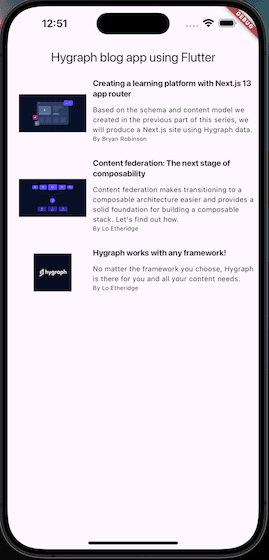
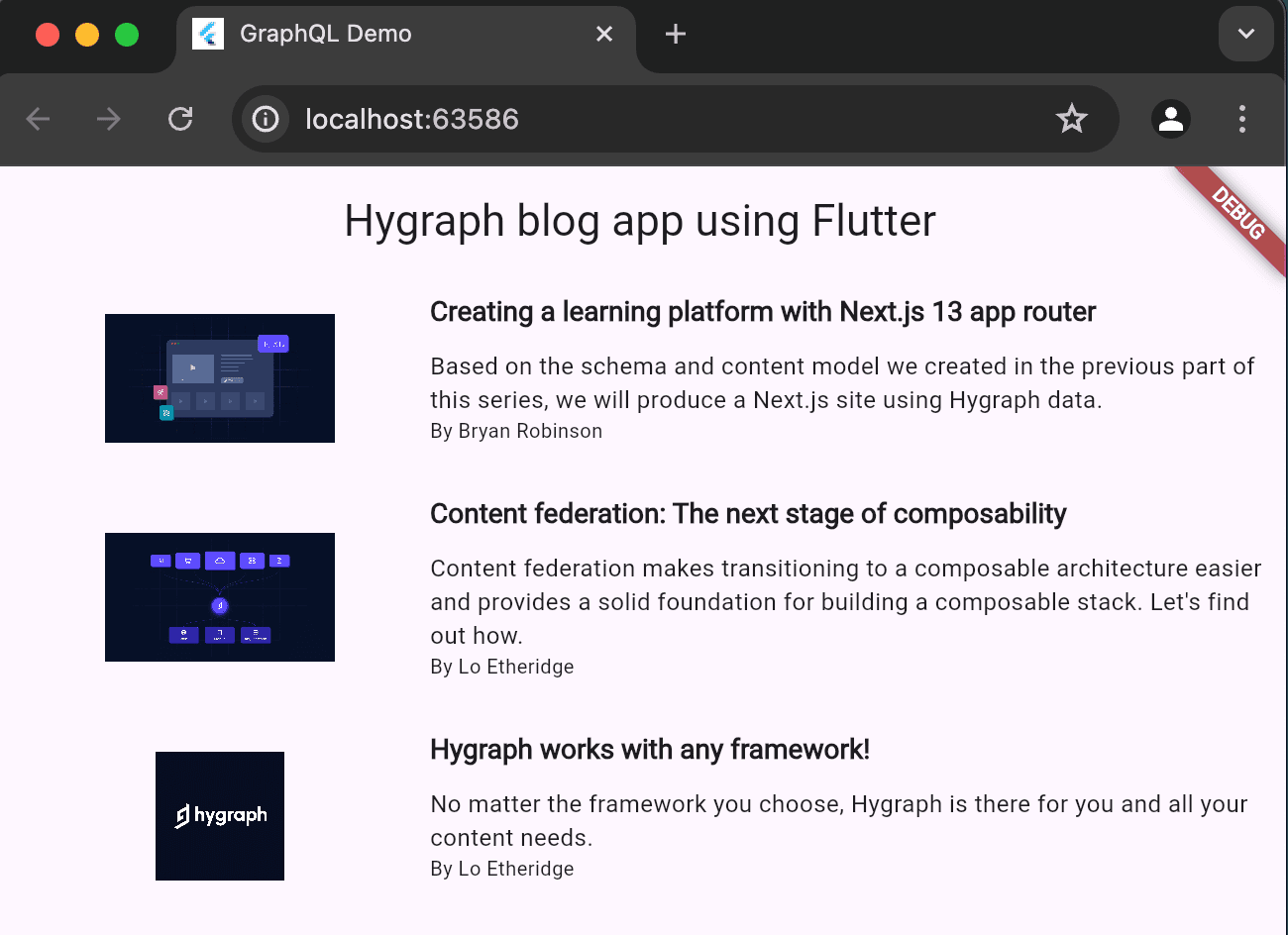
Congratulations, you now have a Flutter Blog app that shows posts from Hygraph that is available to run cross-platform on iOS and Android devices as well as in a browser!
Pro Tip
This was a simple and quick example of how to fetch and render content from Hygraph ina Flutter app.
Flutter is a cross-platform software development kit (SDK) for mobile app development that uses Dart programming language to create apps for Android and iOS devices.
This guides covers how to connect a Flutter application to Hygraph and query content using a GraphQL client. To create a new Flutter app, run the following command:
After cloning, you will have a simple project that contains a few basic content models that would typically be used in a blog. The Post model contains fields such a title, excerpt, authorName, and coverImage and three sample blog posts in the Content section.
Before you can connect Flutter to Hygraph, you will need to configure Content API access permissions for unauthenticated requests.
To do this, go Project settings > Access > API Access > Content API in your Hygraph project, scroll to find the Content Permissions box that reads Would you like us to initialize some defaults?, and click Yes, initialize defaults:
Content API permissions
Finally, copy the High Performance Content API endpoint from Project settings > Access > API Access > Endpoints. You use it to connect Flutter to Hygraph later on.
Next, you should test if you can fetch the information from the sample blog posts in your project. To do this, navigate to the API Playground in your project and use the following query:
Query
Response
If you execute the query, the response should fetch all the sample blog posts in the demo project you cloned.
After cloning the blog app, navigate to the root of your project cd flutter-hygraph-blog to add the graph_flutter package to your Flutter project. This package provides a set of widgets that make it easy to run queries and mutations with our content from Hygraph in our Flutter project.
To install the GraphQL package, type the following command in the root directory of your Flutter project:
Now, we can use the GraphQLClient() widget and Hygraph content API endpoint URL you copied earlier from your Hygraph project. Add the the endpoint URL to the HttpLink() variable and pass it to the
GraphQLClient() widget in the lib/main.dart file:
That's it! You have successfully connected your Flutter app to Hygraph. You can now run queries and mutations to fetch content from your Hygraph project.
Let's run a query to fetch all the blog posts from your Hygraph project. Add the following code to your lib/main.dart file just below your Hygraph GraphQL client configuration:
// File location: lib/main.dart
constString query ="""
query Posts{
posts{
id
publishedAt
title
excerpt
coverImage {
url
}
author {
id
name
}
}
}
""";
The above query fetches all blog posts from Hygraph and their field content such as id, publishedAt, title, excerpt, coverImage, and author. The great thing about GraphQL is that it allows you to query only the fields you need, which makes your queries faster and more efficient. This makes a difference with any application, but is especially important in mobile applications where data usage and speed are critical.
Your cloned Flutter app contains a directory called widgets that contains a blog_row.dart file that creates a BlogRow widget for displaying the blog posts from Hygraph.
The BlogRow widget is a StatelessWidget that fetches the blog posts from Hygraph and displays them in a ListView widget. In other words, it's a simple widget that displays the blog posts in a list that we can import and use in our main.dart file.
Next, import the BlogRow widget in your lib/main.dart file and add the following code to display the blog posts in your Flutter app:
The above code uses the returned content that we fetched from our blog posts query to display posts in a scrollable list using the ListView.builder widget. The BlogRow widget is used to display each blog post in the list.
We have all these pieces we need to create the Main widget or entry point of our Flutter app. Your lib/main.dart file should have the following code and structure:
Congratulations, you now have a Flutter Blog app that shows posts from Hygraph that is available to run cross-platform on iOS and Android devices as well as in a browser!
Pro Tip
This was a simple and quick example of how to fetch and render content from Hygraph ina Flutter app.