# Connect your Hygraph project to EasyTranslate
Integrate Hygraph with EasyTranslate to bring your localization workflows into your Hygraph projects
**EasyTranslate**'s language solutions platform gives you easy access to professional, high-quality translation, interpretation, and localization services for any market. Thousands of businesses from all industries - from small eCommerce to large enterprises - use EasyTranslate's software to generate content from simple keywords, recruit freelance translators or automate translation flows from various platforms.
## What you can do with the Hygraph-EasyTranslate integration
- The **Hygraph-EasyTranslate integration** allows your team to sync/submit your content from Hygraph to EasyTranslate, where you can localize your content either automatically or done by your team, then import it back into your CMS seamlessly
## Prerequisites to use this integration
- You must have a **Hygraph** account. If you don't have one, you can create one [here](https://app.hygraph.com/signup).
- You must have a [Hygraph project](https://hygraph.com/docs/getting-started/quickstart#create-a-project).
- You must have an **EasyTranslate** account. If you don't have one, you can create one [here](https://platform.easytranslate.com/en/freemium-start).
- You must have an EasyTranslate `Personal access token`. You will find it in your EasyTranslate account by navigating to **Integrations > Hygraph**.
- You must have a `Library` created in EasyTranslate. [This document](https://knowledge.easytranslate.com/how-to-create-a-library) explains how to create one.
- You must have a `Team` set up in EasyTranslate. [This video](https://www.youtube.com/watch?v=58hG9PW3elM&t=26s) shows you how to set up your translators team.
**Warning:**
**Apps are environment specific**. This means their configuration is applied per environment. Take this into consideration if you're working with a project using more than one environment.
## Install the EasyTranslate app
Click [here](https://hygraph.com/marketplace/apps/hygraph-easytranslate-app) to install the **EasyTranslate** App on **Hygraph**, then follow these steps:
[Video: Install EasyTranslate app](https://eu-central-1-shared-euc1-02.graphassets.com/AvHQ3RDvFSousA8iwElOKz/KfKS3fkBQLSeQcJR2a5F)
1. Use the the dropdowns to select which project and environment you want to install the app in, then click on the `Install App` button. You should be redirected to your **Hygraph** project dashboard.
2. Click on `Authorize app` on the permissions screen.
3. Fill in the following information:
- `Personal access token`: You can find this information in your **EasyTranslate** account by navigating to **Integrations > Hygraph**. Once you add this token, you can use the dropdowns to select a team and library.
- `Team`: Use the the dropdown to select which team you want to configure the app for. [Here's](https://www.youtube.com/watch?v=58hG9PW3elM&t=26s) some information on how to set up a translators team in your EasyTranslate account.
- `Library`: Use the the dropdown to select which library you want to configure the app for. [Here's](https://knowledge.easytranslate.com/how-to-create-a-library) some information on how to create a library in your EasyTranslate account.
4. Select at least one of the listed `Translatable models` to use **EasyTranslate** in. This information can be edited later by going to the **Apps** section of your Hygraph project, then clicking on the pencil icon on the EasyTranslate card to edit the details.
5. Click on the `Save` button.
## Use EasyTranslate in your Hygraph project
As you create content, it will display in the **EasyTranslate** app view of the **Content editor**. From there, you will be able to [send your content for translation](https://hygraph.com/docs/integrations/connect-easytranslate#send-for-translation) to **EasyTranslate**, then [sync](https://hygraph.com/docs/integrations/connect-easytranslate#sync) those translations with your **Hygraph** content.
**Warning:**
Please note that only the content created using the Model that you selected during the EasyTranslate installation process will display on this list.
You can edit this from your Hygraph project by navigating to Apps > EasyTranslate, clicking on the pencil icon to edit, then using the checkboxes to select the models you want.
Finally, after syncing the content, you will be able to [view the translated content](https://hygraph.com/docs/integrations/connect-easytranslate#view-translations) normally by accessing the **Content editor**.
## Send for translation
There are two ways to send your content for translation:
- [Send multiple entries at the same time using the app view form](https://hygraph.com/docs/integrations/connect-easytranslate#send-multiple-entries)
- [Send a single entry from inside the entry edit view](https://hygraph.com/docs/integrations/connect-easytranslate#send-single-entry)
**The following fields are supported to be exported to EasyTranslate:**
- Single-line text
- Multi-line text
- Markdown
- Richtext
- Slug
Export is also supported for Basic and Modular Components, but only for the supported field types.
Take into account that only localizable fields can be submitted to EasyTranslate. So the fields must be set as localized fields when added to the model.
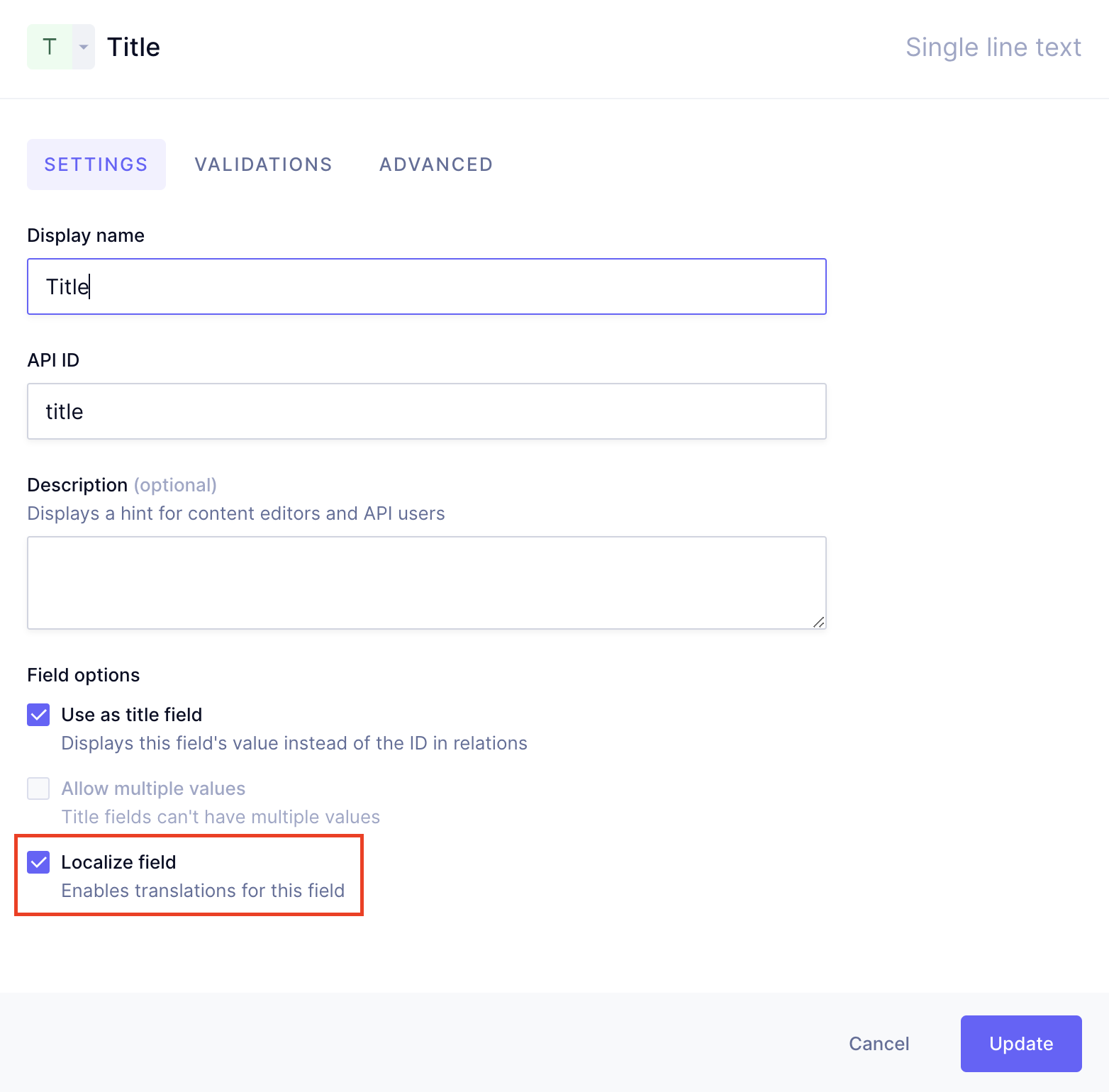
You will find the `Localized field` checkbox at the bottom of the field details screen, which displays when you create or edit a field in the **Schema** editor.
### Send multiple entries
[Video: Send multiple entries to translate](https://eu-central-1-shared-euc1-02.graphassets.com/AvHQ3RDvFSousA8iwElOKz/EgTFguWbTRm8vEHLblWJ)
1. Navigate to the **content editor**.
2. Find **EasyTranslate** under the **App views** section of the right sidebar.
3. Use the checkboxes to select the desired content from the list, and send it to **EasyTranslate** by clicking on `Send for Translation` at the top right of the form. It is also possible to filter content entries by `Model` and `Locale` using the dropdowns at the top of the form.
The system then sends the content to EasyTranslate for translation. After work on that content is finished, you can sync the content to bring those translations to Hygraph.
### Send single entry
[Video: Send single entry to translate](https://eu-central-1-shared-euc1-02.graphassets.com/AvHQ3RDvFSousA8iwElOKz/mm0k3A7RvGPw7rInzowf)
1. Navigate to the **content editor**.
2. Find **EasyTranslate** under the **App views** section of the right sidebar.
3. Find the entry you want to send and click on the pencil icon to access the edit view.
4. Click on the `Send for translation` button on the sidebar.
The system then sends the content to EasyTranslate for translation. After work on that content is finished, you can sync the content to bring those translations to Hygraph.
## Sync
After [sending content for translation](https://hygraph.com/docs/integrations/connect-easytranslate#send-for-translation) to **EasyTranslate**, it will be [translated and saved there](https://knowledge.easytranslate.com/for-freelancers). You can then bring that content back to **Hygraph** by syncing.
There are two ways of syncing your content:
- [Sync multiple entries at the same time using the app view form](https://hygraph.com/docs/integrations/connect-easytranslate#sync-multiple-entries)
- [Sync a single entry from inside the entry edit view](https://hygraph.com/docs/integrations/connect-easytranslate#sync-single-entry)
### Sync multiple entries
[Video: Sync multiple translations](https://eu-central-1-shared-euc1-02.graphassets.com/AvHQ3RDvFSousA8iwElOKz/olT4RvPzRlur7ppJgu56)
1. Navigate to the **EasyTranslate** app view of the **Content editor**.
2. Use the checkboxes to select the entries whose translations you want to sync, then click on the `Sync` button at the top right of the form.
3. The form will refresh and the entries will now contain the translated content as localizations.
### Sync single entry
[Video: Sync single translation](https://eu-central-1-shared-euc1-02.graphassets.com/AvHQ3RDvFSousA8iwElOKz/ytcNDKgSRTWC6buKTByF)
1. Navigate to the **EasyTranslate** app view of the **Content editor**.
2. Find the entry you want to sync and click on the pencil icon to access the edit view.
3. Click on the `Sync with EasyTranslate` button on the sidebar.
4. The localized fields will now display the translated content.
5. Click on `Save` or `Save and Publish`.
## View translations
1. Navigate to the **content editor**, and select the view of the model you included **EasyTranslate** in.
2. Edit an entry that you synced a translation for by clicking on the pencil icon. The content will display at the center of the screen.
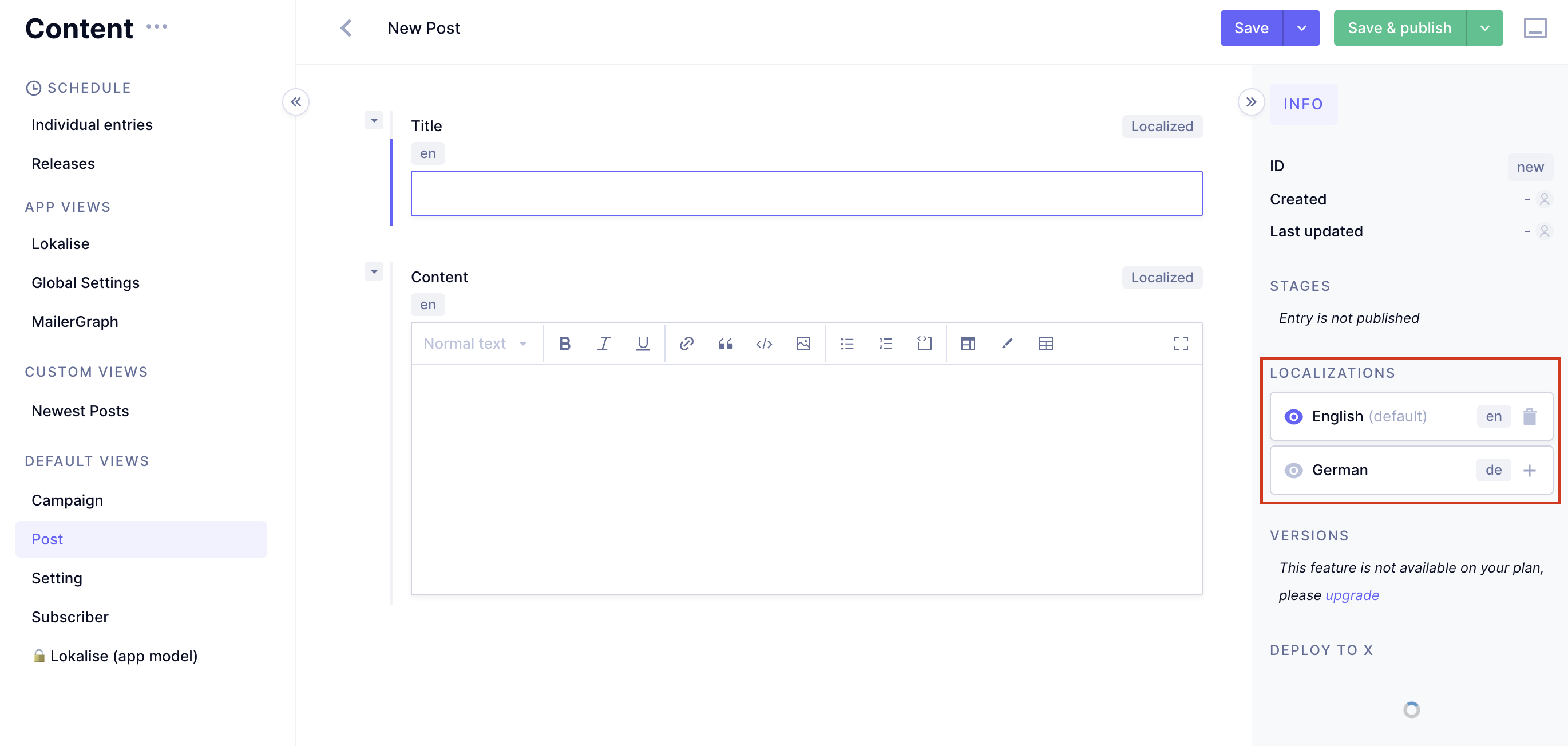
3. You will find the `Localizations` section in the right sidebar. You have the following options:
1. Click on the `+` icon to add a translation.
2. Click on the trash icon to delete a translation.
3. Click on the eye icon to view a translation in the editor.
## Troubleshooting
If the **Content Editor** displays the message `This model has no localized fields` under localizations in the sidebar, while the **Schema Editor** has localizations configured, go to **Project Settings > General > Locales**. There, make sure your project has at least two languages configured.
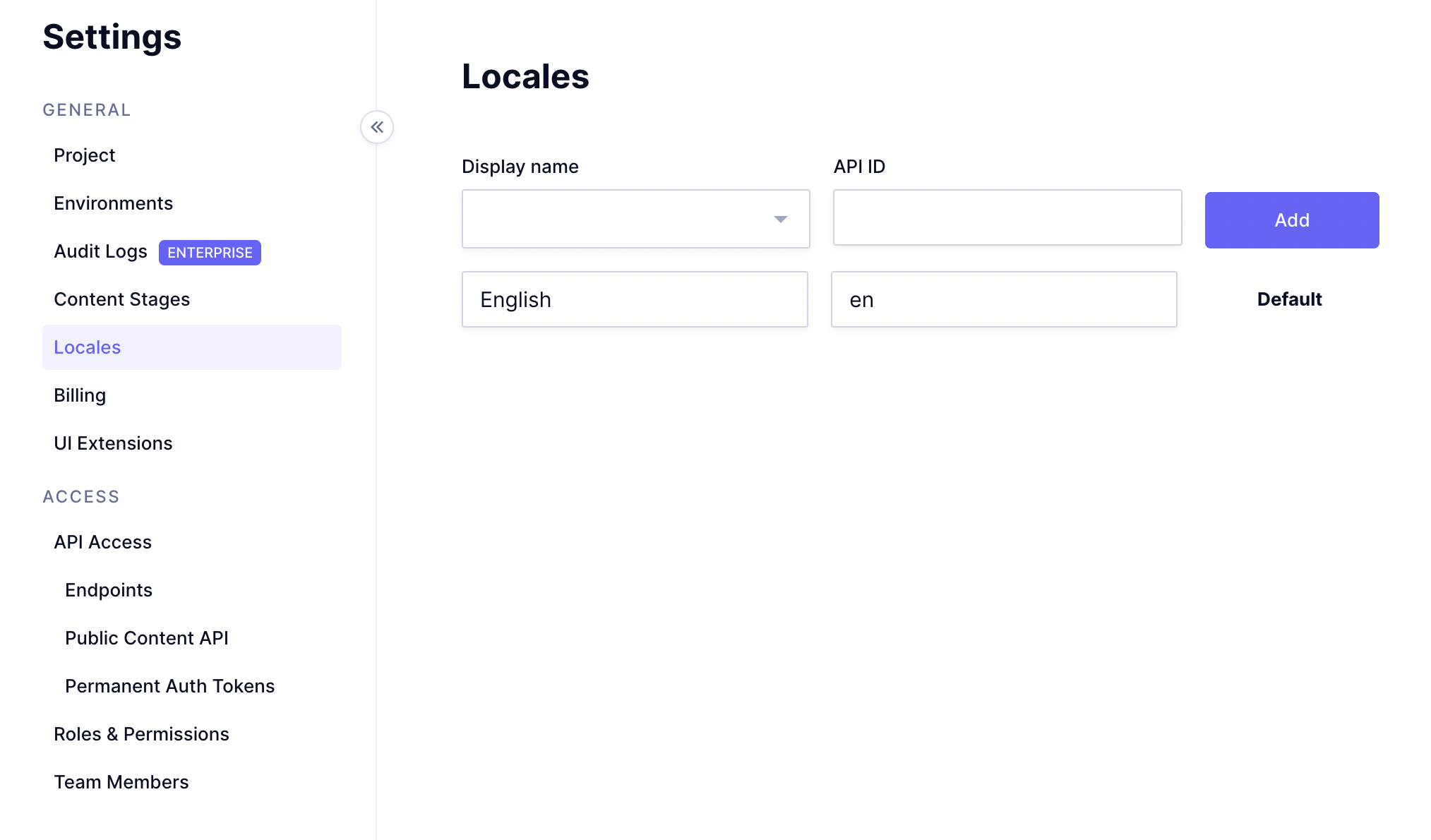
If you have only one language configured there, select another language for localizations using the `Display name` dropdown, then click on `Add`.
**Warning:**
Please note that free plans can have a maximum of 2 locales.
## Resources
- [EasyTranslate knowledge base](https://knowledge.easytranslate.com/).