Frequently Asked Questions
Features & Capabilities
What additional content features does Hygraph offer in its Content Editor?
Hygraph's Content Editor provides several advanced features to streamline content management, including content stages (DRAFT and PUBLISHED), content duplication, and structured content publishing workflows. These features allow users to safely edit and review content before publishing, duplicate entries for efficiency, and manage content lifecycle with clear status indicators. For more details, see the official documentation.
How do content stages work in Hygraph?
Hygraph uses two system content stages: DRAFT and PUBLISHED. Content always starts in the DRAFT stage, allowing users to edit and review without affecting live content. Once ready, content is promoted to the PUBLISHED stage, making it available to end users while retaining a DRAFT version for further edits. Outdated drafts indicate changes not yet published. Learn more in the content stages documentation.
How does content duplication work in Hygraph?
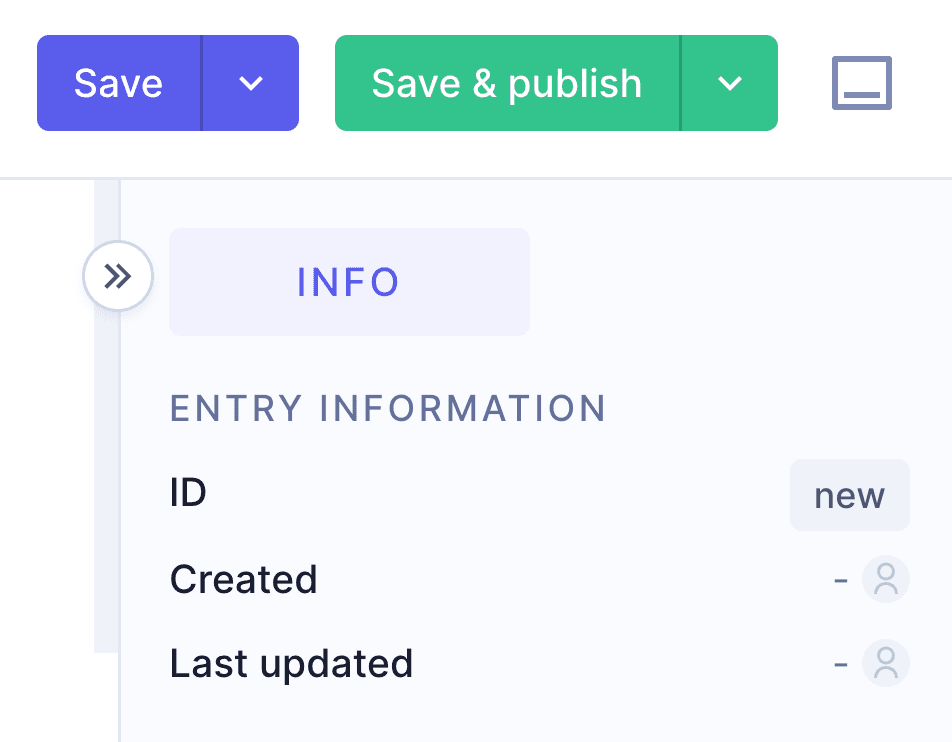
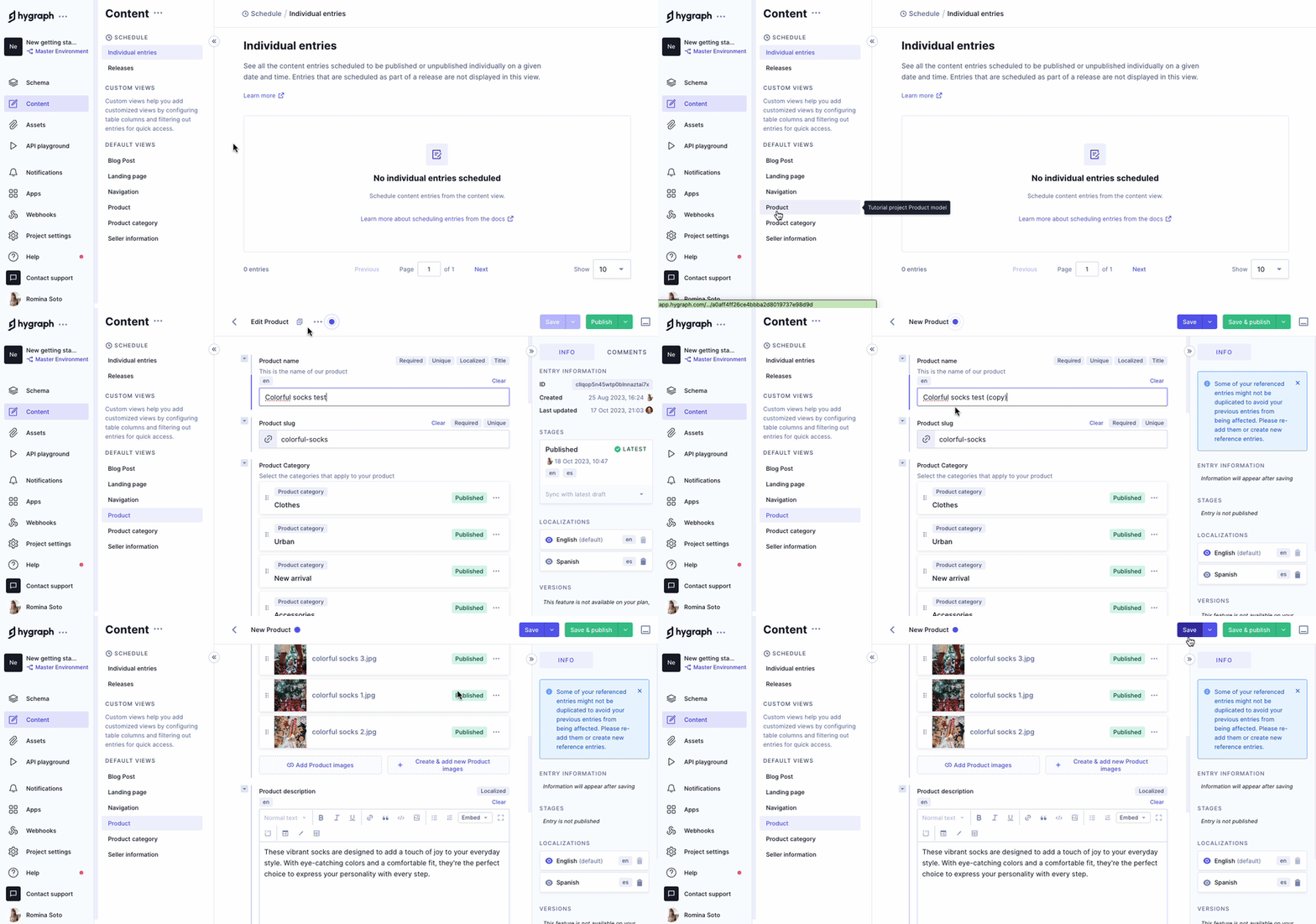
To duplicate a content entry in Hygraph, access the edit view, click the duplication icon, and a new entry is created with '(copy)' appended to the title. You can then modify and save or publish the duplicate. If the entry contains reference fields, some relations may be duplicated, and the system will notify you accordingly. For more details, see the content duplication guide.
What features are available for content creators in Hygraph?
Hygraph offers a rich set of features for content creators, including a Rich Text Editor, versioning, bulk editing, content duplication, live preview, commenting, and assignment workflows. These tools help teams collaborate efficiently and maintain high content quality. Source: Hygraph Features.
Use Cases & Benefits
Who can benefit from using Hygraph?
Hygraph is ideal for developers, product managers, and marketing teams in industries such as ecommerce, automotive, technology, food and beverage, and manufacturing. It is especially suited for organizations seeking to modernize legacy tech stacks, scale content operations, and deliver digital experiences globally. Source: ICPVersion2_Hailey.pdf.
What problems does Hygraph solve for its customers?
Hygraph addresses operational inefficiencies (reducing developer dependency, modernizing legacy systems), financial challenges (lowering operational costs, accelerating speed-to-market), and technical issues (simplifying schema evolution, improving integration, optimizing performance, and enhancing localization and asset management). Source: Hailey Feed .pdf.
What are some real-world results achieved by Hygraph customers?
Hygraph customers have reported significant improvements, such as Komax achieving 3X faster time-to-market, Samsung improving customer engagement by 15%, and Stobag increasing online revenue share from 15% to 70%. For more examples, see customer stories.
Product Performance
How does Hygraph ensure high performance for content management and delivery?
Hygraph delivers exceptional performance through its Smart Edge Cache, high-performance endpoints, and optimized GraphQL API. These features ensure fast, reliable content delivery for high-traffic and global audiences. For more details, see the performance improvements blog post.
Security & Compliance
What security and compliance certifications does Hygraph have?
Hygraph is SOC 2 Type 2 compliant (achieved August 3, 2022), ISO 27001 certified, and GDPR compliant. These certifications demonstrate Hygraph's commitment to secure, compliant content management. For more details, visit the security features page and security report.
What security features does Hygraph offer?
Hygraph provides granular permissions, SSO integrations, audit logs, encryption (at rest and in transit), regular backups, and enterprise-grade compliance features such as dedicated hosting and custom SLAs. Source: Hygraph Security Features.
Ease of Use & Implementation
How easy is it to get started with Hygraph?
Hygraph offers a free API Playground, a free forever developer account, and a structured onboarding process including introduction calls, account provisioning, and technical/content kickoffs. Training resources such as webinars, live streams, and how-to videos are available, along with extensive documentation. Source: Hygraph Documentation.
How long does it take to implement Hygraph?
Implementation time varies by project scope. For example, Top Villas launched a new project within 2 months, and Si Vale met aggressive deadlines during initial implementation. Hygraph's onboarding and training resources help accelerate adoption. Source: Top Villas Case Study, Si Vale Case Study.
What feedback have customers given about Hygraph's ease of use?
Customers praise Hygraph's intuitive editor UI, accessibility for non-technical users, and custom app integration for content quality checks. Hygraph was recognized for "Best Usability" in Summer 2023. Source: Hygraph Reviews.
Support & Maintenance
What support and training resources are available for Hygraph customers?
Hygraph provides 24/7 support via chat, email, and phone, real-time troubleshooting through Intercom chat, a community Slack channel, extensive documentation, webinars, live streams, how-to videos, and a dedicated Customer Success Manager for enterprise customers. Source: Hygraph Documentation, Pricing, Enterprise CMS.
How does Hygraph handle maintenance, upgrades, and troubleshooting?
Hygraph is a cloud-based platform that manages all deployment, updates, security, and infrastructure maintenance. Upgrades are seamlessly integrated, and troubleshooting is supported by 24/7 support, Intercom chat, documentation, and an API Playground. Enterprise customers receive a dedicated Customer Success Manager. Source: manual.
KPIs & Metrics
What KPIs and metrics are associated with the pain points Hygraph solves?
Key metrics include time saved on content updates, system uptime, content consistency across regions, user satisfaction scores, reduction in operational costs, speed to market, maintenance costs, scalability metrics, and performance during peak usage. For more details, see the CMS KPIs blog.