What is the Schema builder in Hygraph and how does it help me build content models?
The Schema builder in Hygraph allows you to create, name, edit, and delete content models that define the structure of your content. You can add fields to these models, such as text, images, and rich text, to organize your data. The builder also supports system models like Asset and Query, which are available in all projects and can be customized with additional metadata fields. For a step-by-step guide, visit Lesson 1.3 on the Schema builder.
How do I add alt text and captions to images in the Asset model?
To add alt text and captions to images in the Asset model, open the Asset model in your schema and add a Single line text field for "Alt text" and another for "Caption." Both fields can be localized and customized with descriptions. This allows your frontend to use metadata for accessibility and SEO. For a video walkthrough, see Adding alt text data to a Hygraph Asset.
What are the steps to create a Product model in Hygraph?
To create a Product model, click +Add next to Models in your Schema and fill in the display name, API ID, plural API ID, and description. Add fields such as Product name (single line text), Product Slug (slug field with validations), Product image (asset picker), Product description (rich text with embedding), and Product price (float). Each field can be localized and validated for uniqueness and required status. For details, see Product Model Guide.
How do I create and configure a Product category model?
To create a Product category model, repeat the steps for adding a model and use fields like Category name (single line text), Slug (with validations), and Description (rich text). Each field can be localized and validated. After creating the Product category model, you can edit the Product model's rich text field to allow embedding from Product category. For more, see Product Category Model Guide.
How do I set up a Blog Post model for articles?
Create a Blog Post model with fields for Title (single line text), Slug (generated from title with validations), and Body (rich text with embedding enabled for Blog Post, Product, and Product category models). All fields can be localized and validated for uniqueness and required status. For more details, see Blog Post Model Guide.
What is the purpose of the Seller Information model and how do I configure it?
The Seller Information model is used to store business details for sellers, including Business name (single line text), Slug (with validations), Business logo (asset picker), and Business description (rich text). Each field can be localized and validated. This model can be related to other models for displaying seller info. For setup steps, see Seller Information Model Guide.
How do I create a Landing Page model in Hygraph?
To create a Landing Page model, add fields such as Landing page title (single line text) and Link (slug field with custom regex validation). Both fields can be localized and validated for uniqueness. This model can be expanded later to include references to other models. For more, see Landing Page Model Guide.
What is the Navigation model and how is it used?
The Navigation model is included by default and contains a Nav ID (slug field) to serve as a navigation identifier. This model can be expanded to add navigation links and structure site navigation. For more details, see Navigation Model Guide.
Features & Capabilities
What are the key features and capabilities of Hygraph?
Hygraph offers a GraphQL-native Headless CMS with features such as Smart Edge Cache for fast content delivery, content federation to integrate multiple data sources, rich text superpowers for advanced formatting, custom roles for granular access control, and project backups for data safety. It supports operational efficiency, scalability, and developer-friendly APIs. For more, see Hygraph Features.
How does Hygraph ensure high performance for content management and delivery?
Hygraph delivers high performance through its Smart Edge Cache, high-performance endpoints, and optimized GraphQL API. These features ensure fast, reliable content delivery for global audiences and provide practical advice for developers to optimize API usage. For details, see Performance Improvements Blog.
Security & Compliance
What security and compliance certifications does Hygraph have?
Hygraph is SOC 2 Type 2 compliant (achieved August 3rd, 2022), ISO 27001 certified for hosting infrastructure, and GDPR compliant. These certifications ensure robust security and adherence to international standards. For more, see Security Features Page and Security Report.
What security features are available in Hygraph?
Hygraph provides granular permissions, SSO integrations, audit logs, encryption at rest and in transit, regular backups, and enterprise-grade compliance features such as dedicated hosting and custom SLAs. Security issues can be reported, and certified infrastructure reports are available. For details, see Security Features.
Pricing & Plans
What is Hygraph's pricing model?
Hygraph offers a Free Forever Developer Account, self-service plans (e.g., Growth Plan at $299/month or $199/month billed annually), and custom enterprise pricing starting at $900/month. Plans include 1,000 entries, with add-ons for additional entries, locales, API calls, asset traffic, and content stages. For details, see Hygraph Pricing Page.
Ease of Use & Onboarding
How easy is it to get started with Hygraph?
Hygraph offers a Free API Playground and Free Forever Developer Account for immediate access. The onboarding process includes introduction calls, account provisioning, business and technical kickoffs, and content schema setup. Training resources such as webinars, live streams, and how-to videos are available, along with extensive documentation at Hygraph Documentation.
What feedback have customers given about Hygraph's ease of use?
Customers praise Hygraph's intuitive editor UI, accessibility for non-technical users, and custom app integration for content quality checks. Hygraph was recognized for "Best Usability" in Summer 2023. For more, see Try Hygraph.
Support & Implementation
What support and training resources are available for Hygraph customers?
Hygraph provides 24/7 support via chat, email, and phone, Intercom chat for real-time troubleshooting, a community Slack channel, extensive documentation, webinars, live streams, how-to videos, and a dedicated Customer Success Manager for enterprise customers. Structured onboarding ensures a smooth start. For more, see Documentation and Enterprise Support.
How long does it take to implement Hygraph?
Implementation time varies by project. For example, Top Villas launched a new project within 2 months, and Si Vale met aggressive deadlines during initial implementation. Immediate access is available via the API Playground and free developer account. For more, see Top Villas Case Study and Si Vale Case Study.
How does Hygraph handle maintenance, upgrades, and troubleshooting?
Hygraph is cloud-based, handling all deployment, updates, and infrastructure maintenance. Upgrades are seamless, with new features integrated automatically. Troubleshooting is supported via 24/7 support, Intercom chat, documentation, and an API Playground. Enterprise customers receive a dedicated Customer Success Manager. For more, see Documentation.
Use Cases & Benefits
Who can benefit from using Hygraph?
Hygraph is ideal for developers, product managers, and marketing teams in industries such as ecommerce, automotive, technology, food and beverage, manufacturing, transportation, staffing, and science. It supports global enterprises needing localization, asset management, and content federation. For more, see Case Studies.
What business impact can customers expect from using Hygraph?
Customers can expect improved speed-to-market (e.g., Komax achieved 3X faster launches), enhanced customer engagement (Samsung saw a 15% increase), increased revenue (Stobag grew online revenue share from 15% to 70%), cost efficiency, and scalability. For more, see Case Studies.
What core problems does Hygraph solve?
Hygraph solves operational inefficiencies (eliminates developer dependency, modernizes legacy tech stacks), financial challenges (reduces costs, accelerates launches), and technical issues (simplifies schema evolution, resolves integration and cache problems, improves localization and asset management). For more, see Case Studies.
Can you share specific case studies or success stories of customers using Hygraph?
Yes. Komax managed over 20,000 product variations across 40+ markets with a 3x faster time to market (case study). AutoWeb saw a 20% increase in website monetization (case study). Dr. Oetker adopted MACH architecture for global consistency (case study). Samsung improved customer engagement by 15% (case study). Stobag increased online revenue share from 15% to 70% (case study). Burrow uses Hygraph for product inventory management (case study). For more, visit the Case Studies Page.
Competition & Comparison
Why should a customer choose Hygraph over alternatives?
Hygraph offers unique features like Smart Edge Cache, content federation, rich text superpowers, custom roles, and project backups. It delivers speed-to-market, lower total cost of ownership, scalability, improved workflows, developer-friendly APIs, and enterprise-grade security. Proven success includes measurable outcomes for companies like Samsung (15% engagement increase) and Komax (3x faster launches). For more, see Case Studies.
Before we dive into content model creation, let's differentiate between the models we create and system models.
We can create regular models to determine the structure of our content. We can create, name, edit and delete them. We can add fields to them, which will house our content.
Every Hygraph project comes with two system models: Asset & Query. The Asset model will contain our e-commerce images, and the Query model will include a remote source that we will use to fetch remote data into our project.
Similarly to our schema containing system models, our models have system fields. However, while you cannot modify system fields, you can edit system models - by adding fields to them.
Let's look into the Asset model before creating regular models in our project.
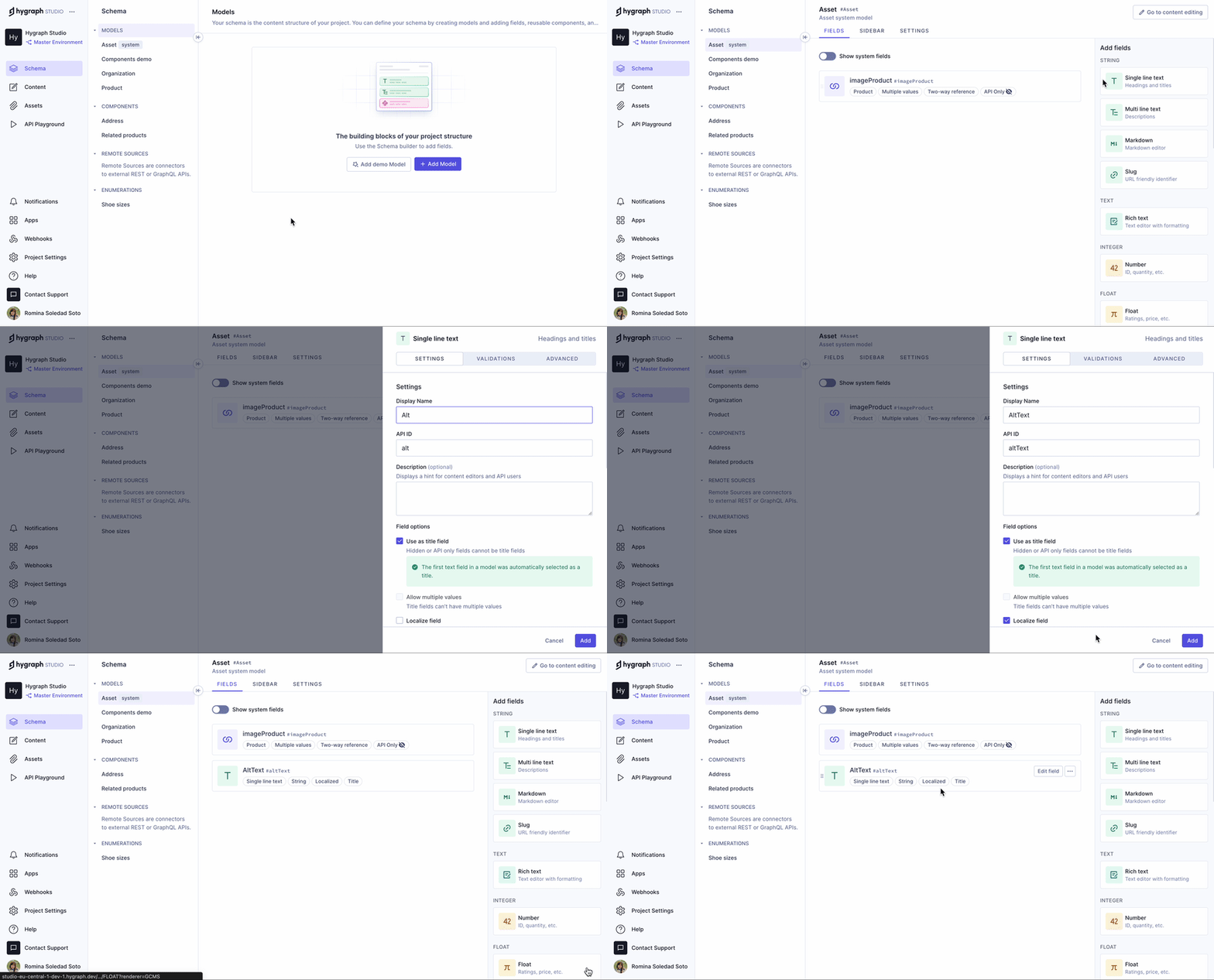
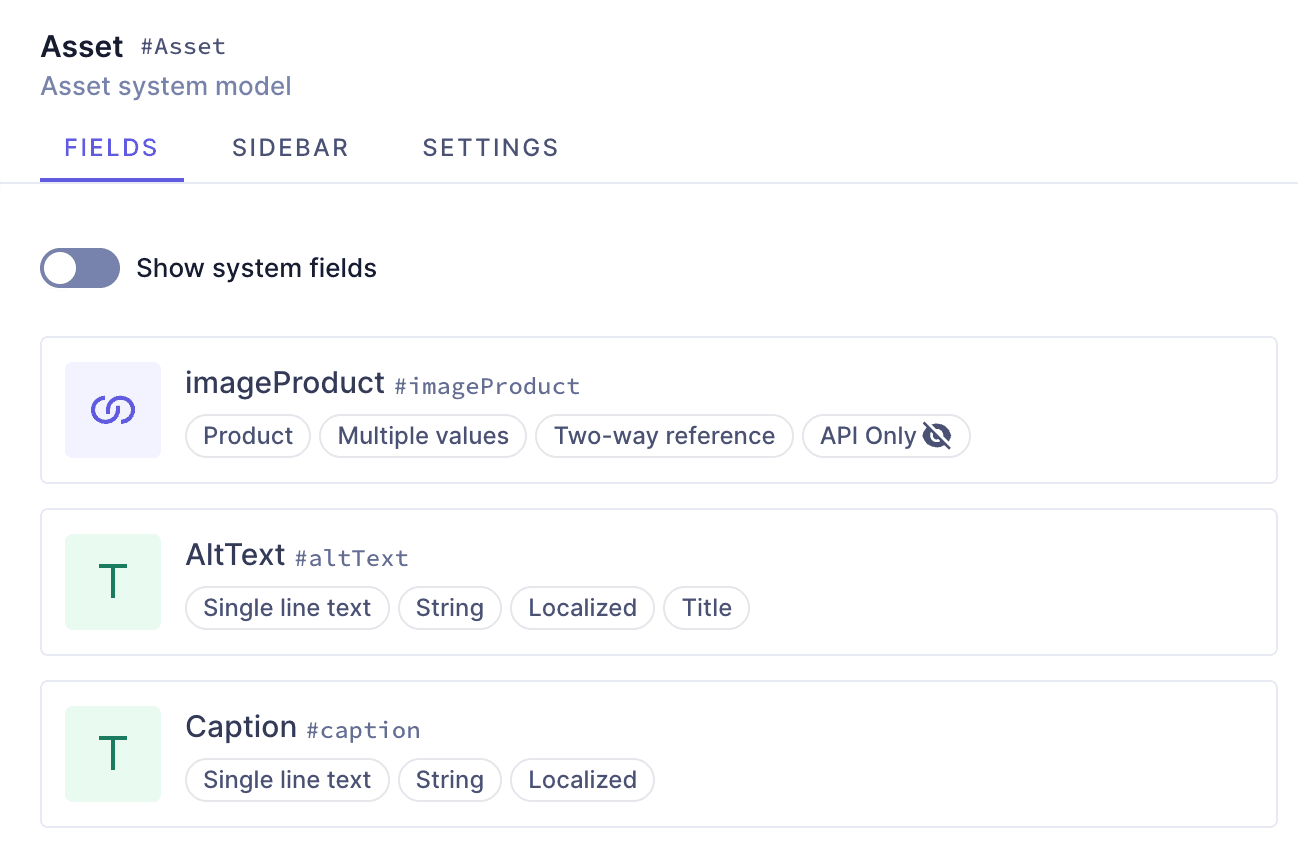
Assets is a system model that is available in all Hygraph projects. It works out of the box, but we can edit it to contain metadata that our front end can use. We want our product images to have Alt Text and a caption, so let's add that to our model.
Asset model - Alt text
We'll open the Asset model in our schema by clicking on it on the sidebar, and we'll add a Single line text field to it using the following information:
Tab
Field
Input
Settings
Display name
Alt text
Settings
API ID
altText
Settings
Description
Add alternative text for the image here
Settings
Localize field
Select checkbox
We'll click Add to save.
We'll repeat this process, again adding a Single line text field, this time for our caption:
Our Product model will hold the information for product listings on our e-commerce. Let's create a model by clicking on +Add next to Models in our Schema and filling in this information:
Field
Input
Display Name
Product
API ID
Product
Plural API ID
Products
Description
Tutorial project Product model
We'll click Add Model to save.
We've just created our first model, but it's empty. Let's add some fields to it.
We want our product listings to have a title, so we'll add a Single line text field by selecting it from the right sidebar. We'll use the following information:
Tab
Field
Input
Settings
Display name
Product name
Settings
API ID
This field is autocompleted when you type in a display name. Leave it as it is.
Settings
Use as title field
Select checkbox
Settings
Localize field
Select checkbox
Validations
Make field required
Select checkbox
Validations
Set field as unique
Select checkbox
We can now save the field. It's now saved into our Product model with all the characteristics that we selected for it.
Pro Tip
Each API ID is a unique identifier for the models/fields/components/relations/remote sources/etc. So the system won't let us repeat them.
This is different for display names, so when you work on your projects, make sure you name things in a way that makes your schema easy to navigate for your collaborators.
Next, we'll add a Slug field, which you'll find in the String section of the right sidebar. We'll use the following information:
Tab
Field
Input
Settings
Display name
Product Slug
Settings
Lowercase
Leave this checkbox selected
Validations
Make field required
Select checkbox. This ensures that all our product listings contain a slug.
Validations
Set field as unique
Select checkbox.
Validations
Match a specific pattern
Select checkbox, and then select Slug from the dropdown, which will autofill the field next to it with a regular expression.
Validations
Custom error message
You can optionally include a custom error message. Our video does not include it but it's good practice. You could add: "Input value does not match the expected format."
We'll click Add to save the field.
We want our product listings to contain images, so let's add an Asset picker field from the right sidebar. We'll use the following information:
Tab
Field
Input
Settings
Display name
Product image
Settings
Allow multiple assets
Select checkbox. This will let us add more than one product image per listing.
We'll click Add to save the field.
We will also add a Rich Text field, which we can later use for product descriptions. You'll find it in the Text section of the right sidebar. We'll use the following information:
Tab
Field
Input
Settings
Display name
Product description
Settings
API ID
This field is autocompleted when you type in a display name. Leave it as it is.
Settings
Enable embedding
Select checkbox and use the dropdown to select the Asset and Product models. Doing this ensures we can use content from these models in our embeds later.
Settings
Localize field
Select checkbox
We'll click Add to save the field in our model.
Finally, we'll add a Float field for the product price. We'll use the following information:
Tab
Field
Input
Settings
Display name
Product price
Settings
API ID
This field is autocompleted when you type in a display name. Leave it as it is.
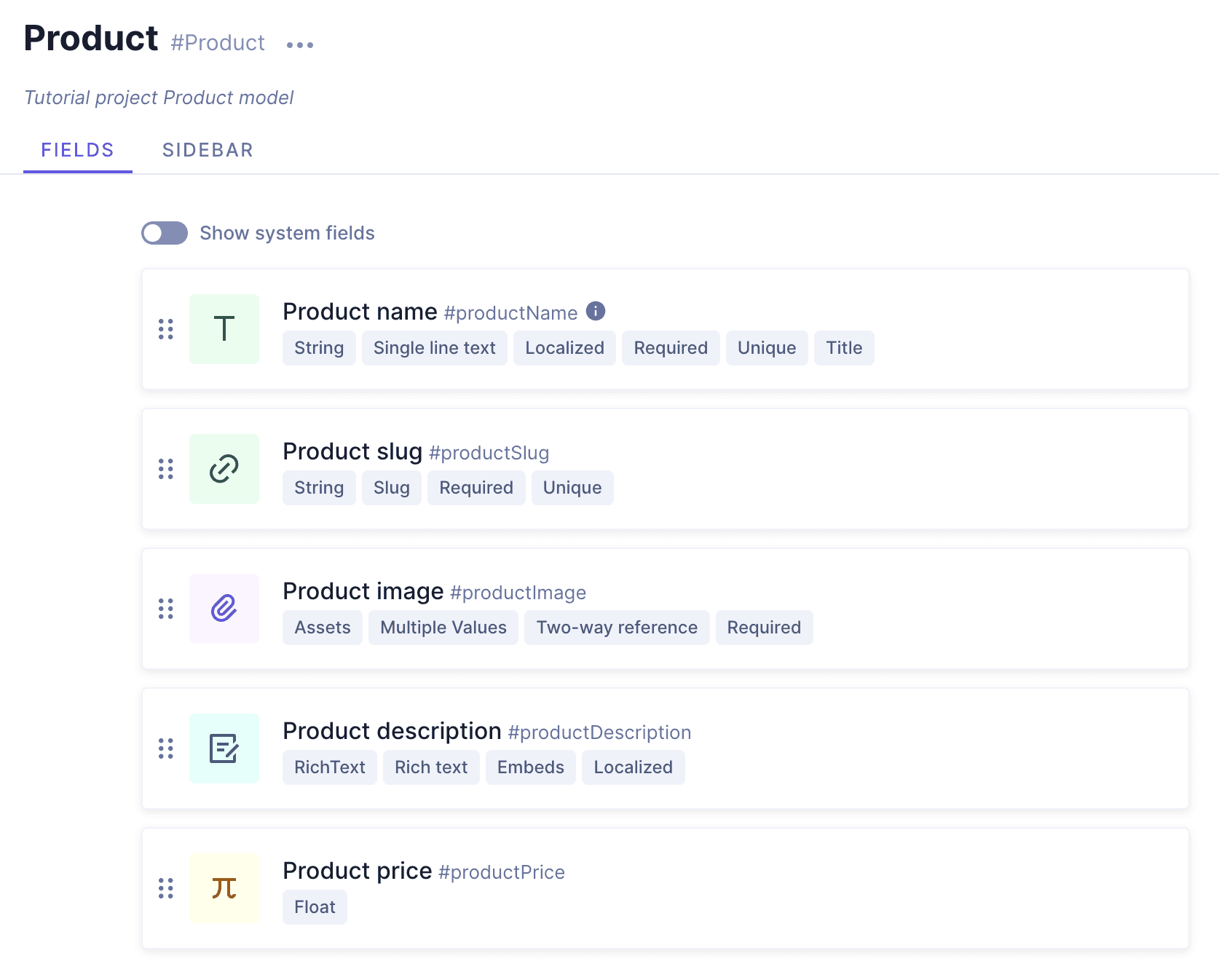
We'll click Add to save the field in our model. The resulting Product model should look like this:
Your Product model so far
We still have some work to do on this model, but we must create other things first, so we'll come back to this later.
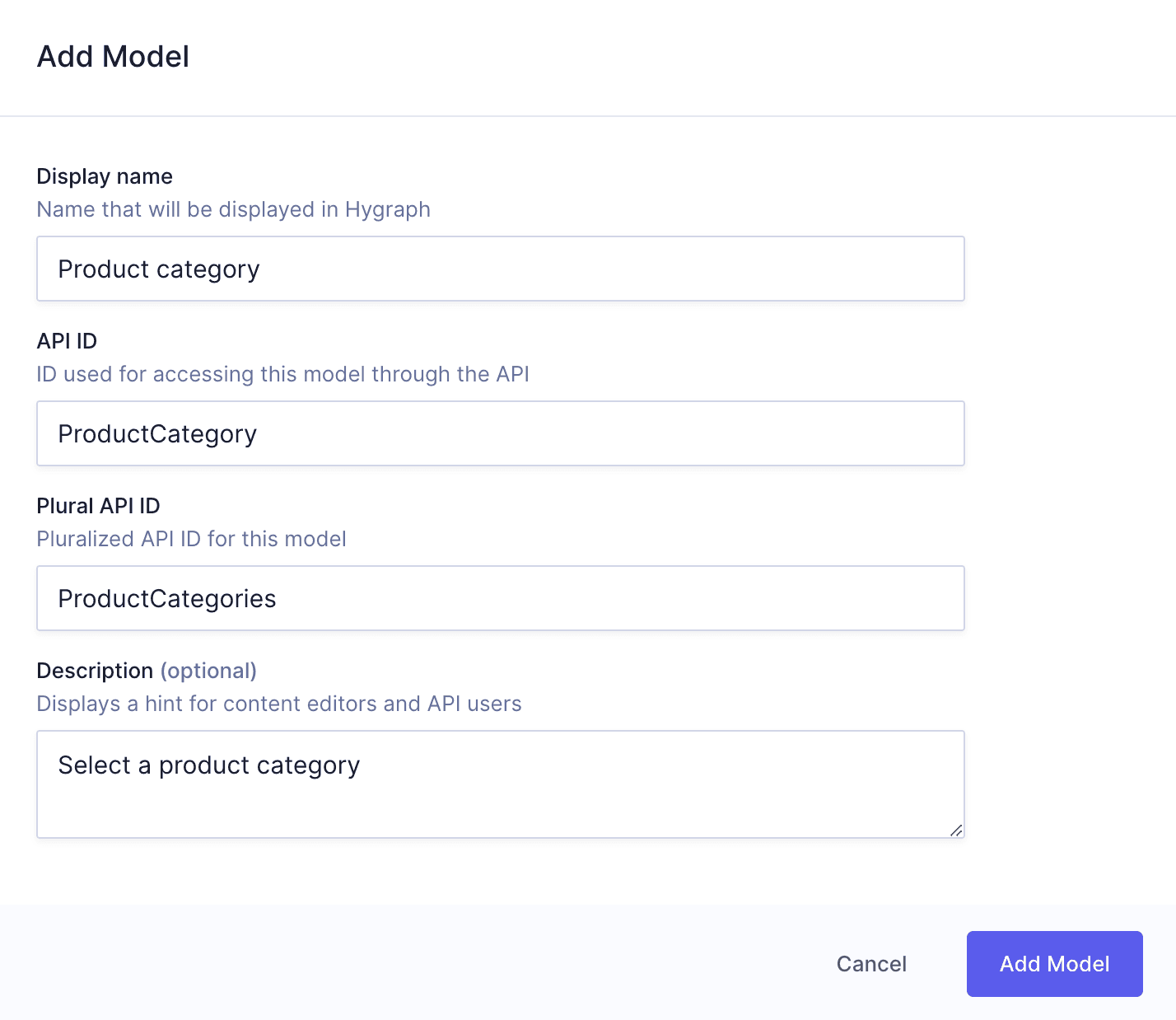
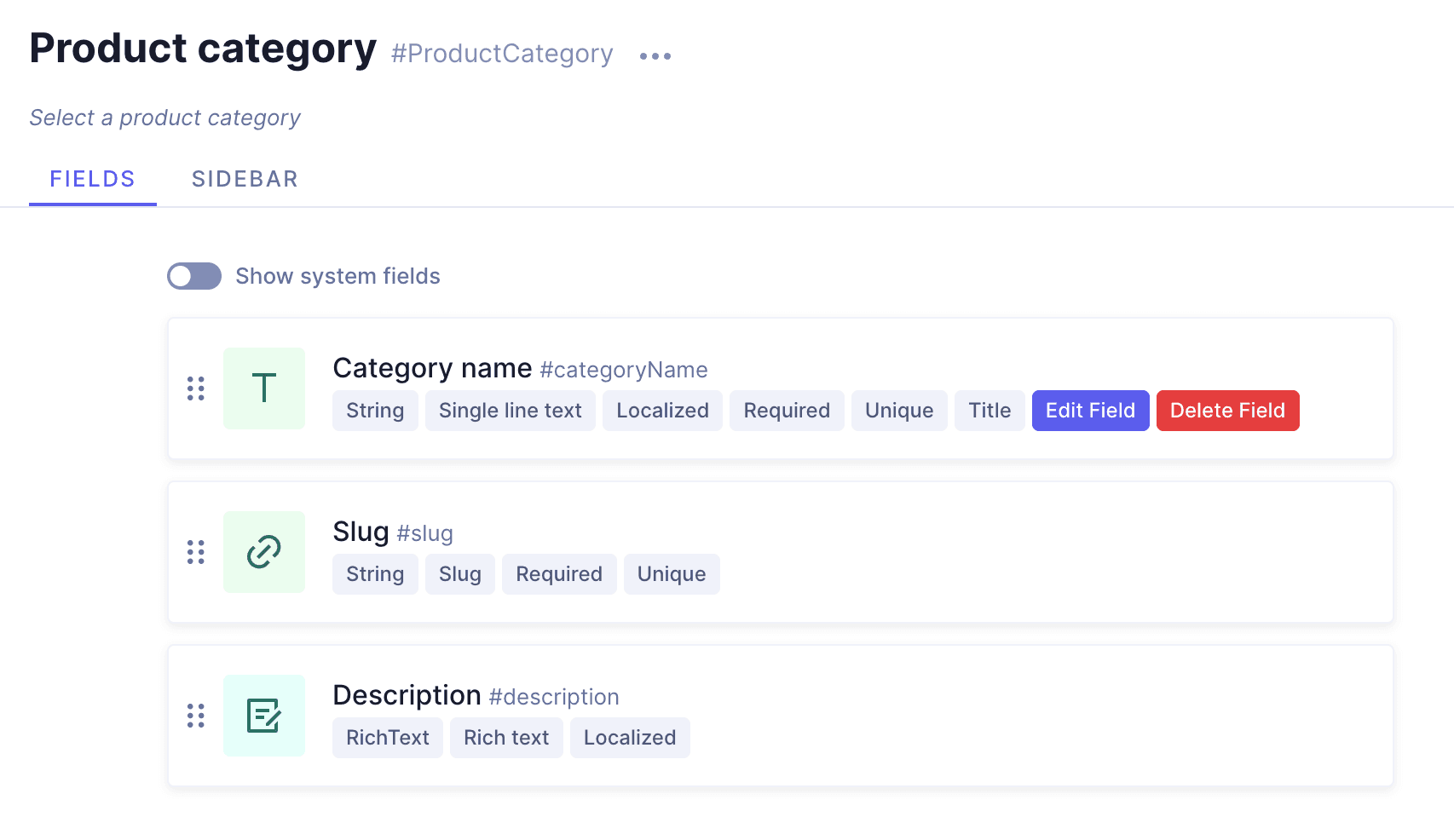
We will create a Product category model so we can then relate our products to different categories later on. We'll repeat steps we followed for the Product model, using this information:
Product category model details
Field
Input
Display Name
Product category
API ID
ProductCategory
Plural API ID
ProductCategories
Description
Select a product category
We'll click Add Model to save. Now, it's time to add fields to this model.
Let's start by adding a Single line text field. We'll use the following information:
Tab
Field
Input
Settings
Display name
Category name
Settings
Use as title field
Select checkbox
Settings
Localize field
Select checkbox
Validations
Make field required
Select checkbox
Validations
Set field as unique
Select checkbox
We'll click Add to save the field in our model.
Next, we'll add a Slug field. We'll use the following information:
Tab
Field
Input
Settings
Display name
Slug
Settings
Lowercase
Leave this checkbox selected
Validations
Make field required
Select checkbox. This ensures that all our product listings contain a slug.
Validations
Set field as unique
Select checkbox, and then select Slug from the dropdown, which will autofill the field next to it with a regular expression.
Validations
Match a specific pattern
Select checkbox
Validations
Custom error message
"Input value does not match the expected format."
We'll click Add to save the field.
Let's also add a Rich text field. This will be our optional description field. We'll use the following information:
Tab
Field
Input
Settings
Display name
Description
Settings
Localize field
Select checkbox
We'll click Add to save the field in our model. The resulting Product category model should look like this:
Your Product category model so far
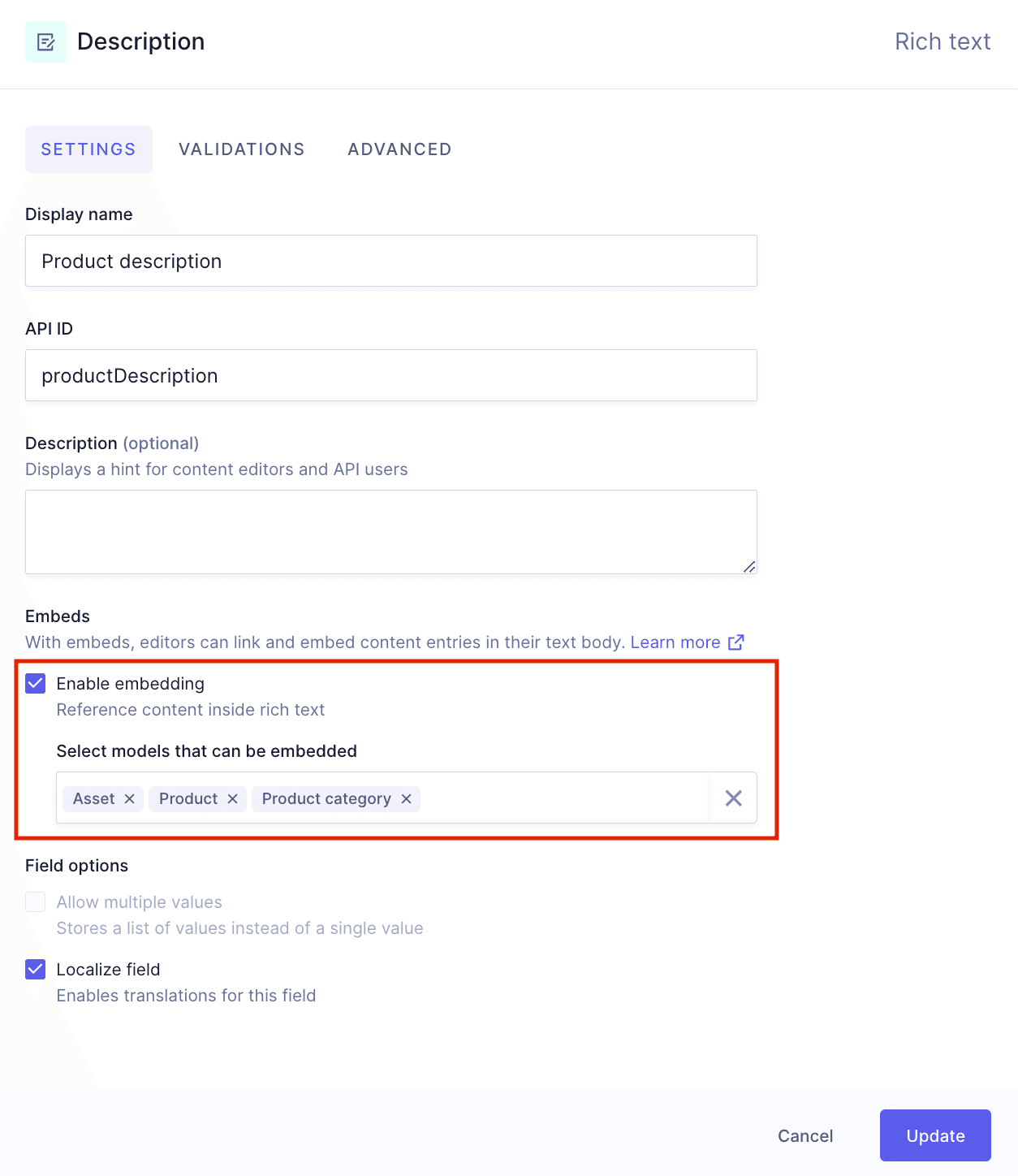
There is one more thing we need to do here. Schema building is not necessarily a linear task, because schema elements are sometimes interconnected. We want to have our product descriptions to also allow embedding from this model, but since we created the Product model first, this model was not available to select.
Now that we have a Product category model, we'll go into the Product model again, edit the Rich text field we added earlier as "Product description", and select the Product category model from the dropdown. This will add it to the ones we initially selected.
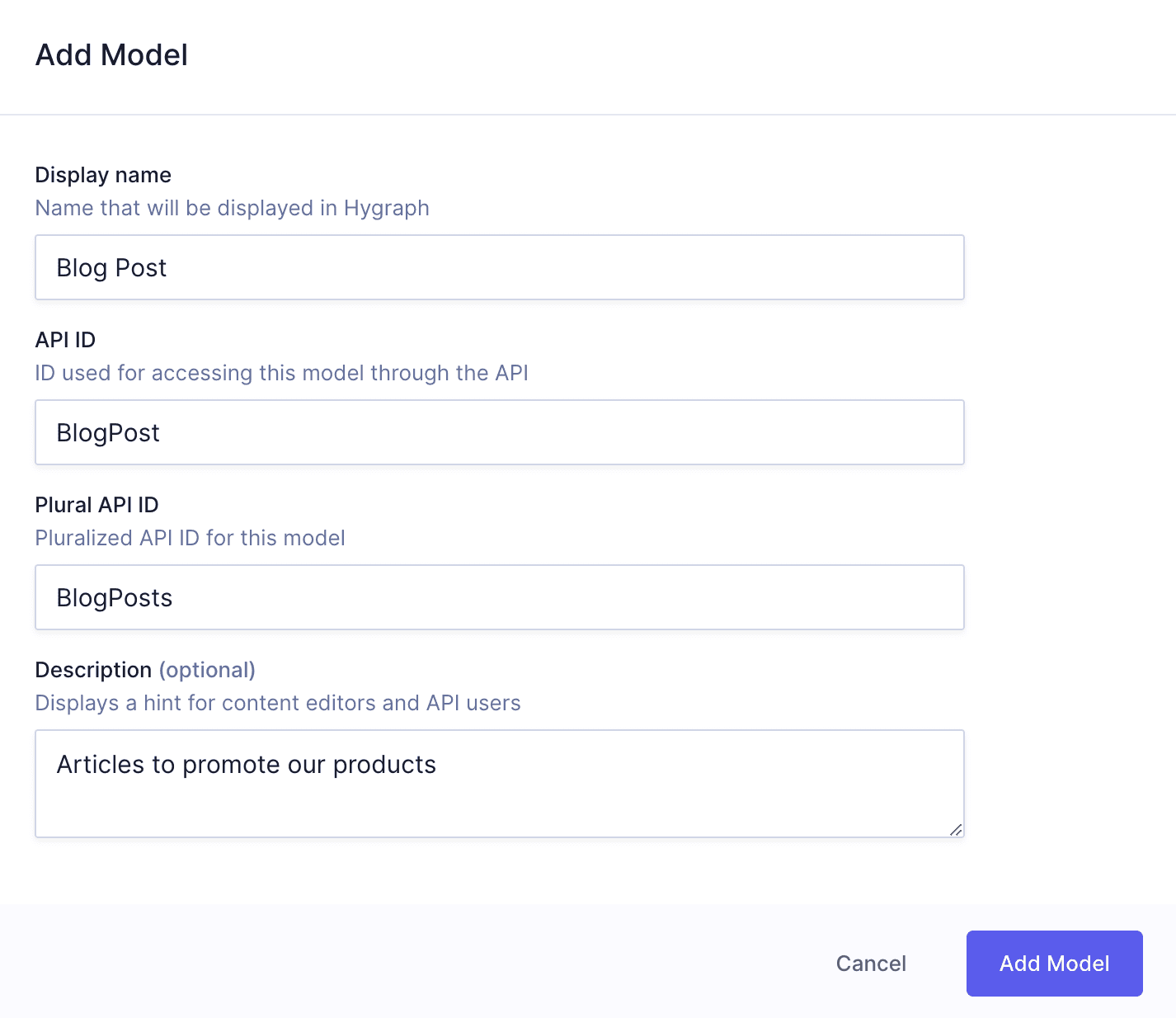
We will create a Blog Post model so we can later create articles about products we want to promote. We'll use the following information to create the model:
Add model screen
Field
Input
Display Name
Blog Post
API ID
BlogPost
Plural API ID
BlogPosts
Description
Articles to promote our products
We'll click Add Model to save. Our Blog Post model will contain a title, a slug, and a body.
Let's start by adding a Single line text field. We'll use the following information to create it:
Tab
Field
Input
Settings
Display name
Title
Settings
Use as title field
Select checkbox
Settings
Localize field
Select checkbox
Validations
Make field required
Select checkbox
Validations
Set field as unique
Select checkbox
We can now save the field.
Next, we'll add a Slug field. We'll use the following information to create it:
Tab
Field
Input
Settings
Display name
Slug
Settings
Generate slug from template
Select checkbox
Settings
Slug template
{title}
Settings
Lowercase
Select checkbox
Validations
Match a specific patter
Select checkbox and select Slug from the dropdown. Leave the regex by default as is.
Validations
Custom error message
Input value does not match the expected format.
We can now save the field.
Let's also add a Rich text field for our blog posts body. Use the following information to create it:
Tab
Field
Input
Settings
Display name
Body
Settings
Localize field
Select checkbox
Settings
Enable embedding
Select checkbox and use the dropdown menu to select the Blog Post, Product, and Product category models.
We'll learn more about the Hygraph Rich Text editor and embeds later.
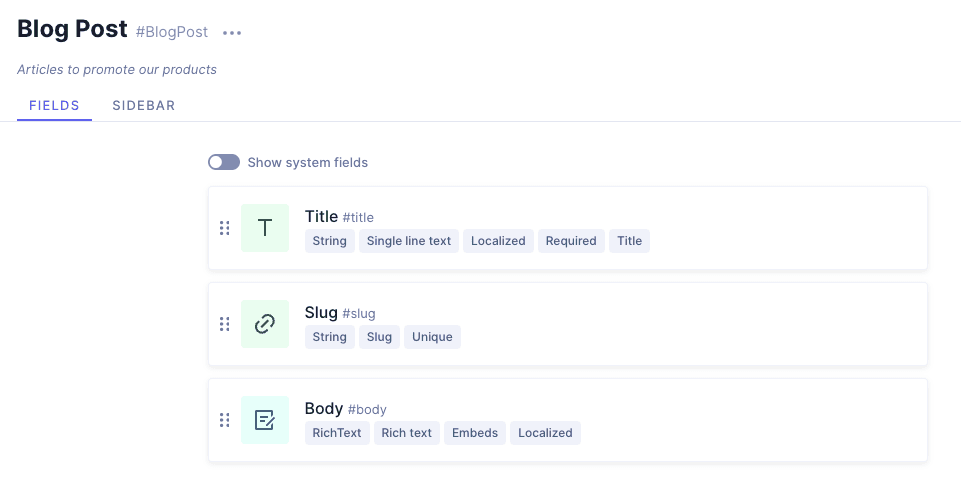
We can now save the field. The result should look like this:
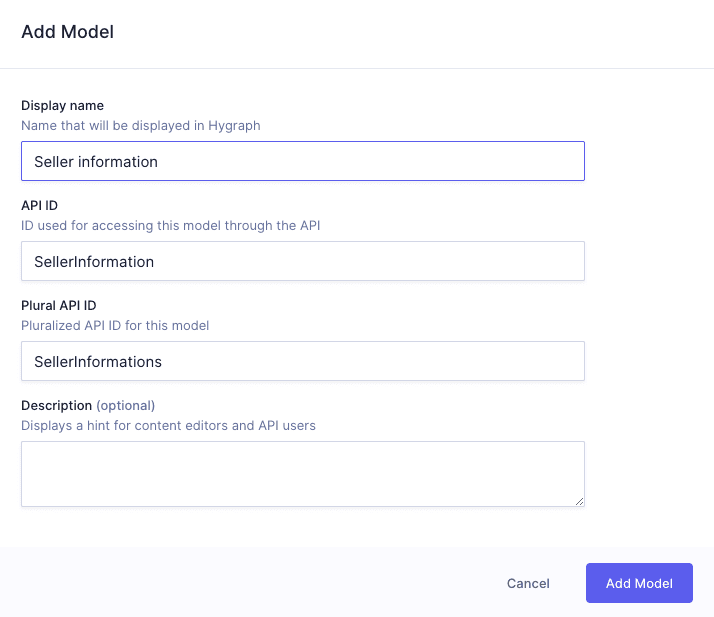
We will create a Seller Information model, which we will later use to add our seller information to other models through relations. We'll use the following information to create the model:
Seller information model details
Field
Input
Display Name
Seller information
API ID
SellerInformation
Plural API ID
SellerInformations
We'll click Add Model to save. Our Seller information model will contain a business name, a slug, a business logo, and a business description.
Let's start by adding a Single line text field. We'll use the following information:
Tab
Field
Input
Settings
Display name
Business name
Settings
Use as title field
Select checkbox
Settings
Localize field
Select checkbox
Validations
Make field required
Select checkbox
We can now save the field.
Next, we'll add a Slug field. We'll use the following information to create it:
Tab
Field
Input
Settings
Display name
Slug
Settings
Lowercase
Leave this checkbox selected
Validations
Make field required
Select checkbox
Validations
Set field as unique
Select checkbox
Validations
Match a specific pattern
Select checkbox and select Slug from the dropdown. Leave the regex by default as is.
Validations
Custom error message
Input value does not match the expected format.
We can now save the field.
We want our seller information to display our business logo, so we'll add an Asset picker field. We'll use the following information:
Tab
Field
Input
Settings
Display name
Business logo
We'll click Add to save the field.
Finally, we want to add some information about us here, so we will also add a Rich Text field. We'll use the following information to create it:
Tab
Field
Input
Settings
Display name
Business description
Settings
API ID
This field is autocompleted when you type in a display name. Leave it as it is.
The last model we'll add is our Landing page, which will contain a lot of information coming from other models. This model will allow us to create pages such as our homepage and others.
Let's create the model using this information:
Field
Input
Display Name
Landing page
API ID
LandingPage
Plural API ID
LandingPages
We'll click Add Model to save.
Now, we need to add fields to the model. We'll start by adding a Single line text field. We'll use the following information:
Tab
Field
Input
Settings
Display name
Landing page title
Settings
Use as title field
Select checkbox
Settings
Localize field
Select checkbox
We can now save the field.
Next, we'll add a Slug field. We'll use the following information to create it:
Tab
Field
Input
Settings
Display name
“Link”
Settings
API ID
This field is autocompleted when you type in a display name. Leave it as it is.
Settings
Generate slug from template
Select checkbox
Settings
Slug template
{landingPageTitle}
Settings
Lowercase
Leave this checkbox selected
Validations
Set field as unique
Select checkbox
Validations
Match a specific pattern
Select checkbox and select Custom from the dropdown. We'll type in the following regex: ^[a-z0-9\/]+(?:[-\/][a-z0-9]+)*$
Validations
Custom error message
Input value does not match the expected format.
We can now save the field.
This is all we can add to this model at this point. We'll revisit it in the References lesson.
Our project includes the Navigation model from the start. While we will only cover the navigation links creation in the tutorial, let's see the contents of this model at this point:
Nav ID: This is a slug field that will serve as our navigation identifier.
As you can imagine, this model is unfinished, as it still needs to provide a way to add the navigation links. We will be modifying it to add this option in a later lesson.
Next step
Once you've created you base content models, move on to our next lesson: