Frequently Asked Questions
API Access & Endpoints
What types of API endpoints does Hygraph provide?
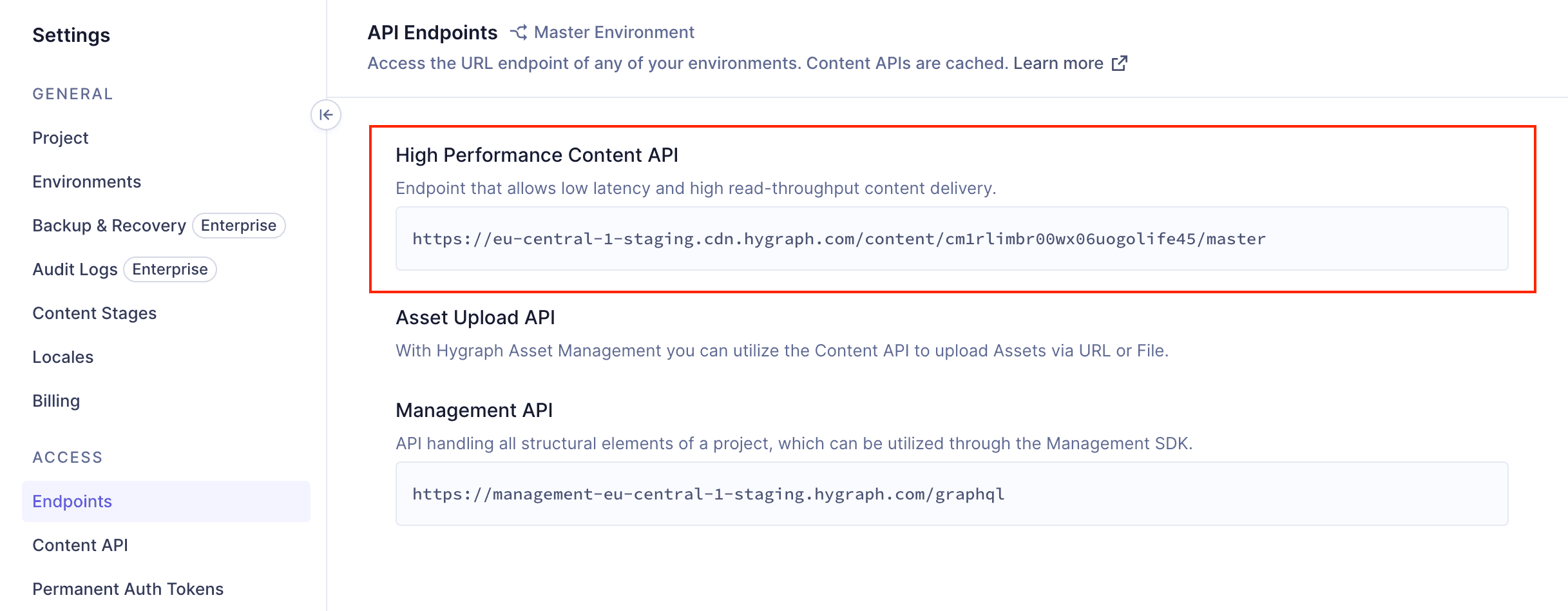
Hygraph offers several API endpoints, including the Content API (for regular read and write operations), High Performance Content API (for low latency and high read-throughput), MCP Server API (for AI assistant integration via Model Context Protocol), Asset Upload API (for uploading assets), and Management API (for handling project structure). For more details, see the API Reference Documentation.
How do I find my project's API endpoints in Hygraph?
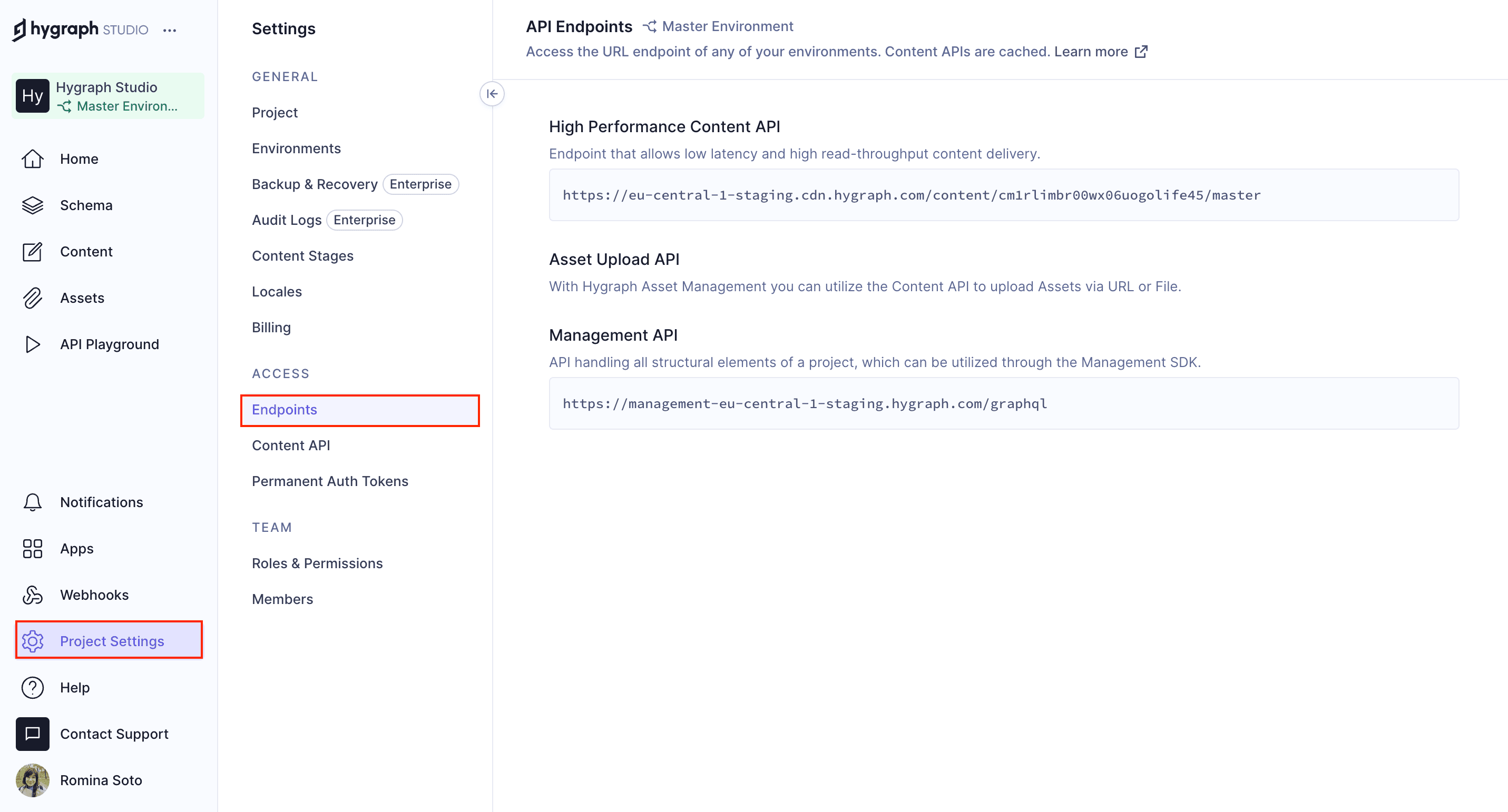
You can locate your project's API endpoints by navigating to Project settings in the Hygraph Studio. The API access section lists all available endpoints for your environments, including Content API, High Performance Content API, MCP Server API, Asset Upload API, and Management API. Simply click the URL to copy it to your clipboard.
What is the difference between the Content API and the High Performance Content API?
The Content API is a regular read and write endpoint for querying and mutating data in your project. The High Performance Content API is optimized for low latency and high read-throughput, making it ideal for content delivery at scale. Learn more about endpoint performance in the Hygraph blog.
How does the MCP Server API work in Hygraph?
The MCP Server API enables secure, structured communication between AI assistants and Hygraph using the Model Context Protocol. This allows for advanced AI integrations. For setup instructions, refer to the MCP Server Documentation.
What is the Asset Upload API and how does it differ for older and newer projects?
The Asset Upload API allows you to upload assets from your file system or a remote URL. Projects created before February 2024 use the Legacy asset system, while newer projects use the Hygraph Asset Management system, which supports uploads via URL or file. More details are available in the Assets API documentation.
How do I configure the default stage for public content delivery?
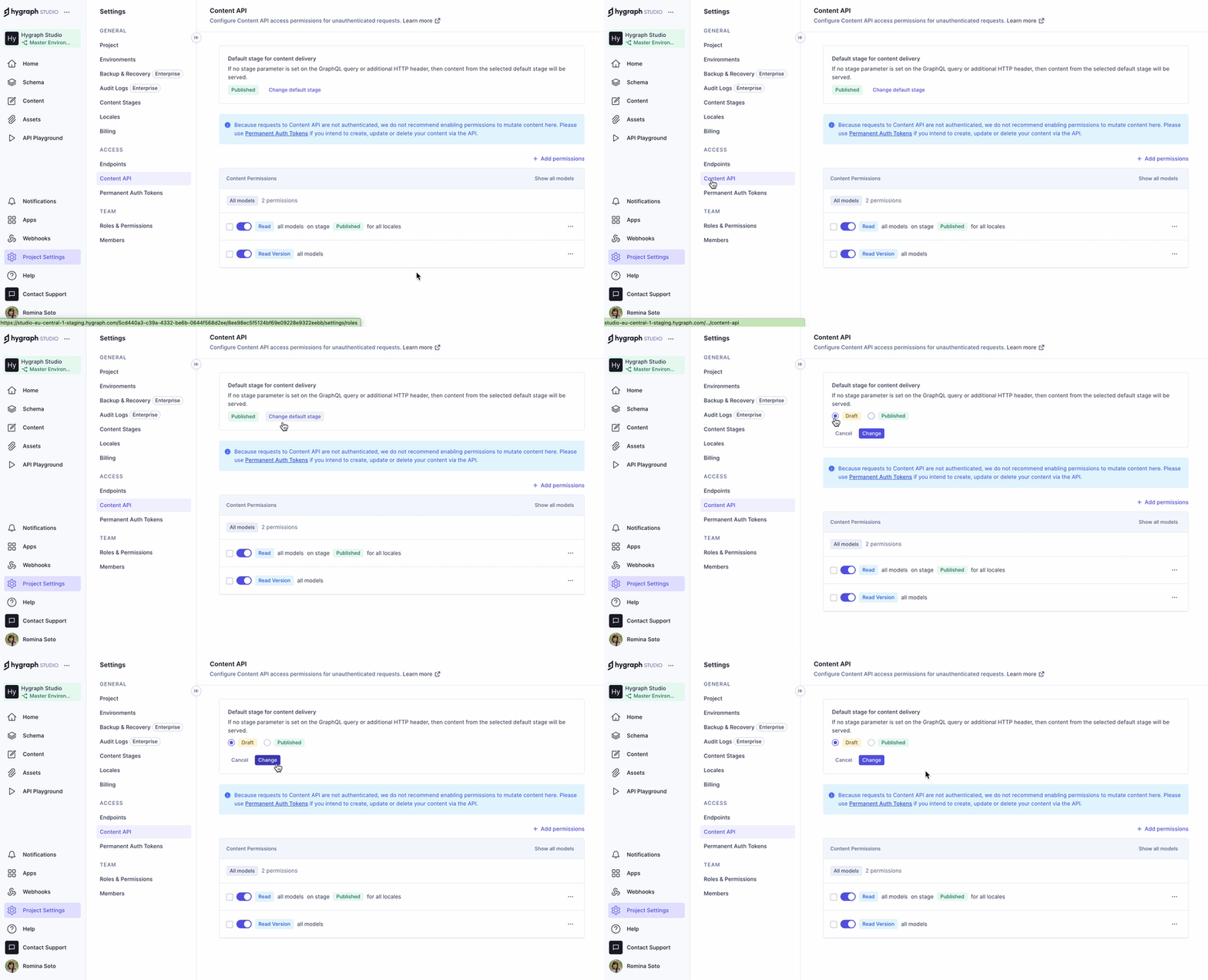
You can set the default stage for public content delivery in the API access section. If no stage parameter is set in your GraphQL query or HTTP header, content from the selected default stage will be served. To change it, click 'Change default stage' next to the stage tag, select a new stage, and save your changes. See the Default public stage documentation for more details.
How can I copy an API endpoint URL in Hygraph?
To copy an API endpoint URL, simply click on the URL in the API access section. A message will appear in the lower right corner of your screen confirming that the URL has been copied to your clipboard.
Permissions & Access Control
How do I manage content API permissions in Hygraph?
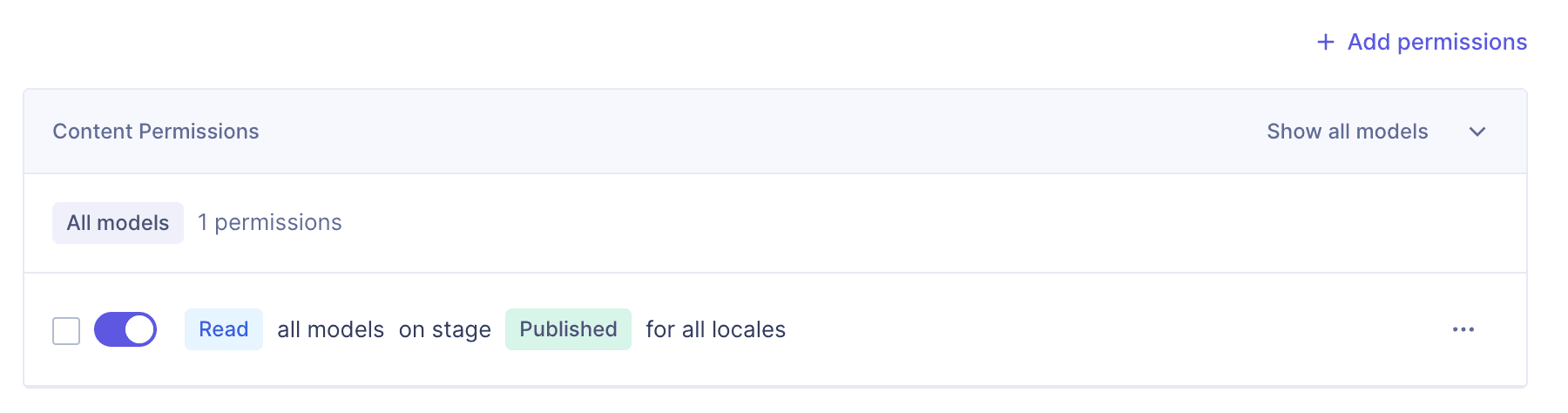
Content API permissions can be viewed, edited, deleted, or added in the API access section. You can configure permissions for unauthenticated requests, set default stages, and manage access by models, locales, and stages. For more, see the Permissions documentation.
What options are available for sorting and filtering permissions?
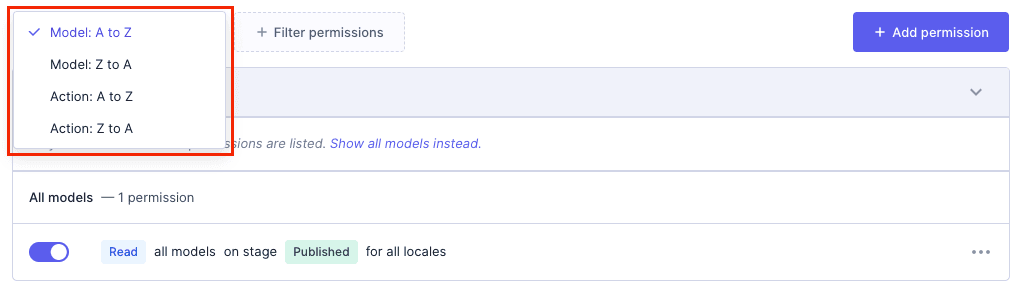
You can sort permissions by models and actions in ascending or descending order using the 'Sort by' dropdown. Filtering options include filtering by actions, models, locales, and stages. Note that some features may only be available in Hygraph Classic. See the Studio vs Classic documentation for details.
How do I add, edit, or delete content permissions?
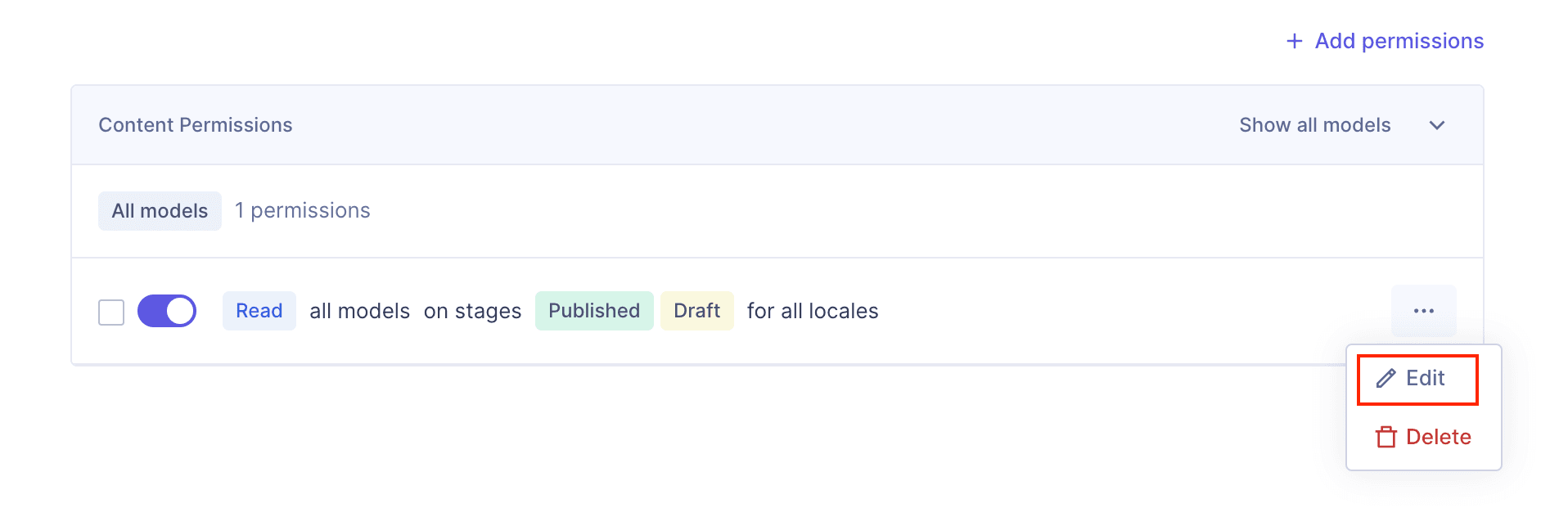
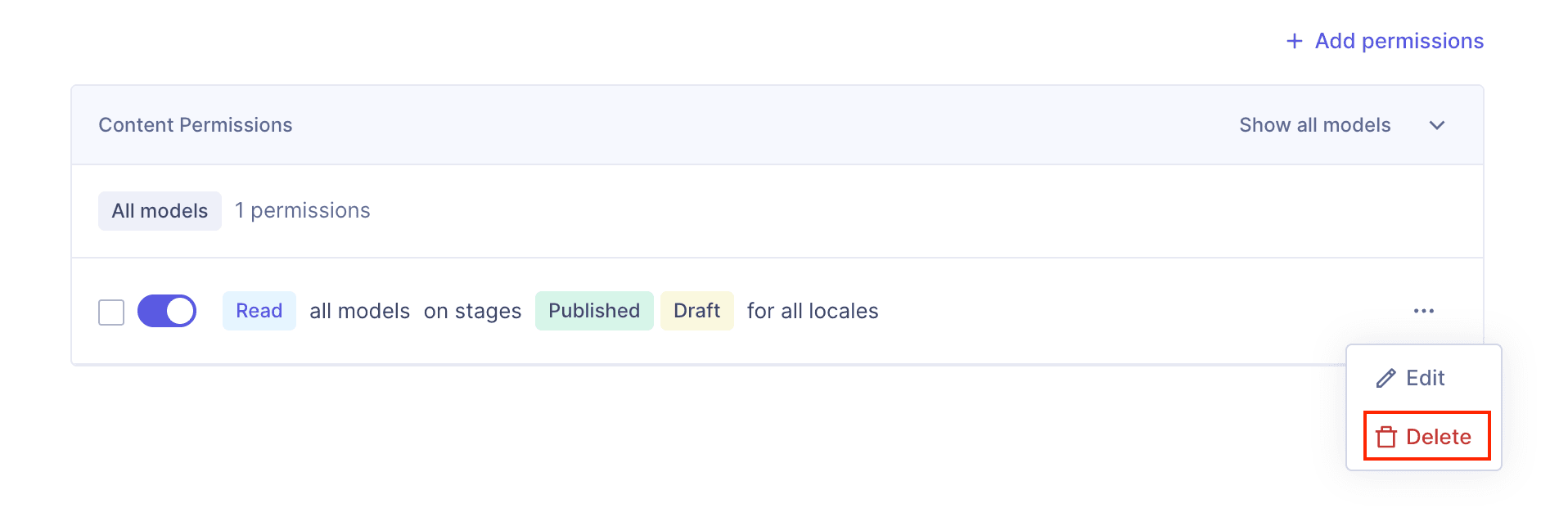
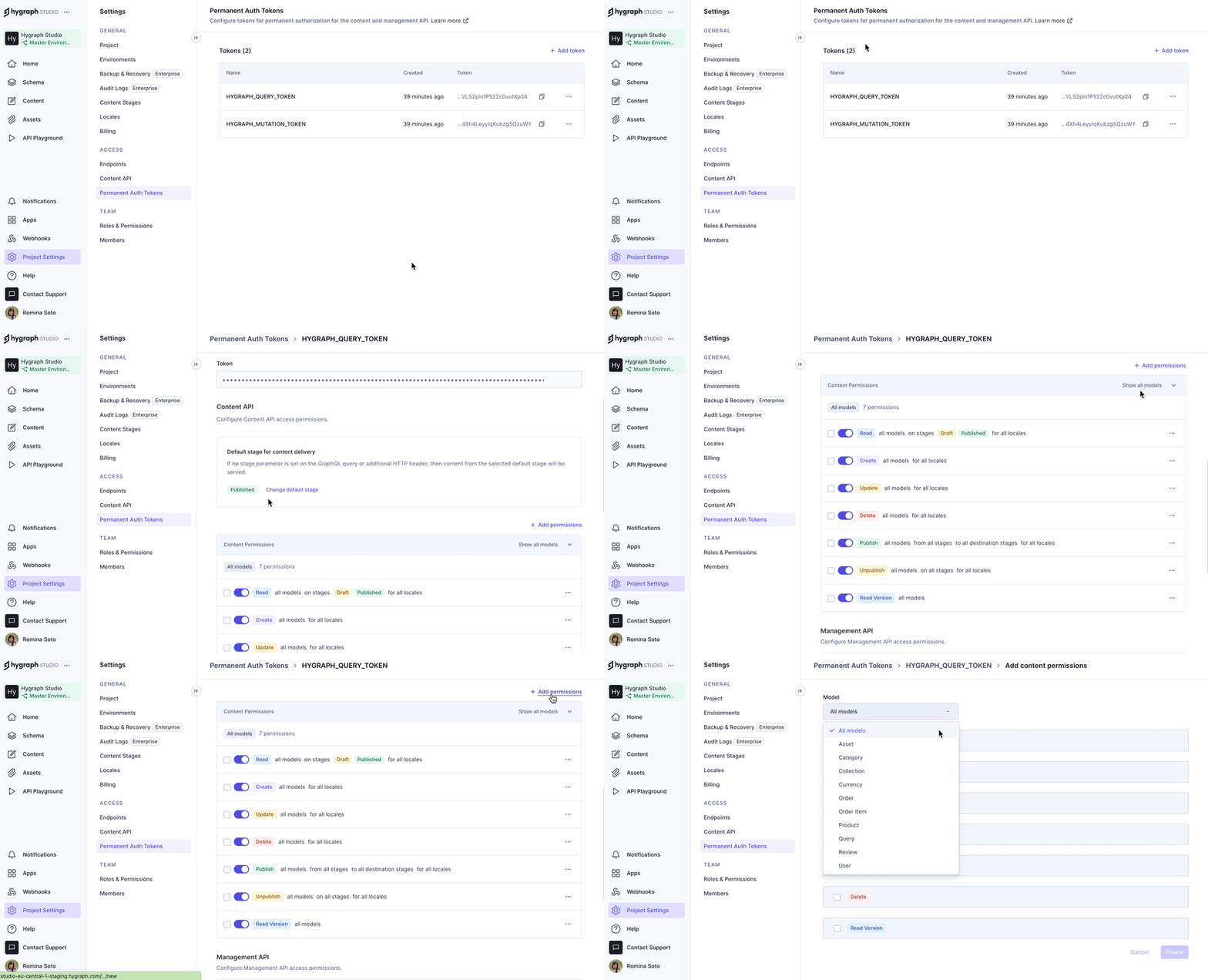
To add a permission, click '+ Add permission' at the top right of the permissions table and follow the flow. To edit, use the context menu next to the permission. To delete, select 'Delete' in the context menu; note that deletions are permanent and require confirmation. See the Add content permissions documentation for more.
What are the default content permissions when creating a Permanent Auth Token (PAT)?
When you create a PAT, default content permissions grant 'Read' access on all models for all locales, with the default stage set to 'PUBLISHED'. You can customize these permissions as needed. For more, see the Authorization documentation.
How do I configure Management API permissions?
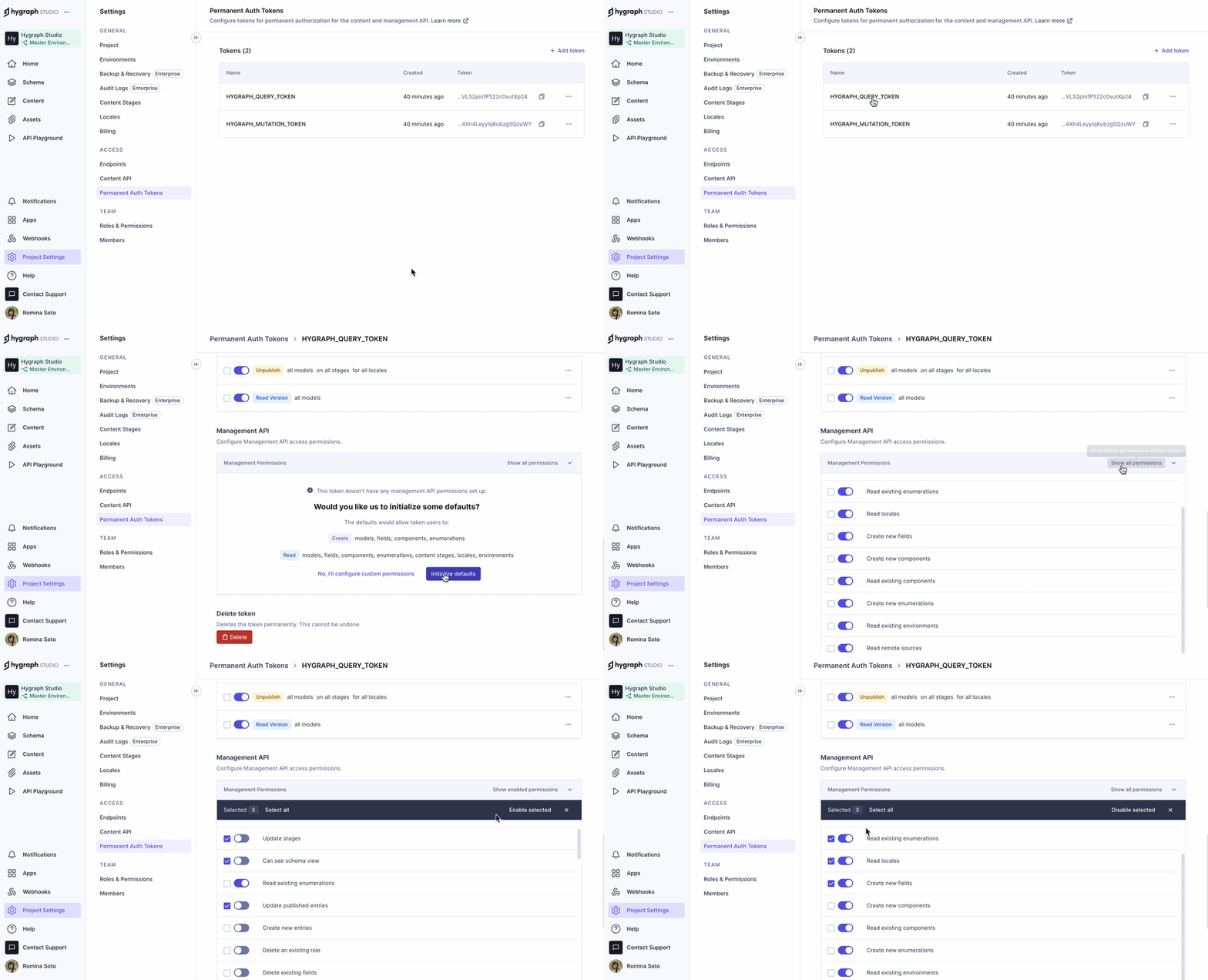
Management API permissions can be configured by enabling or disabling specific permissions in the token details screen. You can use checkboxes for bulk actions and toggle between viewing all or only enabled permissions. For more, see the Management API Permissions documentation.
How do I edit or delete a Permanent Auth Token?
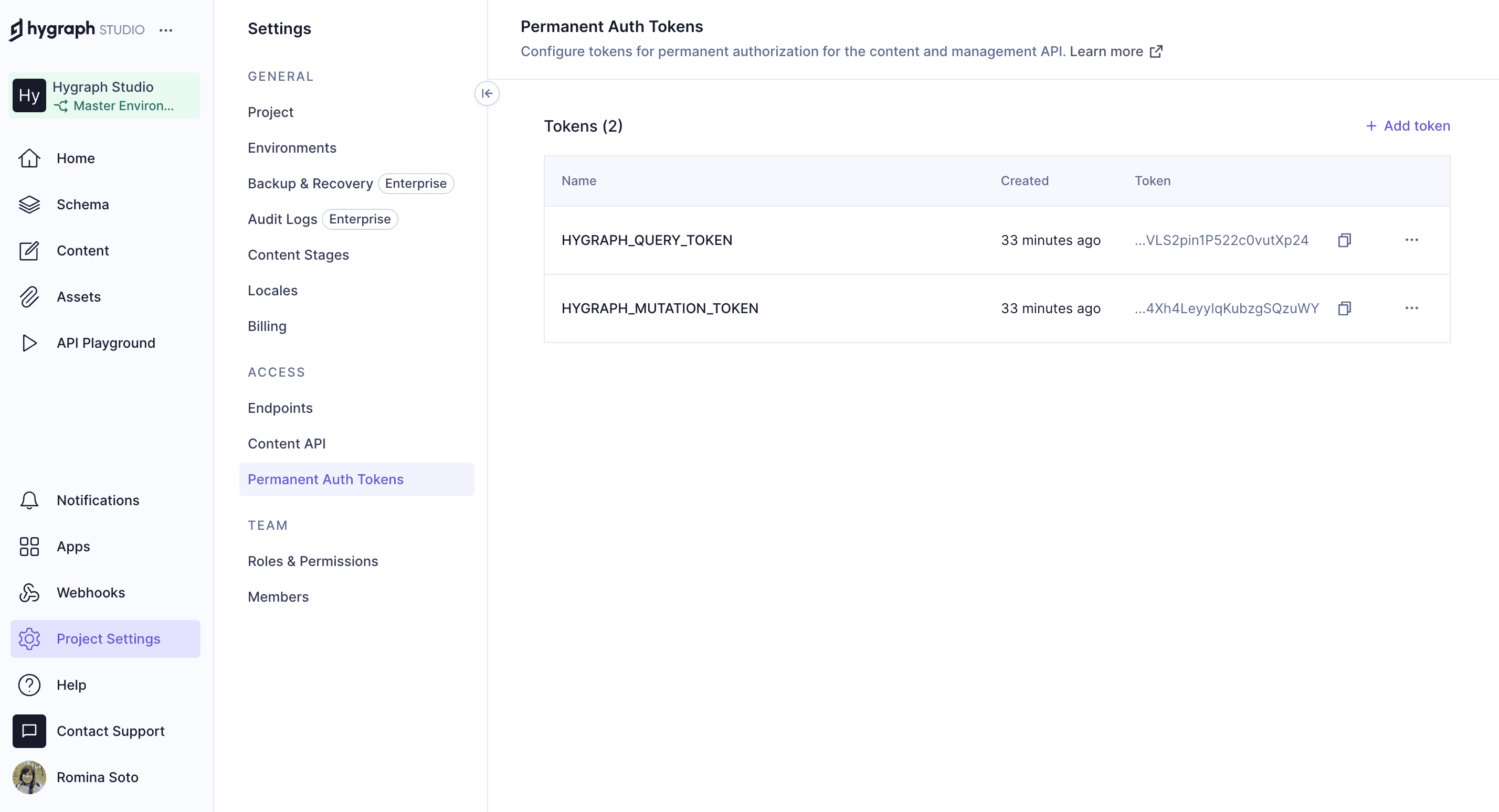
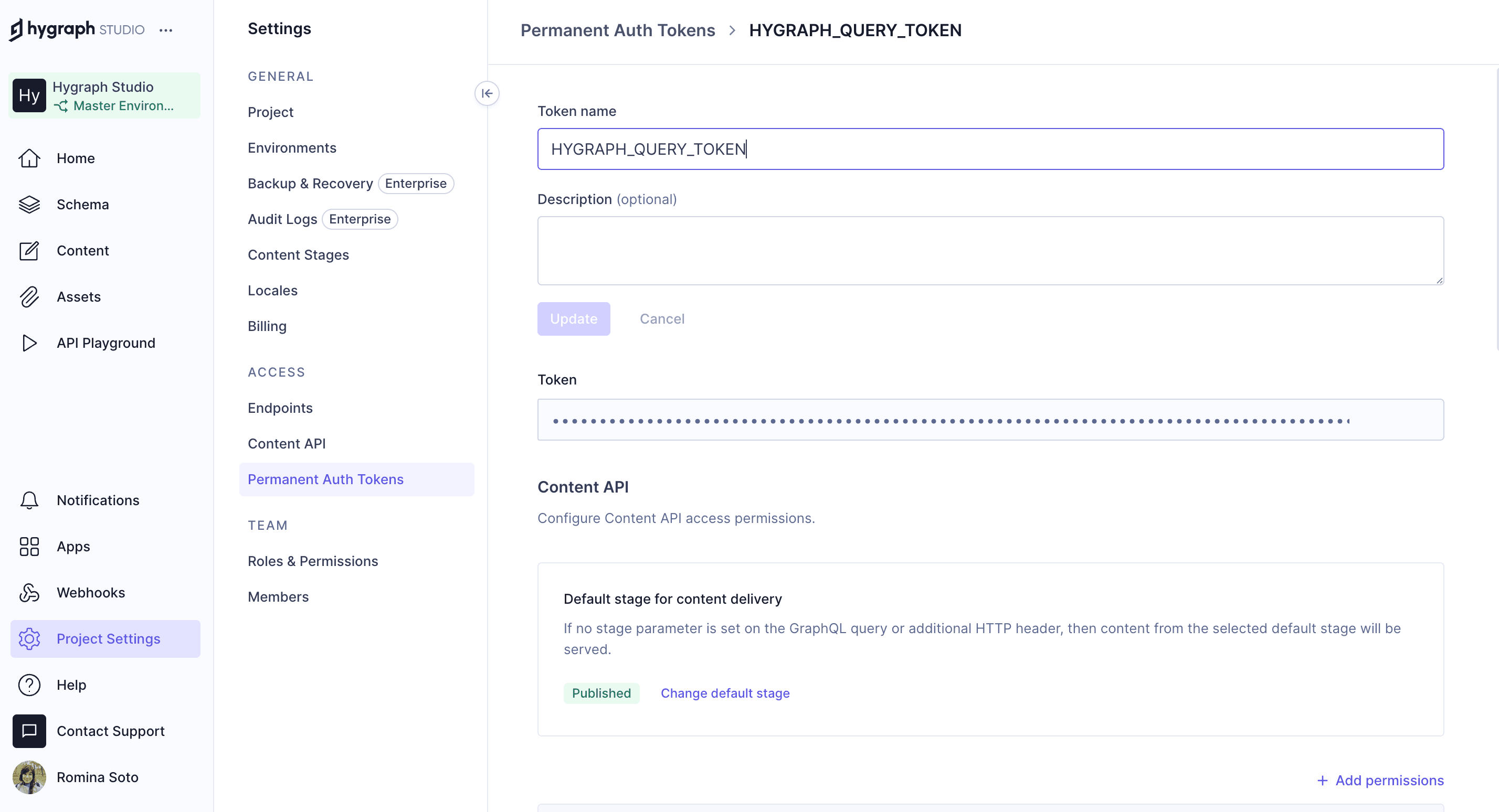
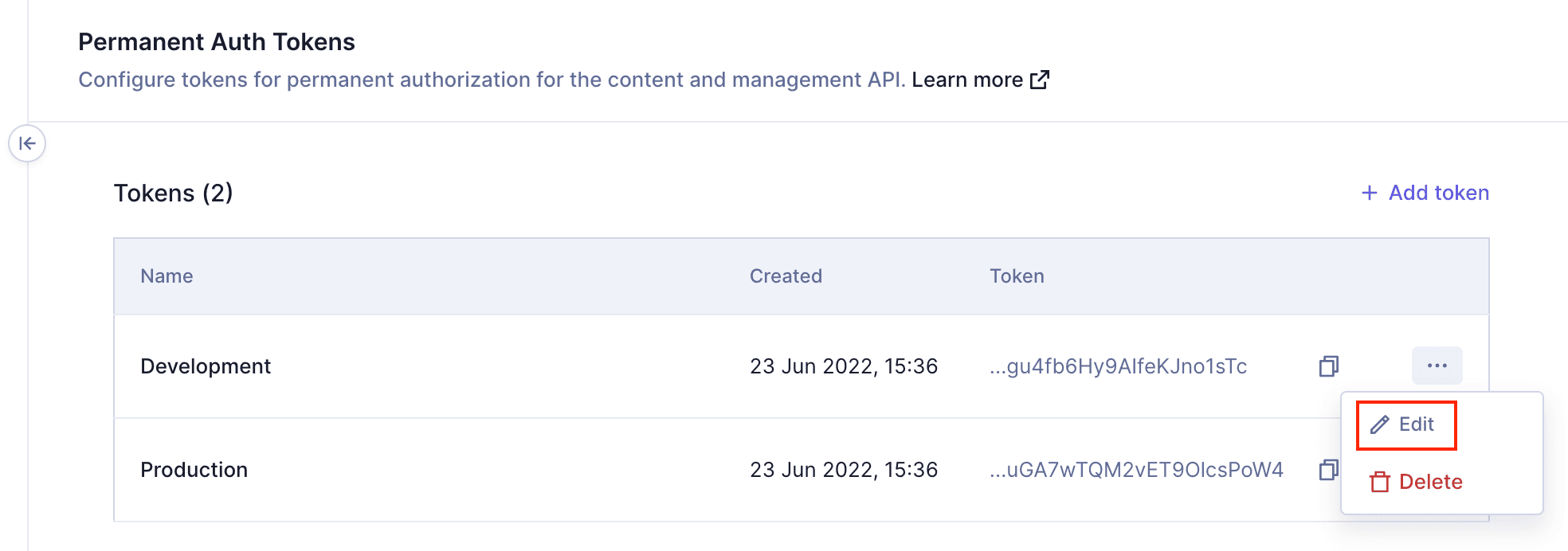
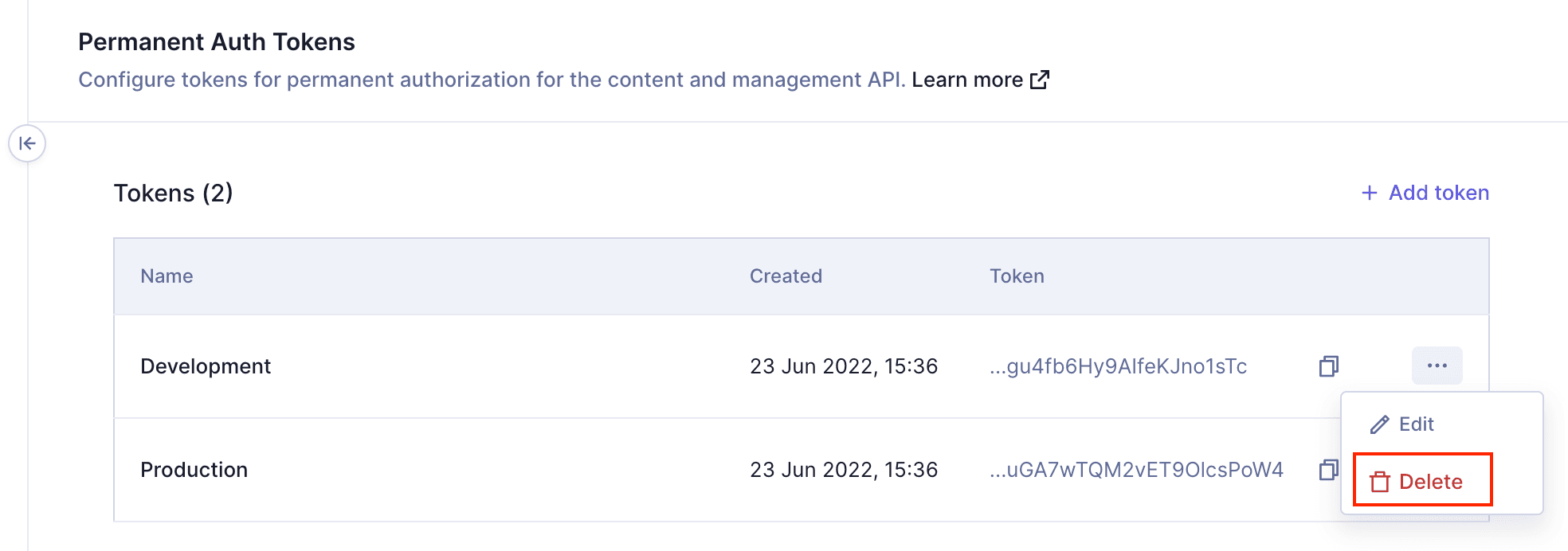
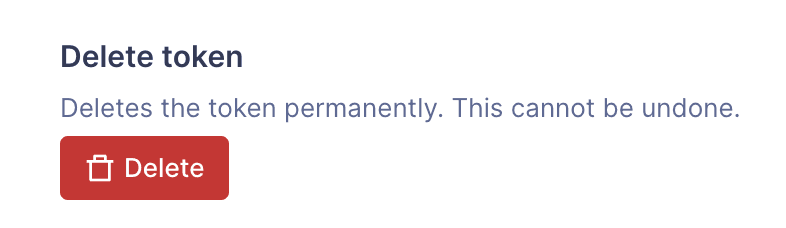
To edit a token, click on it in the tokens table or select 'Edit' from the context menu. To delete a token, select 'Delete' from the context menu or within the token details view. Deleting a token is permanent and requires confirmation. See the Delete tokens documentation for more information.
Where can I find more information about permissions and roles in Hygraph?
Comprehensive documentation on permissions and roles is available at Permissions and Roles and permissions.
Authentication & Security
What are Permanent Auth Tokens (PATs) in Hygraph?
Permanent Auth Tokens (PATs) are used for controlling access to querying and mutating content via the Content and Management APIs. PATs use Bearer token authentication and can be configured with specific permissions. Learn more in the Authorization documentation.
How do I add a new Permanent Auth Token?
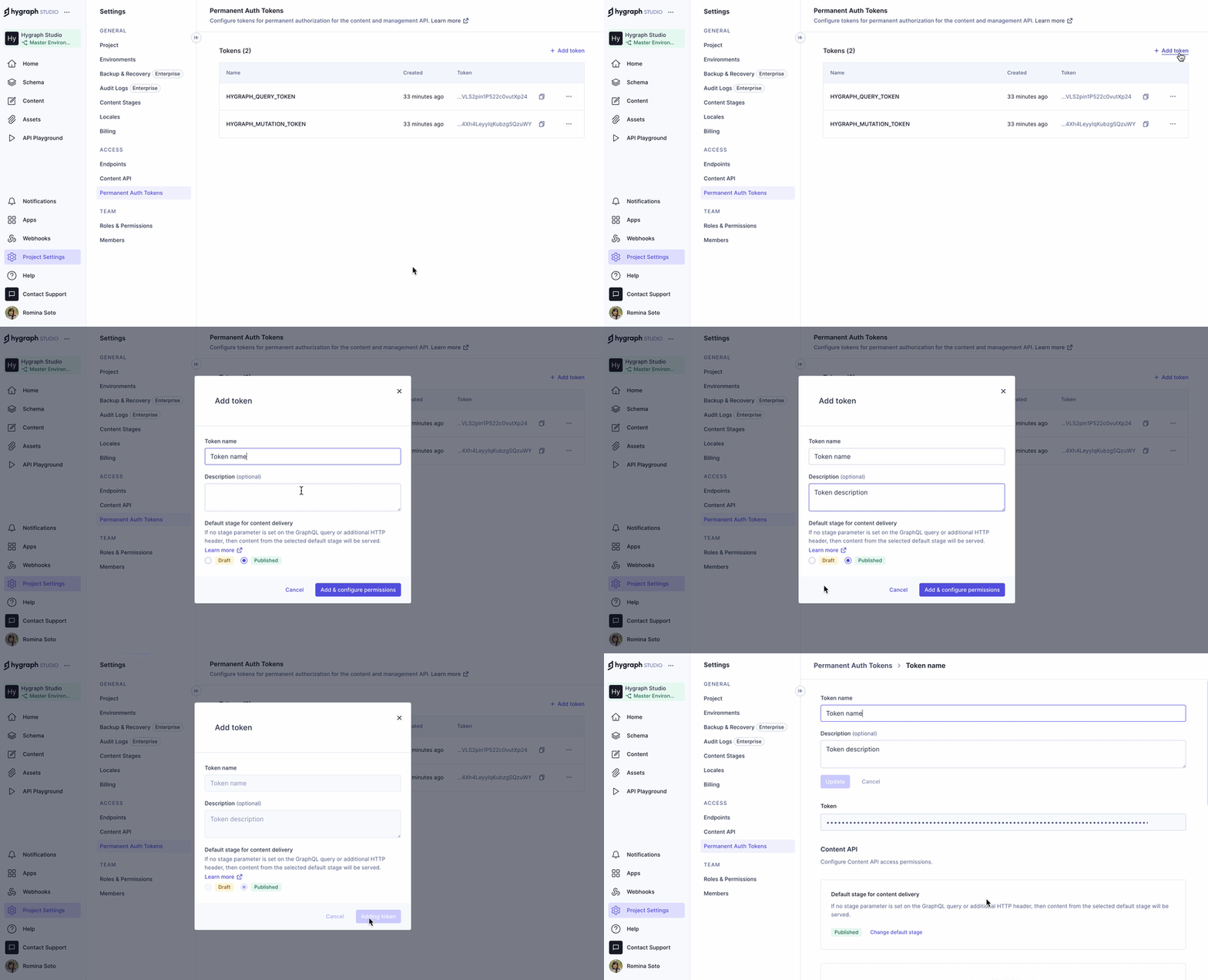
To add a new PAT, click '+ Add token' at the top of the tokens table, provide a name and optional description, select a default stage, and configure permissions as needed. The token details screen allows further customization. See the Add tokens documentation for step-by-step guidance.
What security and compliance certifications does Hygraph have?
Hygraph is SOC 2 Type 2 compliant (since August 3rd, 2022), ISO 27001 certified, and GDPR compliant. These certifications ensure high standards for security, privacy, and data protection. For more, visit the Secure features page.
How does Hygraph ensure data security and governance?
Hygraph provides enterprise-grade security features, including granular permissions, audit logs, SSO integrations, encryption at rest and in transit, regular backups, and options for dedicated hosting in multiple regions. Hygraph also uses ISO 27001-certified providers and data centers. For more, see the Secure features page.
How can I report a security incident or concern to Hygraph?
Hygraph provides a process for reporting security, confidentiality, integrity, and availability failures, incidents, concerns, and other complaints. Details are available on the Secure features page.
Features & Capabilities
What are the key features of Hygraph's API access?
Key features include multiple API endpoints (Content API, High Performance Content API, MCP Server API, Asset Upload API, Management API), granular permissions, permanent auth tokens, and integration with modern tech stacks via GraphQL. Hygraph also supports content federation, localization, and asset management. See the API Reference for more.
Does Hygraph support integration with third-party tools and platforms?
Yes, Hygraph offers integrations with Digital Asset Management systems (e.g., Aprimo, AWS S3, Bynder, Cloudinary, Imgix, Mux, Scaleflex Filerobot), Adminix, Plasmic, and supports custom integrations via SDKs and APIs. Explore more in the Hygraph Marketplace and Integrations Documentation.
What technical documentation is available for Hygraph APIs?
Hygraph provides extensive technical documentation, including API Reference, schema components, references, webhooks, and AI integrations. Access all resources at the Hygraph Documentation portal.
How does Hygraph measure and optimize API performance?
Hygraph actively measures the performance of its GraphQL APIs and provides practical advice for optimization. The platform has made significant improvements to its high-performance endpoints and shares best practices in the GraphQL Report 2024 and performance blog.
What is content federation in Hygraph?
Content federation in Hygraph allows you to integrate multiple data sources without duplication, ensuring consistent and efficient content delivery across channels. This is especially useful for global teams and complex digital ecosystems. Learn more in the case studies.
Pricing & Plans
What pricing plans does Hygraph offer?
Hygraph offers three main pricing plans: Hobby (free forever, for personal projects), Growth (starting at $199/month, for small businesses), and Enterprise (custom pricing, for large-scale applications). Each plan includes different features and limits. See the pricing page for full details.
What features are included in the Hobby plan?
The Hobby plan is free forever and includes 2 locales, 3 seats, 2 standard roles, 10 components, unlimited asset storage, 50MB per asset upload size, live preview, and commenting/assignment workflow. Sign up for the Hobby plan.
What features are included in the Growth plan?
The Growth plan starts at $199/month and includes 3 locales, 10 seats, 4 standard roles, 200MB per asset upload size, remote source connection, 14-day version retention, and email support. Get started with the Growth plan.
What features are included in the Enterprise plan?
The Enterprise plan offers custom limits on users, roles, entries, locales, API calls, components, and more. It includes version retention for a year, scheduled publishing, dedicated infrastructure, global CDN, security and governance controls, SSO, multitenancy, instant backup recovery, custom workflows, and dedicated support. Try the Enterprise plan for 30 days or request a demo.
Use Cases & Customer Success
Who can benefit from using Hygraph?
Hygraph is designed for developers, product managers, content creators, marketing professionals, and solutions architects in enterprises, agencies, eCommerce, media, technology, and global brands. Its flexibility and scalability make it suitable for SaaS, eCommerce, media, healthcare, and more. See case studies for examples.
What industries are represented in Hygraph's case studies?
Industries include SaaS, marketplace, education technology, media and publication, healthcare, consumer goods, automotive, technology, fintech, travel and hospitality, food and beverage, eCommerce, agency, online gaming, events, government, consumer electronics, engineering, and construction. See the case studies page for more.
Can you share some customer success stories using Hygraph?
Yes. Notable examples include Samsung (scalable API-first application), Dr. Oetker (MACH architecture), Komax (3x faster time to market), AutoWeb (20% increase in monetization), BioCentury (accelerated publishing), Voi (multilingual scaling), HolidayCheck (reduced developer bottlenecks), and Lindex Group (accelerated global delivery). See all case studies.
What business impact can customers expect from using Hygraph?
Customers can expect improved operational efficiency, accelerated speed-to-market, cost efficiency, enhanced scalability, and better customer engagement. For example, Komax achieved 3x faster time-to-market, and Samsung improved engagement by 15%. See case studies for more details.
How long does it take to implement Hygraph?
Implementation time varies by project complexity. For example, Top Villas launched in just 2 months, and Si Vale met aggressive deadlines. Hygraph offers a free API playground, free developer account, structured onboarding, training resources, and community support to accelerate adoption. See Top Villas case study.
What feedback have customers given about Hygraph's ease of use?
Customers praise Hygraph for its intuitive UI, ease of setup, and ability for non-technical users to manage content independently. Real-time changes and custom app integration are also highlighted. Some users note complexity for less technical users. See feedback on Hygraph's try page and enterprise page.
Pain Points & Solutions
What common pain points does Hygraph address?
Hygraph addresses operational inefficiencies (developer dependency, legacy tech stacks, content inconsistency), financial challenges (high costs, slow speed-to-market, scalability), and technical issues (complex schema evolution, integration difficulties, performance bottlenecks, localization, and asset management). See case studies for real-world examples.
How does Hygraph solve operational inefficiencies?
Hygraph eliminates developer dependency with a user-friendly interface, supports modern workflows with GraphQL-native architecture, and ensures content consistency through content federation. These features streamline collaboration and reduce bottlenecks. See HolidayCheck case study.
How does Hygraph help reduce operational costs?
Hygraph reduces operational and maintenance costs by replacing traditional CMS solutions with a scalable, modern platform. Its integration capabilities and cost-effective plans help minimize custom solution expenses. See Komax and Samsung case studies.
How does Hygraph address technical integration challenges?
Hygraph offers robust GraphQL APIs, content federation, and extensive integration options, making it easier to connect with third-party systems and manage complex digital ecosystems. See the Integrations Documentation for more.
How does Hygraph differentiate itself from other CMS platforms?
Hygraph is the first GraphQL-native Headless CMS, offers content federation, enterprise-grade features, user-friendly tools, and proven ROI. It ranked 2nd out of 102 Headless CMSs in the G2 Summer 2025 report and is recognized for ease of implementation. See case studies and G2 report.